
Support
Ask the Lentil team a question or report a problem from inside the app. Your request and our replies stay in one thread, with screenshots if you need them, and we email you when we answer.
Send a request
- Open the menu with your name at the bottom of the sidebar and choose Help & support. The page says Ask us anything. We answer here, and email you when we do.
- Press New request. On a first visit, when you have no requests yet, the same button is in the No requests yet message.
- Under What is this about?, choose Question, Problem, Billing or Feature request.
- If it is about one site, pick it under Site (optional). Leave No specific site otherwise.
- Under Message, write what happened, what you expected, and anything we should know.
- Press Send request. You land on the thread for your request.
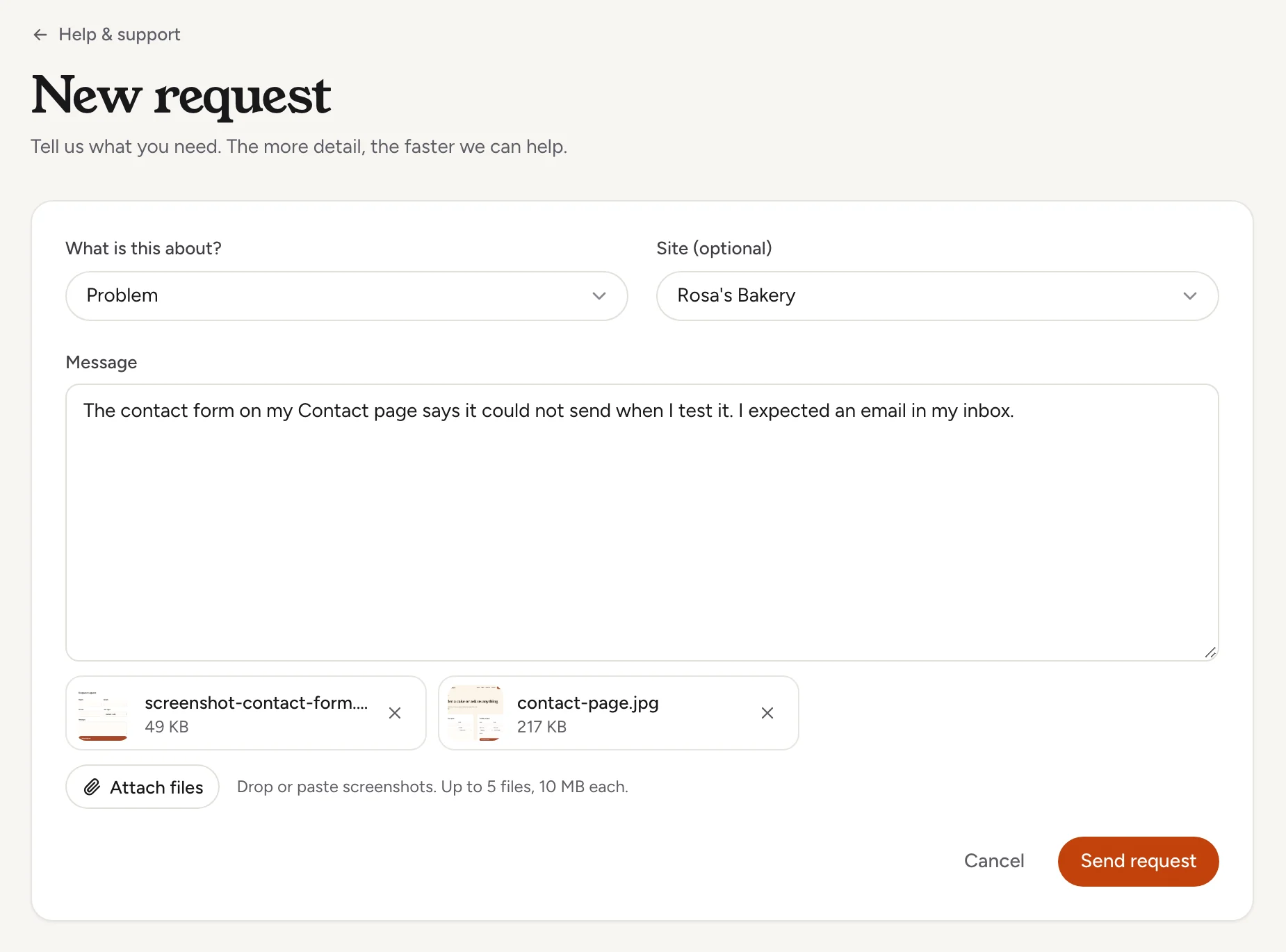
Attach screenshots and files
Press Attach files under the message, drop files onto the message box, or paste a screenshot straight into it. Pasted screenshots get a readable name with the date and time. You can attach PNG, JPEG, WebP, GIF or PDF files. Each file shows as a chip you can remove before you send.
Say where you wereThe more exact the message, the faster we can help. Name the page or screen, what you pressed, and what you saw. A screenshot of the problem is often the quickest way to show it.
Open a support request for Rosa's Bakery, category problem: the contact form on our Contact page says it could not send when I test it. Attach this screenshot: [paste or link the image].Uses list_sites, create_support_ticket. Connect an assistant
What happens next
A new request first gets an automatic first reply, marked Automated reply, so you know it arrived. The Lentil team then answers in the same thread, and you get an email each time. Replies show the team name, never a personal name.
Each request has a number, such as #12, and one of three statuses:
| Status | Meaning |
|---|---|
| Open | We have your message and are working on it. |
| Awaiting your reply | We replied and are waiting for you. |
| Closed | Finished. You can reopen it any time. |
A dot next to a request in the list, and on the Help & support item in your account menu, means the team has replied since you last looked. Opening the request clears it. The list shows each request's subject, number, category, site, status and when it last had activity. If you did not type a subject, Lentil writes a short one from your message.
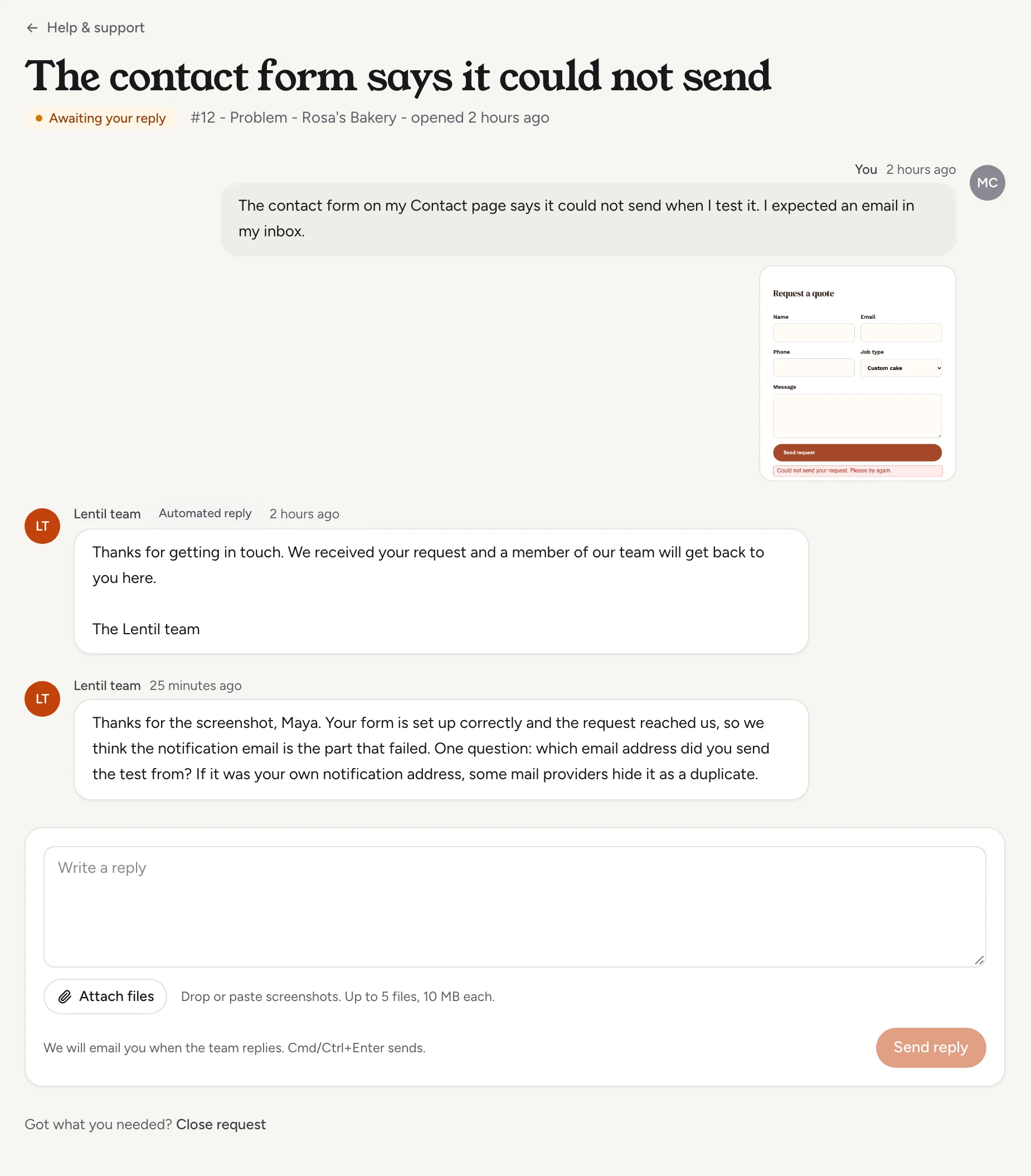
Reply, close and reopen
- Open the request from Help & support.
- Write under Write a reply, attach files if you like, and press Send reply (or Cmd or Ctrl and Enter).
- When you have what you need, press Close request under the thread.
A closed request says This request is closed. Replying to it, or pressing Reopen request, puts it back in our queue as Open.
Has the Lentil team replied to my support request about the contact form? Show me their last message, and if it is solved, close the request.Uses list_support_tickets, get_support_ticket, update_support_ticket. Connect an assistant
Before you write
- Questions about prices, credits or a charge: Plans, billing and credits usually has the answer. For a charge that looks wrong, choose Billing as the category.
- A sign-in problem: see Account and security. If you cannot sign in at all, use Contact support.
- Something you wish Lentil did: choose Feature request.
Who can use it
- Anyone signed in can send requests.
- You see only your own requests. Other people in your workspace do not see them.
- Only you can close or reopen your request.
Limits and edge cases
- You can open 10 new requests in a day. After that the app asks you to add to an existing request or try again tomorrow.
- You can send 60 messages in an hour.
- A message can be up to 10,000 characters. A subject, when one is given, is up to 200.
- A message can carry up to 5 files of up to 10 MB each. Other file types, empty files and files that are too big are refused with a message naming the file. Lentil checks the real file type, not just the name.
- A request about a site can only name a site in a workspace you can access.
- If the automatic first reply is slow, the page checks again every few seconds right after you send, so it appears by itself.
From an AI assistant
An assistant connected to Lentil can open and follow your requests as you. See AI assistants to connect one.
create_support_ticketwithmessage,category(question,problem,billingorfeature), optionallysiteId,subjectandattachments(a file as base64 with afileName, or an https link).list_support_ticketsandget_support_ticket: your own requests and the whole thread, including attachments.reply_support_ticket,get_support_attachmentandupdate_support_ticket(close or reopen).
The same limits apply as in the app: 10 new requests a day and the same attachment rules. An assistant only ever sees and changes your own requests.
Updated 9 November 2026