
Automations and connections
When someone sends a form on your site, Lentil can pass the details on to your CRM, booking system or any web address that takes JSON, on every message or only the ones that match a rule. This page also covers shared connections, signing, testing and the run history.
How automations work
An automation has three parts: When a form is sent, Only if a condition matches, and Then send an HTTP request. It runs in the background after the message is saved in your Inbox, so your visitor never waits for it.
- A visitor sends a form on your site, like any other enquiry.
- Lentil saves it in your Inbox. Spam is filtered out and never sent on.
- Lentil checks Only if. With no condition, every message qualifies.
- Your other system gets a POST request with the fields you chose, signed if you set a secret.
Each automation runs at most once per message. An automation only handles messages that arrive after it exists: it does not go back to older ones.
Not the same as the Automation setting.Site Settings also has a section called Automation. That one is about what happens after the weekly site checks (see Checks and fixes). It has nothing to do with forms.
Before you start
- The address your CRM gives you for new leads or contacts. It has to start with
https://. - The secret or token your CRM asks for, if any. Your CRM's own help usually calls this an API key, a webhook secret or an incoming integration.
- A form on a published page, so the form appears in the Form list. See Forms and inbox.
- At least one real message in your Inbox, so you can test. Send your own form once if it is empty.
Create an automation
- Open Inbox in the site's sidebar and press Settings, then choose the Automations tab.
- Press New automation. The editor has five numbered sections.
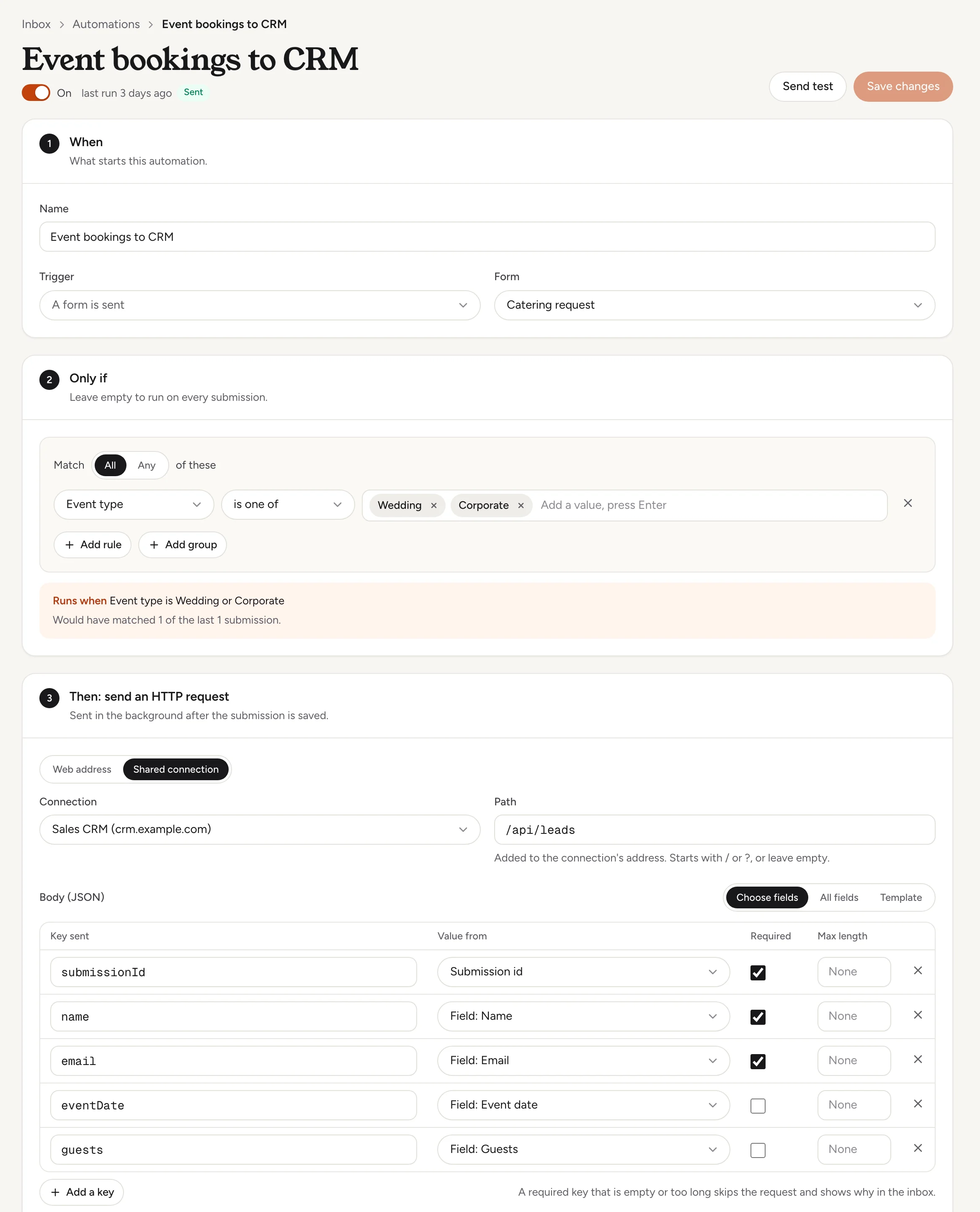
- 1. When: type a Name you will recognise later. The Trigger is A form is sent. Under Form, pick one form or Any form.
- 2. Only if: add a condition, or leave it empty to run on every message (see Only run for some messages).
- 3. Then: send an HTTP request: type the Endpoint address and choose what goes in the Body (JSON) (see Choose what is sent).
- 4. Signing: choose a Method and paste the Secret so your CRM can check the request came from your site (see Signing and secrets).
- 5. Delivery explains how your system's answers are counted and retried (see Delivery and retries). Press Create automation. It starts On.
The list under Automations shows each automation with its on/off switch, its form, its condition, where it sends (POST and the host name) and its last run. Use the switch to pause one without deleting it. Runs already waiting are skipped when you turn it off.
Only run for some messages
A condition is a list of rules. Each rule has a field, an operator and a value. Press Add a condition, then Add rule.
- All or Any above the rules decides whether every rule must match or just one. Add group adds a nested group with the other mode, for example Any of these inside All of these.
- The fields you can check are the Form, each field your forms have (for example Event type), the Page address, the Page path and the Language of the page the visitor used.
- Operators depend on the field: is, is not, contains, does not contain, starts with, ends with, is one of, is not one of, is empty, is not empty, and for email fields domain is and domain is not.
- Under the rules, a plain-English sentence shows what the condition means.
Check your rule before you save.While you edit, Lentil tests the rule against your last 50 real messages and says, for example, Would have matched 3 of the last 12 submissions.
Example: send only event bookings
A restaurant gets many catering enquiries but wants only event bookings in its sales pipeline. Its Catering request form has an Event type drop-down. The automation uses that form and one rule, Event type is one of Wedding and Corporate. Other requests still arrive in the Inbox as usual, they just are not sent on.
On my Rosa's Bakery site, create an automation named "Event bookings to CRM". When the Catering request form is sent and the event type is Wedding or Corporate, POST the name, email, event date and guests to https://crm.example.com/api/leads. Check the rule against my recent messages first and show me the plan before saving.Uses list_automations, preview_automation_condition, create_automation. Connect an assistant
Choose what is sent
Under Body (JSON), three modes decide what your other system receives.
| Mode | What it sends |
|---|---|
| Choose fields | A table where you set each key your CRM receives. For each row pick where the value comes from: Submission id, Field: ... (one of your form's fields) or Fixed text (for example where the lead came from). You can tick Required and set a Max length. Press Add a key for more rows. This is the default. |
| All fields | The submission id, the form, every field the visitor filled in, the page address and the time. |
| Template | Your own JSON. Text values can contain {{field.name}} for a form field and {{submission.id}} for the message id. Each value is escaped, so visitor text cannot break the JSON. |
The Body preview under the table shows exactly what will be sent, with placeholders such as [Email] where the visitor's answer goes. A required key that is empty, or longer than its max length, means the request is not sent and the Inbox shows why.
Under Headers you can add up to 20 extra headers, for example X-Source. Content-Type: application/json and an Idempotency-Key are always sent.
Never put a secret in Headers.Headers are shown in plain text. Use Signing for secrets.
Signing and secrets
Under 4. Signing, the Method tells your other system how to trust the request.
| Method | What Lentil sends |
|---|---|
| None | Nothing. This is the default. Use it only for an address that needs no authentication. |
| Basic (user:password) | A standard Basic sign-in. Type the secret as user:password. |
| Bearer token | The secret as a bearer token. |
| Secret in a header | The secret in a header you name, for example X-Api-Key. |
| HMAC SHA-256, timestamped | A signature your system can verify, in a header you name (it suggests X-Signature). The format is shown under Header format: X-Signature: t=<unix seconds>,v1=<hex HMAC-SHA256 of "<t>.<body>">. Your system recomputes it with the shared secret and checks the time to refuse replays. |
A secret is stored encrypted and is never shown again after you save it. Later the field only shows Set on and a date, with two buttons:
- Replace: the new secret works at once and the old one stops.
- Rotate: the new secret is used, and the old one also keeps working for 24 hours (requests are signed with both), so you can switch your other system over without a gap.
Shared connections
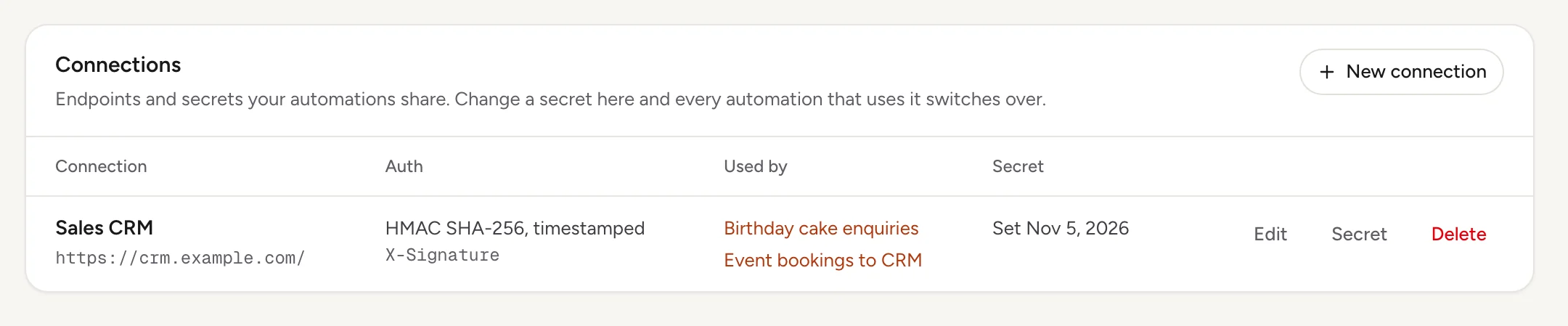
When several automations call the same system, save its address and secret once as a shared connection. Change the secret there and every automation that uses it switches over.
- Open Settings in the workspace part of the sidebar (not a site's settings) and find the Connections section.
- Press New connection. Fill in Name, Base address (HTTPS only, each automation adds its own path), Auth, a Header name if the method needs one, and the Secret. You can also set the secret later with Set secret.
- Press Add connection.
- In an automation, under 3. Then, switch Endpoint from Web address to Shared connection, pick the Connection and type a Path such as
/leads. Signing then comes from the connection.
The table shows each connection's auth, which automations use it (Used by) and when its secret was set. Edit changes the name, address or auth (changing the auth clears the secret, so set a new one or the automations using it will fail). Secret replaces or rotates the secret. Delete is refused while an automation still uses the connection: point those at something else first.
Test it
Save first, then open the automation and press Send test. In Send a test, pick a message from your Inbox and press Send test. Lentil sends it to your other system for real, then shows the exact request (secrets hidden) and your system's answer. This is a real request, so the other system acts on it. A test uses its own request id starting with test_, so it never blocks the real one. If that message would not have matched the form or condition, the dialog says so and still sends.
Send a test of my "Event bookings to CRM" automation using the latest catering request and show me what my CRM answered. Do not change anything else.Uses list_automations, list_automation_runs, test_automation. Connect an assistant
Delivery and retries
| Your system answers | What happens |
|---|---|
| Any 2xx | A success. The run is marked Sent. |
| 408, 429, 5xx, a timeout (10 seconds) or a network error | Tried again after 30 seconds, 2 minutes, 10 minutes, 1 hour and 6 hours, then the run shows Gave up. |
| Other 4xx answers and redirects | Counted as Failed and not retried. Fix the endpoint, the secret or the body, then retry. |
Every attempt for one message carries the same request id (the Idempotency-Key header), so your system can ignore a repeat. Redirects are never followed.
Check what ran
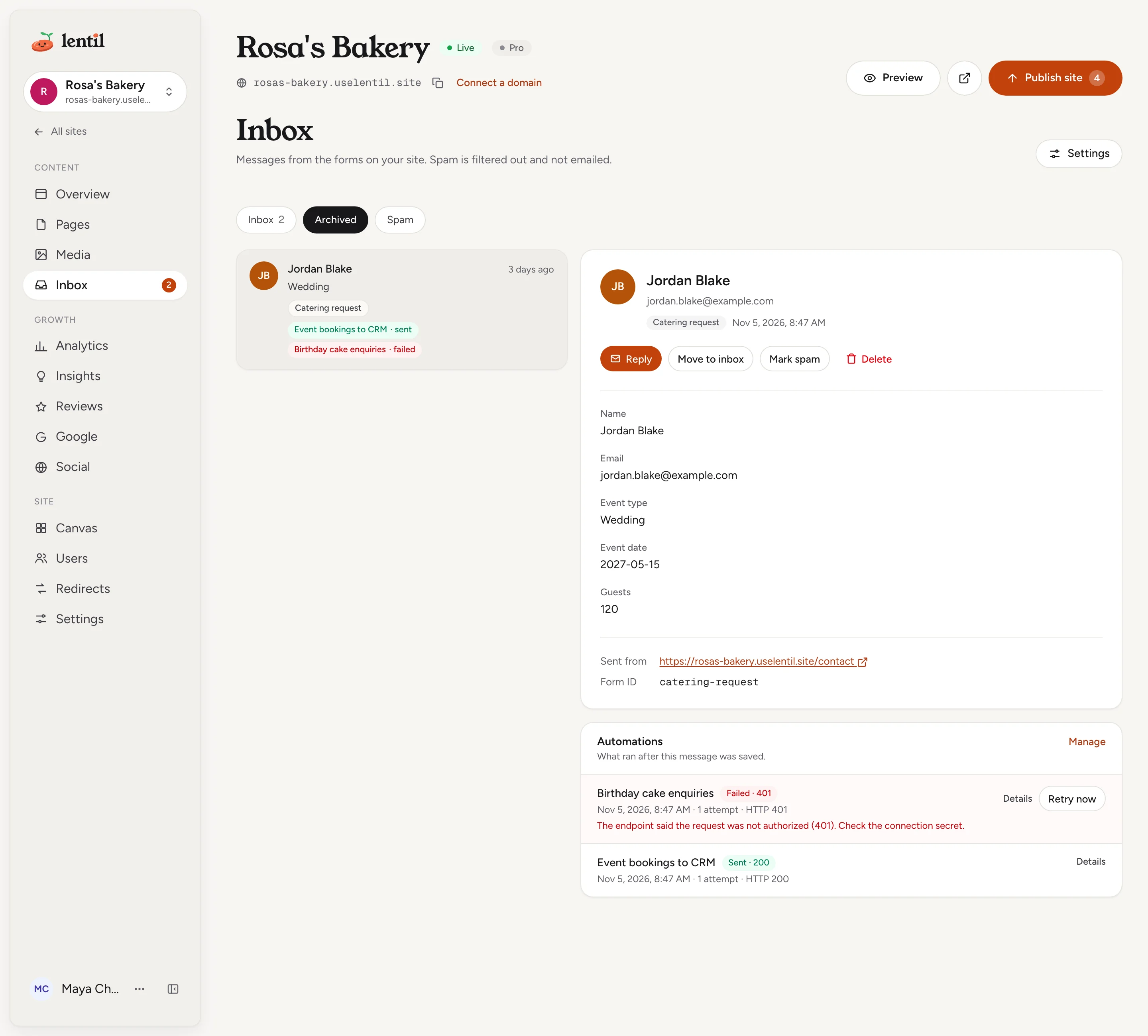
In the Inbox list, a small badge under a message shows each automation that ran for it and its result. Open the message and look at the Automations card: it lists every automation with its status (Sending, Sent, Failed, Skipped, Gave up), the time, the number of attempts and the HTTP code. Press Details to see why it ran, how each rule matched and the first part of your system's answer.
For an automation that did not run, the card says why, for example It is off., Spam is never sent., It only runs for another form., or which rule did not match.
When a run failed or gave up, fix the cause and press Retry now. It is sent again with the same request id.
Privacy and security
You are sending your visitors' details to another company.Only send the fields your CRM needs, and make sure your privacy policy says where enquiries go.
- Endpoints must be
https://and on a public address. Lentil refuses private network addresses and does not follow redirects. - Secrets are stored encrypted and are never shown again after you save them. Only people who manage automations see the first 1 KB of your system's answer.
- Creating, changing and deleting automations and connections is recorded in your account's security activity. See Account and security.
Who can use it
- Automations (create, change, test, retry): owners, admins and members. Clients cannot, because automations send visitors' details outside Lentil. See Team and roles.
- Shared connections: owners and admins create and manage them in workspace Settings. Members and clients cannot create or edit them.
- Plan: no plan is required for automations. They depend on forms, and Free sites have a limit on contact forms. See Plans, billing and credits.
Limits and edge cases
- Up to 10 automations per site, and up to 50 shared connections per workspace.
- Up to 500 requests per site per hour. A run over the limit shows a Held back reason and goes out when the next hour starts.
- Your system has 10 seconds to answer. A request body is at most 16 KB, and a template at most 16 KB.
- Up to 50 keys in Choose fields, up to 20 rules in a condition, up to 20 extra headers.
- A name is up to 80 characters. An endpoint address is up to 2,000 characters.
- Run history is kept for 90 days.
- Spam is never sent. A message you move out of spam with Not spam runs its automations then, once.
- Deleting an automation stops it and deletes its run history and its own endpoint and secret. Deleting a shared connection is refused while it is in use.
From an AI assistant
An assistant connected to Lentil works as you, with your role. See AI assistants to connect one.
list_automationsandget_automation: read a site's automations, their conditions in plain English and their last run.preview_automation_condition: check a draft condition against the last 50 non-spam messages. Nothing is saved or sent.create_automationandupdate_automation: create or change one.enabled: falsepauses it.test_automation: sends one real request for a message you choose and returns the request and the response.list_automation_runsandretry_automation_run: read the run history and send a failed run again.list_connections,create_connection,update_connectionandset_connection_secret: manage shared connections. Secrets are never returned.delete_automationanddelete_connection: withoutconfirmed: truethey only return a preview. An assistant only deletes after you agree.
An assistant cannot read the Inbox itself, so to test with a particular message it finds one through list_automation_runs or you give it the message to use in the app.
Updated 9 November 2026