
The page editor
Change the words, photos and sections of a page right on the page, or describe the change and let the AI make it. Every change is saved as a draft, can be undone, and only reaches your visitors when you publish.
Open a page
- Open Pages in the sidebar of your site.
- Press Edit on a page, or press the page's card or row. On the Canvas view, double-click a page.
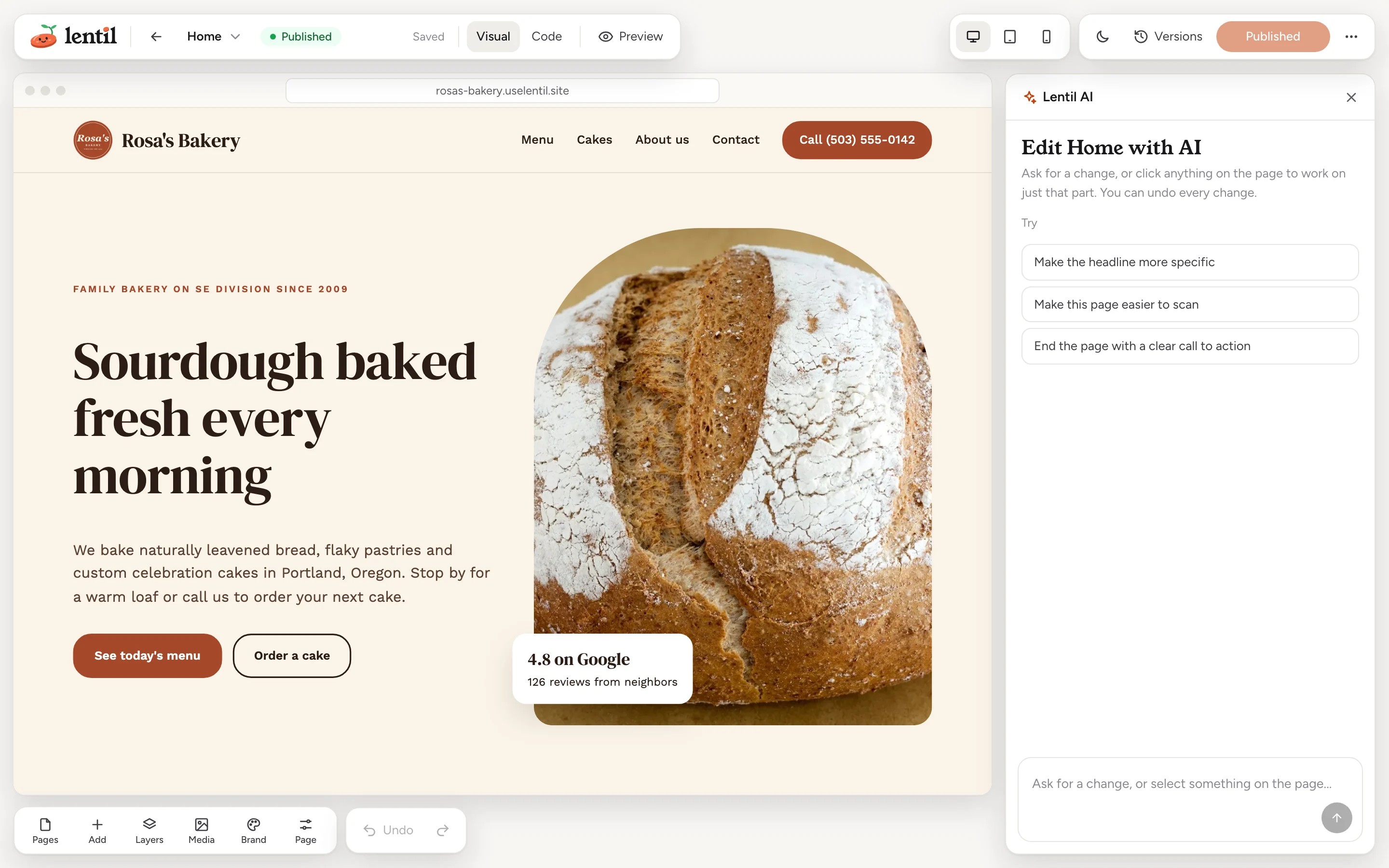
- The editor fills the window and shows the page the way visitors see it. Everything you need floats around it.
| Where | What is there |
|---|---|
| Top left | The back arrow (Back to pages), the page name (press it to jump to another page), the page's state (Draft, Published or Unpublished changes), the save status, the Visual and Code tabs, and Preview. |
| Top right | The preview size (Desktop, Tablet or Mobile), a sun or moon button to see the site in light or dark mode, Versions, the publish button, and a More page actions menu. |
| Bottom left | The panel bar: Pages, Add, Layers, Media, Brand and Page. Next to it, Undo and redo. |
| Right | The AI chat. Press its close button to fold it into an Ask AI button at the bottom right, and press that button to open it again. Versions takes its place while it is open. |
On a narrow window, such as a phone, the panels become one slide-over with three tabs: Edit, AI chat and History.
Change things yourself
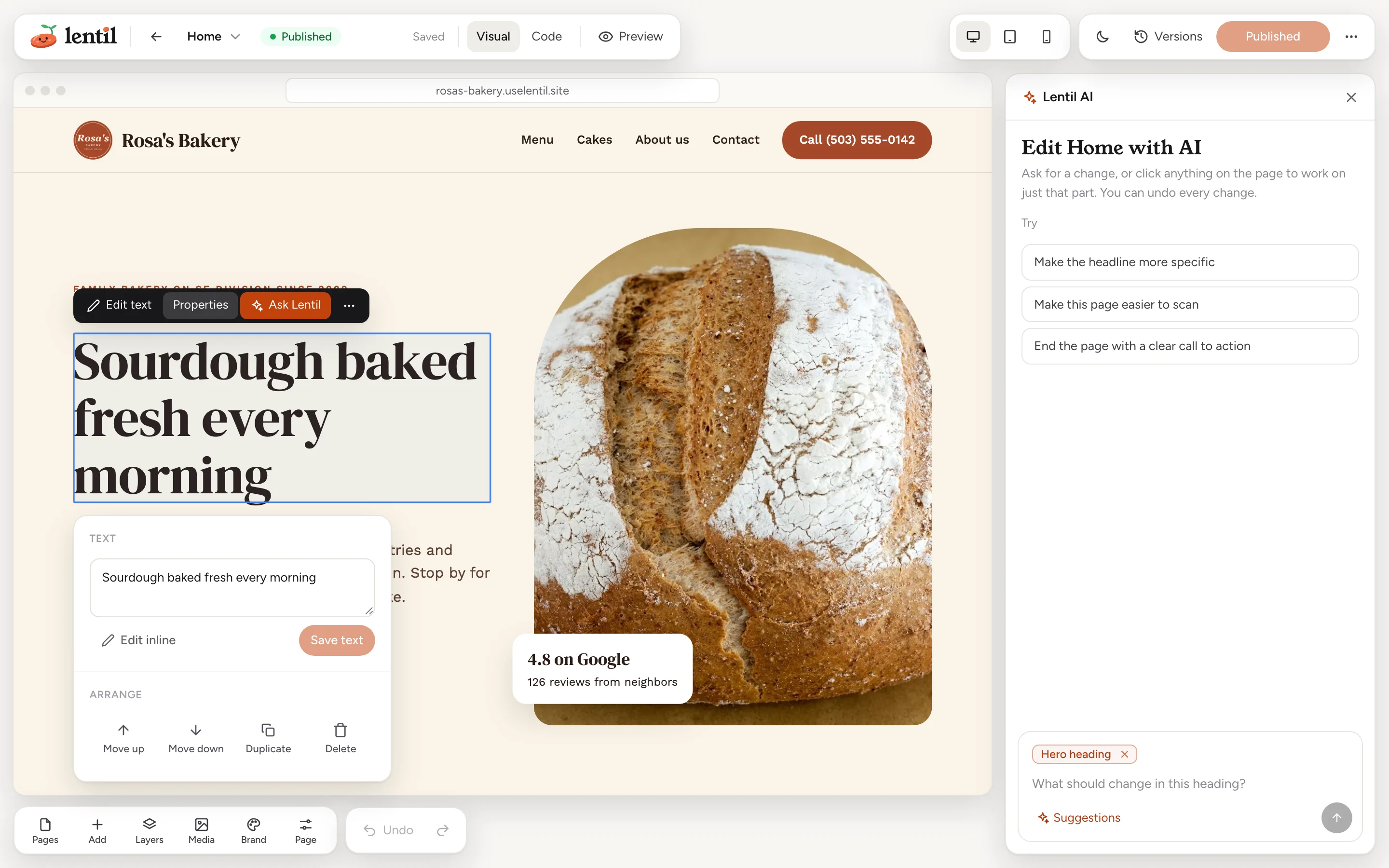
Click anything on the page to select it. A small dark toolbar appears over it with Edit text, Properties, Ask AI and a More actions menu. Press Esc to clear the selection.
Edit text
- Select a heading, paragraph, button or link and press Edit text on its toolbar.
- Type right on the page.
- Click outside the text to save it. Until then the top bar says Editing - not saved yet.
Properties
Press Properties to open the details of the selected element. What you see depends on what you selected:
- Text: a box with the element's words. Change them and press Save text. Press Ctrl or Cmd and Enter to save from the keyboard.
- Image: Replace image opens your media library, where you pick a photo or upload a new one. Alt text is what screen readers read aloud and search engines use, so describe the picture and press the check button to save it.
- Link: Link to takes a page path like
/contactor a full address likehttps://.... Tick Open in a new tab if you want one, then press Save link. The editor warns you when no page exists at the path you typed.
Move, copy and delete
The More actions menu on the toolbar has Duplicate, Move up, Move down and Delete for the selected part. Layers in the panel bar shows the whole page as an outline: click an item to select it on the page, or drag items to reorder them.
Photos from your library
Open Media in the panel bar to see your photos. Select an image on the page and press a photo to swap it, or drag a photo onto an image. Upload adds new ones (see Media).
Ask the AI for a change
The AI chat on the right changes the page the way you would describe it to a person. It saves its changes as a draft, shows what it did, and every change can be undone.
- Type what you want in the box at the bottom of the chat, for example Make the headline more specific. Press Enter to send, or Shift and Enter for a new line. A request can be up to 4,000 characters.
- To change one part only, select it first. Its name appears as a chip above the box (for example Hero heading), and the AI works on just that part. Press the cross on the chip, or Esc, to go back to the whole page.
- Watch the reply. It shows the steps the AI took, and for text changes the before and after wording. Press Show steps for the detail.
- Under the reply, press Looks good to keep it, Try another to get a different take, or Undo to take it back.
On an empty chat, one-tap starters such as Make the headline more specific, Make this page easier to scan and End the page with a clear call to action get you going. You can also press Ask AI on the toolbar to ask about the selected part without opening the chat first.
What the AI can change
- Text, sections, images and links on the page, or a whole new page layout.
- The shared header and footer, which then change on every page.
- Your site's colors and fonts (see Design and theme).
- It can find a photo in your media library or make a new image for the page.
When a request does not finish
If the AI could only do part of it, stops, or hits a problem, the reply is a card that says what was kept and what was not done, with buttons such as Try again, Finish the rest, Keep going or Undo all of this. Undo all of this puts the page, header and footer back to how they were before the request. Color and font changes stay as they are. It is refused, changing nothing, when someone saved the page, header or footer again after the request.
One request at a timeThe AI works on one request per site at once. While it works, the box says so and a stop button replaces send. If it is editing another page of your site, wait for it to finish. Press the stop button to cancel a request. The reply then says what was already changed.
CreditsAI requests use AI credits from the workspace. When credit limits apply to you, each reply says how many credits it used and the chat warns you when the balance runs low. Editing yourself, previewing and publishing never use credits. See Plans, billing and credits.
On the Home page of my Lentil site, change the main headline to "Sourdough baked fresh every morning" and add our new Saturday hours (7am to 2pm) under the opening paragraph. Show me a screenshot of the page when you are done. Do not publish.Uses list_pages, get_page, edit_page, get_page_thumbnail. Connect an assistant
Add sections and elements
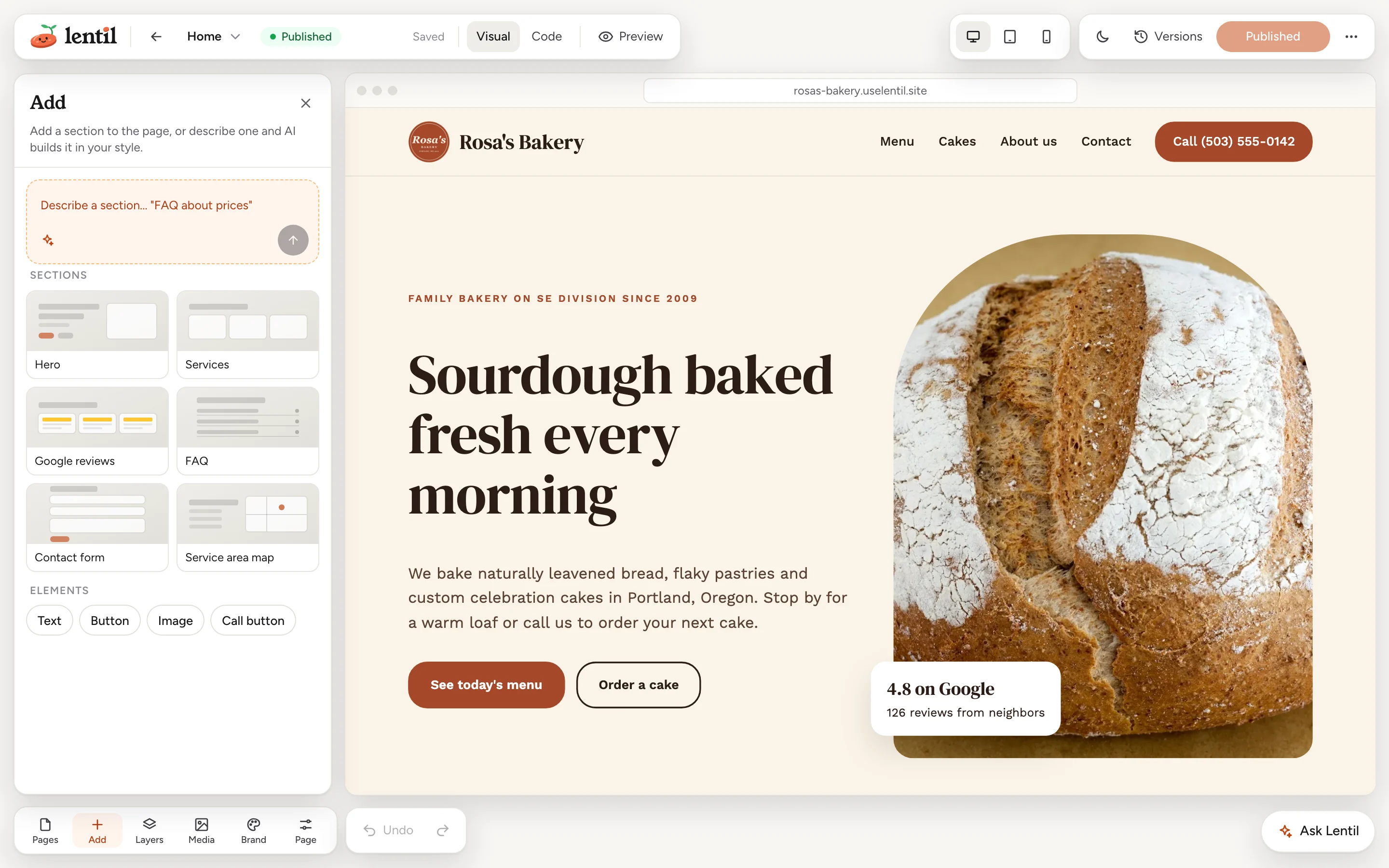
Open Add in the panel bar for the section library: ready-made blocks that use your site's colors and fonts, with placeholder words for you to replace.
- Optionally select the part of the page you want the new block next to.
- Press a block in the panel. It is added and selected so you can start editing it.
- Replace the placeholder words and photos with your own.
A section goes after the section you selected (at the end of the page when nothing is selected, and at the top of the page when you selected the shared header). An element goes right after the part you selected. Undo takes either back.
| Block | What it is |
|---|---|
| Hero | The opening section: a headline, one line of text, two buttons and an image slot. On a page that already has a main headline, the new headline becomes a section heading. |
| Services | A heading, an intro line and three service cards. Add or remove cards as you need. |
| Google reviews | Three review cards with star ratings and a link to your Google reviews. Replace the placeholders with real reviews only. |
| FAQ | Questions that open to show their answers. |
| Contact form | A contact form that sends messages to your inbox. It counts against the site's limit on forms (see Forms and inbox). |
| Service area map | The areas you serve as a list beside a map image, with a directions link. |
| Text, Button, Image, Call button | Single elements. Image asks you to pick a photo first. Call button dials your business phone, so it is greyed out until you add a phone number in Business profile. |
Where a block has an empty image slot, select it and press Choose image to fill it from your library.
Describe a section
At the top of the Add panel, Describe a section asks the AI to build one in your site's style. Type what you need, for example FAQ about prices, and press send. The panel says Building your section..., and the new section appears at the same spot a library section would go and is selected. This uses AI credits like any AI request.
Add an FAQ section to the bottom of my Services page with four questions about pricing and booking, using the facts in our business profile. Do not publish.Uses list_section_library, get_business_profile, edit_page. Connect an assistant
Header and footer
The header and footer are shared: you build them once and every page shows them. Open Pages in the panel bar and look under On every page. Edit selects the part on the current page. A part you have not set up yet says Not set up yet, and Add puts a ready-made request for the AI in the chat (for example to add a header with your logo, a link to each page and a call button). You read it and press send.
Header and footer changes are live straight awayUnlike page edits, a change to the header or footer, and a change to the colors and fonts, goes live on every published page right away. It does not wait for you to publish. The editor tells you so with a message such as Header updated on every page.
Undo, redo and earlier versions
Every change you make creates a saved version of the page, so nothing is ever lost.
- Undo and redo sit at the bottom left, or use Cmd and Z (undo) and Cmd Shift Z (redo). They cover your edits, AI changes, and header and footer edits made in this editor, up to the last 50 steps.
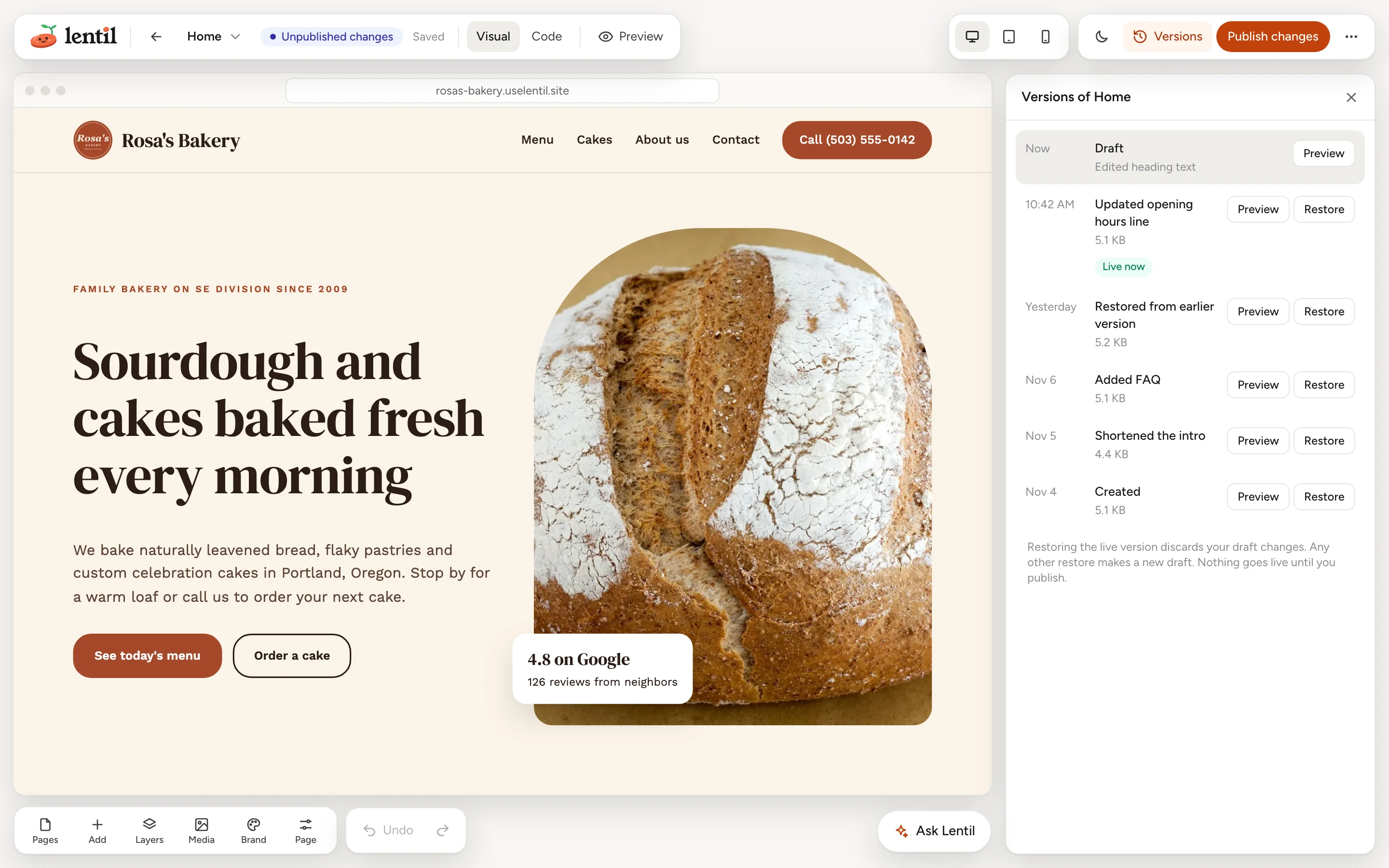
- Versions at the top right lists every saved version of the page as a timeline, newest first. The one you are on says Draft (or Live version when nothing is waiting), and the one visitors see has a Live now badge.
Bring back an earlier version
- Press Versions.
- Press Preview on a version to open it in a new tab and look.
- Press Restore on the one you want. It becomes your draft, and the restore is added to the history as a new version. History is never rewritten.
- Press Publish changes to make it live.
Restoring the live version is different: it throws away your draft changes and leaves the page with nothing to publish.
Preview your page
- Press the Desktop, Tablet or Mobile buttons to see the page at 1280 pixels, 768 pixels or 390 pixels wide.
- Press the sun or moon button to preview the site in light or dark mode. This changes only what you see, not the site, and not the editor's own colors.
- Press Preview to use the page like a visitor: clicks follow links and forms behave normally. Press Edit in the same place to go back.
- Open More page actions and choose Open preview in a new tab to see the saved draft on its own, or View live page to see what visitors see now.
Page settings and code
Page in the panel bar opens the page's settings: its Page title (used in navigation and, unless you set one, in search results), the SEO title, Meta description, Page type, Social image, and a box to hide the page from search engines. Change what you need and press Save. The fields are explained in SEO and AI visibility. The same panel has Set as home page on any page that is not the home page (see Pages and redirects).
The Code tab next to Visual shows the page's HTML for people who know it. Edit it, then press Save (Cmd S); saving creates a new version. While you have unsaved HTML, the AI, page settings and publishing are paused: save or Discard first. Custom code that applies to the whole site is in Advanced: code, tracking and CSS.
Who can use it
- Owners, admins, members and clients can edit pages and publish them. A client can do this on the sites shared with them. See Team and roles.
- Changing the shared header and footer and the brand colors and fonts needs the permission to change site settings, which all four roles have.
- Everything on this page works on both the Free and the Pro plan. Adding a Contact form block is subject to the plan's limit on forms, and AI requests use AI credits. See Plans, billing and credits.
Limits and edge cases
- The save status in the top bar reads Saving..., then Saved. Not saved means the last change did not go through: try it again. Not saved - page changed means someone else, or an AI request from another window, changed the page: reload to get the latest version before you keep editing.
- A request to the AI can be up to 4,000 characters. Only one AI request runs at a time on a site, and it is paused while you have unsaved HTML.
- Undo and redo keep the last 50 steps while the editor is open.
- Photos you upload from the Media panel can be PNG, JPEG, WebP, GIF, AVIF or SVG, up to 10 MB each.
- A page title can be up to 120 characters, and so can the SEO title. The meta description can be up to 320 characters; search engines usually cut it off after about 160.
- When your site has other languages, a language switcher joins the top bar. Translated pages follow the English one, so in a translation the Code tab, the AI and the page settings are switched off. Switch back to English to use them. See Languages.
- If the page is deleted or your access is removed while you are in the editor, a notice says so and offers to copy any text you typed that was not saved.
- A page cannot be deleted while an AI request is working on it.
From an AI assistant
An assistant connected to Lentil edits pages with the same rights as you. See AI assistants to connect one. Everything it does to a page is a draft until you publish.
list_pagesandget_pageread your pages.get_pagereturns the page's HTML with adata-bidid on every element, and thecurrentVersionIdthe assistant must pass back asbaseVersionId, so it never overwrites a newer version.edit_pagechanges up to 20 elements at once (set text, replace, move, duplicate, remove, insert, set a link or an image's alt text) as one version.replace_page_htmlreplaces the whole page body for large rewrites.list_section_libraryreturns the same blocks as the Add panel, so an assistant adds a Hero or FAQ the same way you do.list_page_versions,get_page_versionandrestore_page_versionare the history.get_page_thumbnailshows how the page looks.update_page_settingssets the page title and SEO fields.edit_shared_part,get_shared_partandrestore_shared_part_versionwork on the header and footer, andupdate_themeon colors and fonts.
Safety rules: an assistant publishes only when you clearly say so (publish_page), and deleting a page asks you first. The header, footer and theme go live the moment they are saved, so a good assistant tells you before it changes them.
Updated 9 November 2026