
Sites and workspaces
A workspace is the home of your team, your plan and your AI credits. Sites live inside it. This page shows how to find and manage your sites, change a site's settings, rename a workspace, move a site to another workspace, and delete a site for good.
The sites list
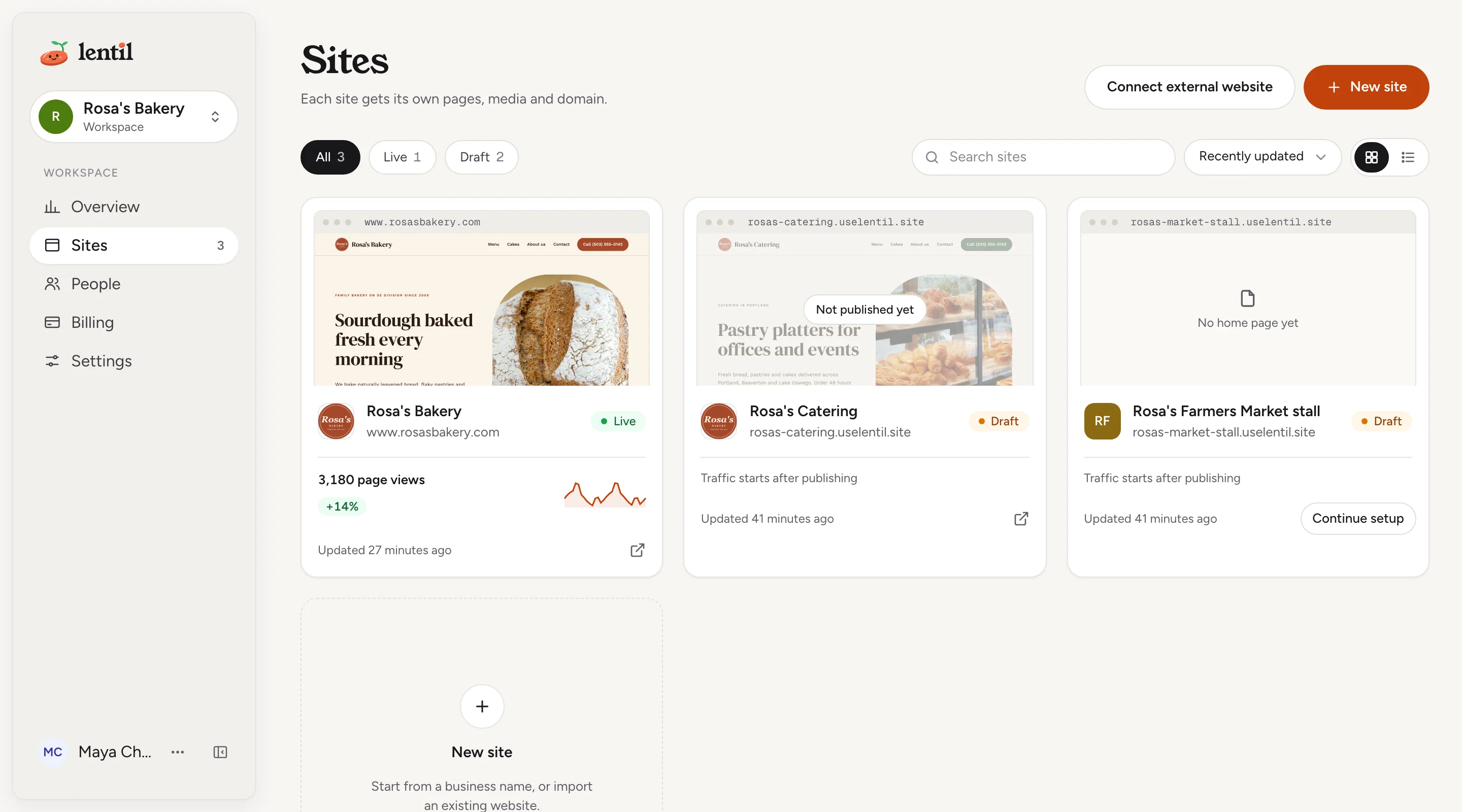
Sites is the first item in the sidebar. It shows every site you can open in the current workspace as a card with a preview of its homepage.
- Each card shows the site's name and address, a status of Live, Draft or External (a site connected from another host), and when it was last updated. A custom domain shows as Custom.
- Icons on a card open the live site (Visit site) or the draft (Preview draft). A draft that has never been published shows Not published yet.
- A site whose setup is not finished shows Continue setup. See Setup and your first design.
- Filter with All, Live or Draft, search by name with Search sites, and sort by Recently updated, Name or Recently created. Switch between cards and a list with the layout toggle.
- Press New site to add a site, or Connect external website to connect one that stays hosted elsewhere. See Getting started and Already have a website.
If you are a client, you only see the sites shared with you. A client with none sees No sites yet and a note to ask the person who invited you.
Switch between sites and workspaces
- To change workspace, press the workspace name at the top of the sidebar and choose another. The app reloads in it.
- To open a site, press its card on Sites. Inside a site, press All sites to go back, or press the site's name at the top to switch to another site.
Add a workspace
Use separate workspaces to keep sites, people, billing and credits apart, for example one per business you run.
- Press the workspace name at the top of the sidebar and choose New workspace.
- Type a Workspace name (up to 80 characters) and press Create workspace. You become its owner.
Rename a workspace
- Open Settings in the workspace section of the sidebar. It shows General: the name shown in the workspace switcher and in invitation emails.
- Change the Workspace name and press Save.
The page also holds the workspace's shared connections for automations, covered in Automations and connections. People are on Team and roles, and billing and credits on Plans, billing and credits.
Change a site's settings
Open the site, then Settings in the Site group. Settings is one page with a list of sections on the left (a menu on a phone). Changes in the sections are saved together.
- Pick a section on the left. A dot next to a section means it has unsaved changes.
- Change what you need. If a field has an error, the bar at the bottom offers a Review button that takes you to that section, and Save changes stays off until it is fixed.
- Press Save changes at the bottom, or Discard to throw the changes away. After a save the bar reads All changes saved. If your site is live, the notice says that published pages are being updated and how many.
Leaving the page with unsaved changes asks you first.
| Section | What it holds | More |
|---|---|---|
| Business profile | The site type, contact, services, hours and social. It is called About you on a portfolio, Product profile on an app or product, and Organization profile on a club or group. | Business profile |
| Appearance | Colors, fonts and corners used on every page. | Design and theme |
| Search & sharing | Website name, search description, indexing and link previews. | SEO and AI visibility |
| Languages | Translated versions of your site. | Languages |
| Domains | The web addresses that open this site. | Domains |
| Notifications | Who is emailed when someone submits a form. | Forms and inbox |
| Automation | What happens on its own after the weekly checks. | Checks and fixes |
| Plan | What this site includes and what it costs, with Free and Pro compared. | Plans, billing and credits |
| Advanced | Shared header and footer HTML, site CSS, tracking code, and the move and delete controls at the bottom. | Advanced: code, tracking and CSS |
A site connected from another host has a shorter Settings page: its installation, then move and delete. See Already have a website.
Change what the site is for
In the first section, Site type sets what the site is for: a local business, a portfolio, an app or product, or a club or group. It decides which details are asked for below, what search engines are told, which checks run, and which Google tools are offered. It saves as soon as you pick. Details a type does not use are kept, not deleted.
List my Lentil sites with their status, kind and address. Which ones are still drafts or have unfinished setup?Uses list_workspaces, list_sites, get_site. Connect an assistant
Move a site to another workspace
Move a site when it was built in the wrong workspace, or when a client takes over the site. Nothing public changes: the live address, custom domains, published pages, media links and forms stay exactly as they are.
- Open the site's Settings then Advanced. Find Move to another workspace near the bottom.
- Under Move to, choose a workspace and press Review move. You need to own or administer another workspace to see any.
- Read the dialog Move your site to that workspace. It lists what Stays exactly as it is, what Moves with the site, What changes, and what stays in the old workspace.
- If a warning blocks the move, fix it first (see Limits and edge cases). Otherwise press Move site. The app opens the site in its new workspace.
- Moves with the site: pages, drafts, releases, shared header and footer, theme, settings, media, form submissions, redirects, analytics and checks, custom domains with their certificates, and a bought domain with its renewals. A connected Google account moves with its Search Console and Business Profile links.
- Stays behind: AI usage and credit history, billing, the subscription, and the free-sample record of the old workspace.
- What changes: people in the old workspace lose access and people in the new one get it. Clients assigned to the site lose access until you invite them to the new workspace. Renewals of bought domains are charged to the new workspace's saved card.
Pro sites on a paid subscriptionA site that is Pro on a seat of its workspace's paid subscription cannot move. Downgrade it to Free first, then move it. See Plans, billing and credits.
Move my Rosa's Catering site from the Rosa's Bakery workspace into my new Rosa's Catering workspace. Show me what moves and what changes first, and wait for me to say yes.Uses list_workspaces, move_site. Connect an assistant
Delete a site
Deleting removes every page, image, form submission and connected domain for good, and takes the website offline. This cannot be undone.
- Open the site's Settings then Advanced. At the bottom, in Delete this site, press Delete site.
- Type the site's name where it says Type the name to confirm.
- Press Delete forever.
For a site connected from another host, deleting removes its installation, ownership proof and collected analytics. Your own website stays online at its current host; remove the snippet from it afterwards.
Export firstDeleted sites cannot be restored. Download anything you need, such as form submissions, before you delete. To pause a site instead, unpublish its pages (see Publishing).
Who can use it
| You can | Owner | Admin | Member | Client |
|---|---|---|---|---|
| See the sites you are given and open their settings | Yes | Yes | Yes | Yes, shared sites only |
| Create a site | Yes | Yes | Yes | No |
| Rename the workspace, manage its connections | Yes | Yes | No | No |
| Move a site to another workspace (and be an owner or admin of the target) | Yes | Yes | No | No |
| Delete a site | Yes | Yes | No | No |
- Anyone signed in can create a new workspace; they own it.
- Owners, admins and members see every site in a workspace. A client sees only the sites they are assigned. See Team and roles.
- Everything on this page works on the Free plan. A Pro site on a paid subscription must be downgraded before it can move.
Limits and edge cases
- A workspace name and a site name are up to 80 characters. A workspace name cannot be empty.
- A subdomain is 3 to 40 lowercase letters, numbers and hyphens, and must be unused.
- A workspace can have up to 3 external sites. A move into a workspace that already has 3 is blocked.
- A move is blocked while any of these is true. The dialog names the one that applies:
- the site is Pro on a seat of a paid subscription, or that seat is paused or still being assigned
- pages are still being built for the site
- a custom domain change is in progress, or a domain is still being bought for the site
- the target workspace would go over its limit of shared connections
- Pending client invitations that include the moved site no longer include it; invitations with no other site are cancelled.
- Automations that use shared connections may be turned off or pointed to copies when a site moves, and the dialog lists them. A copied connection arrives without its secret.
- Deleting needs the exact site name typed. The move and delete controls only show to people who are allowed to use them.
From an AI assistant
An assistant connected to Lentil works as you, with your role in each workspace. See AI assistants to connect one.
list_workspaces: your workspaces with ids, your role, and whether you can create sites or move sites there.list_sitesandget_site: every site you can manage across workspaces, with role, kind, status, editor link and live address.create_site: create a site in a workspace. Passkind,businessProfileandexistingSiteUrlto give it a head start.update_site_kind: change what the site is for.move_site: move a site to a workspace you own or administer.
Safety rules: move_site without confirmed: true only returns the preview. The assistant must show it to you and call again with confirmed: true only after you agree. There is no tool to delete a site or a workspace: those are done in the app.
Updated 9 November 2026