
Public API
Everything an AI assistant can do in Lentil, you can do from your own scripts and apps over HTTP. Every tool is one endpoint, with the same inputs, permissions, limits and results. This page is for developers.
BetaThe API is in beta: tool names and inputs may still change. Every Lentil account can use it.
How it works
The API is a third way in, next to the app and the AI assistant connector. It is built on the same list of tools the assistants use, so every tool you can see there is an endpoint here, and nothing is added or left out per tool.
- Base URL:
https://app.uselentil.com/api/v1 - Requests and responses are JSON. Every tool is
POST /tools/{name}with the tool's input as the body. - It is for servers. No cookies are read and no CORS headers are sent, so a browser page cannot call it. Keep your key on a server.
- You see only the tools your account can use. A tool you may not use answers exactly like one that does not exist.
Create an API key
- Open Profile from the menu with your name at the bottom of the sidebar, then the Security tab. Signed in, you can also go straight to the API keys card.
- In the API keys card, press Create key.
- Under Name, say what the key is for, for example Inventory sync, and press Create key.
- The dialog Your new API key shows the key once. Press the copy button and store it somewhere safe, like a password manager. You will not see it again.
The card lists each key with its name, a short hint (the start of the key, never the secret), when it was created and when it was last used. Press Revoke and confirm in Revoke API key to stop a key at once: anything using it gets a 401 until you give it a new key.
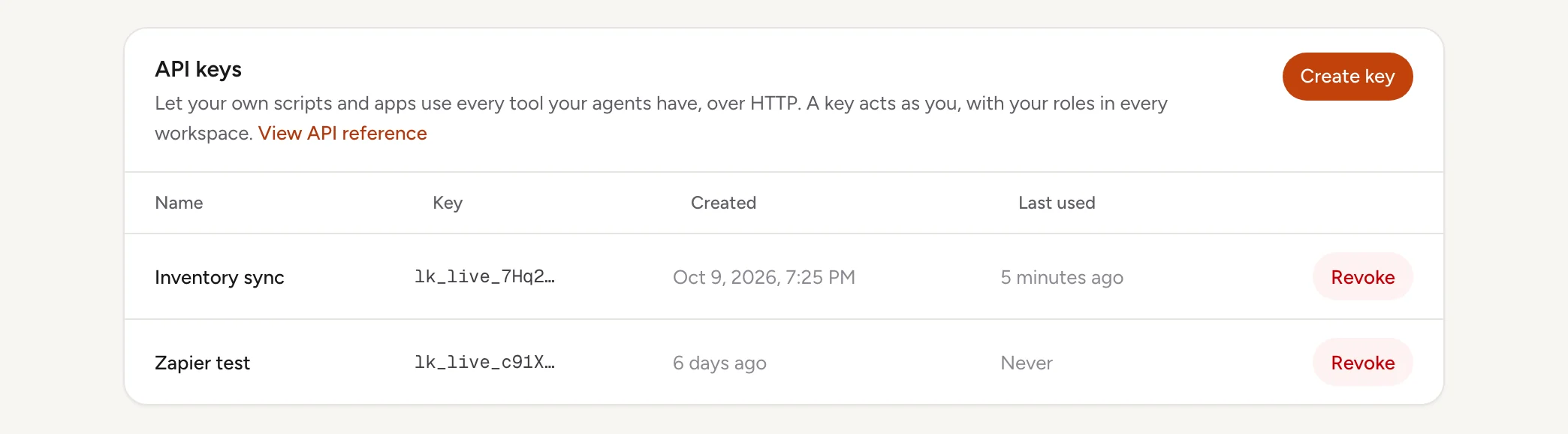
- A key acts as you, with your roles in every workspace, exactly like a connected assistant, until you revoke it.
- You can have 20 active keys. Revoke one to make room.
- A key name is 1 to 60 characters.
- Creating and revoking a key shows up in Recent security activity.
- Sign out everywhere else does not touch API keys: revoke them in the card.
Create an API key called Inventory sync, and remind me to store it safely because it is only shown once.Uses create_api_key, list_api_keys, revoke_api_key. Connect an assistant
Authenticate
Send the key in the Authorization header on every request.
Authorization: Bearer $LENTIL_API_KEYAn OAuth access token from the assistant connector flow works in the same header. It sees the same tools an assistant sees, and it expires after an hour like any connector token. Most scripts should use a key instead.
Credentials are checked on every request, together with the account itself: a revoked key, an expired token or a disabled account is a 401 at once.
List the tools
GET/tools returns every tool you can use, each with its name, title, description, and JSON Schemas for its input and result.
curl https://app.uselentil.com/api/v1/tools \
-H "Authorization: Bearer $LENTIL_API_KEY"GET/openapi.json describes the same tools as an OpenAPI 3.1 document, for generating a client or loading into an API tool. It lists only the tools your account can use.
curl https://app.uselentil.com/api/v1/openapi.json \
  -H "Authorization: Bearer $LENTIL_API_KEY" -o lentil-openapi.json
To look before you sign up, the same document for every tool any account can use is public, with no key: uselentil.com/docs/api/openapi.json. The tool reference at the end of this page is built from it.
Call a tool
POST/tools/{name} with the tool's input as a JSON object. Send an empty body, or {}, for a tool without input.
curl https://app.uselentil.com/api/v1/tools/list_sites \
  -H "Authorization: Bearer $LENTIL_API_KEY" \
  -H "Content-Type: application/json" \
  -d '{}'
Success is HTTP 200 with the result:
{ "result": { "sites": [ { "id": "...", "name": "Rosa's Bakery" } ] } }A result with images or other rich content also has a content array of the same content blocks an assistant receives. Ids such as siteId and pageId come from earlier calls: list_workspaces, list_sites and list_pages.
Read, edit, then publish
Page edits follow the same safe order as in the app. Read the page, send your change with the version you read, and the edit is saved as a draft. Nothing is live until you publish.
curl https://app.uselentil.com/api/v1/tools/get_page \
  -H "Authorization: Bearer $LENTIL_API_KEY" \
  -H "Content-Type: application/json" \
  -d '{"siteId": "SITE_ID", "pageId": "PAGE_ID"}'
The result has the page's currentVersionId. Pass it as baseVersionId to edit_page. If someone changed the page since, the call fails with 409 version_conflict and the current version: read again and retry. Versions made this way are labelled "(via API)" in the editor's version history.
Confirmations
Tools that publish, delete, spend or change a plan take confirmed: true, and you should send it only after a person agreed. publish_page requires it: without it the call fails with a 400 and nothing goes live. Tools that can preview, such as deleting a page or changing a plan, answer with a preview when you leave it out.
curl https://app.uselentil.com/api/v1/tools/publish_page \
  -H "Authorization: Bearer $LENTIL_API_KEY" \
  -H "Content-Type: application/json" \
-d '{"siteId": "SITE_ID", "pageId": "PAGE_ID", "confirmed": true}'I want to write a script that updates my opening hours on Lentil every morning from a spreadsheet. Which tools should it call, in what order, and what inputs do they need?Uses get_business_profile, update_business_profile, get_page, edit_page. Connect an assistant
The in-app reference
The full list of tools, with every input field, its type and whether it is required, is in the app at /settings/api (app.uselentil.com/settings/api). You can also reach it with View API reference in the API keys card. It is built from the same OpenAPI document and shows only the tools your account can use, while the tool reference on this page lists every tool any account can use. Both have a search box.
Errors
A failure is an HTTP error status and a JSON body. The message is the same text an assistant would read, and says what to do next.
{ "error": { "code": "version_conflict", "message": "...", "details": { "currentVersionId": "..." } } }The status says the kind of failure, and code says exactly which. details is there when the error has structured facts.
| Status and code | Meaning |
|---|---|
401 unauthorized | No key or token, or one that is malformed, unknown, revoked or expired, or its account is no longer active. The response has a www-authenticate header. |
404 not_found | No such route. |
404 tool_not_found | No tool with that name is available to you. |
405 method_not_allowed | Use GET for /tools and /openapi.json, and POST for /tools/{name}. The allow header says which. |
400 invalid_json | The body is not valid JSON. |
400 invalid_input | The input does not match the tool's schema. details.issues lists each field and problem. |
| 402 | Out of AI credits (insufficient_credits), or a plan limit such as page_limit, storage_limit or custom_domain. See Plans, billing and credits. |
403 forbidden | Your role does not allow this. |
| 409 | A conflict, such as version_conflict: read again and retry. |
| 410 | The stored content you asked for is no longer there, such as an old page version (version_body_missing). |
| 422 | A rule refused the request. The message says which. |
429 rate_limited | Too many requests. See Rate limits. A few tools have their own limits and answer 429 with their own code. |
500 internal | Something went wrong on our side. Try again; if it keeps happening, contact support. |
Tools add their own codes, for example site_not_found or payment_failed. Branch on the code, not the message text.
Rate limits
Each key, and each OAuth connection, can make 120 requests a minute. Past that the API answers 429 rate_limited with a retry-after header of 60 seconds. AI credits and plan limits apply exactly as in the app.
Who can use it
- Anyone with a Lentil account can create keys in their profile. It is a personal key: it can do what you can do, no more.
- Your role in each workspace decides which tools work and which sites they reach. A client's key sees only the sites shared with that client.
Limits and edge cases
- 20 active keys per person, 1 to 60 characters per name, shown once.
- The key list shows Last used updated at most every 10 minutes, so it can lag.
- The list of tools you see can change as your roles or feature access change. Read
/toolsagain rather than caching it for long. - Tool names and inputs may still change while the API is in beta. The OpenAPI document is the contract for your account today.
- Keys do not work from a browser: there is no CORS and no cookie sign-in.
- A revoked key cannot be turned back on. Create a new one.
From an AI assistant
An assistant can manage your keys as you, but the key itself is a secret.
list_api_keys: your active keys with their hints and last used time, never the secret.create_api_keywith aname: returns the key once. The assistant should hand it to you straight away and tell you to store it safely.revoke_api_keywithkeyId: withoutconfirmed: trueit only previews which key would stop working. The assistant passesconfirmed: trueafter you agree.
Tool reference
Every tool any Lentil account can use, grouped by area, with its input fields. It is generated from the API itself, so a new tool shows up here as soon as it is available to everyone. Your role in each workspace decides which of them your key can call.
Download it as an OpenAPI 3.1 file for Postman, Insomnia or a client generator: openapi.json.
The tool reference loads here. If it does not, open openapi.json or the in-app reference.
Updated 9 November 2026