
Forms and inbox
Add a contact form to a page, read what visitors send in your Inbox, keep spam out, and choose who gets an email for each new message. Every message is saved in the Inbox, even when nobody is emailed.
Add a form to a page
A form is part of a page. You do not build it field by field: ask the AI in the page editor for the form you need, in plain words, and it adds one that sends to your Inbox.
- Open the page in the editor. See The page editor if you have not used it yet.
- Ask for the form, for example: Add a quote request form with name, phone, job type and a message.
- Check the result in the preview, then publish the page. See Publishing.
The form starts taking messages when the page is live. A form on a draft page, or on a site that is not live yet, does not send anything to your Inbox.
Each form has a name.The name the page gives the form (for example Request a quote) is what you see on every message, in the email subject and when you pick a form for an automation. If you run more than one form, give each a clear name by asking the AI in the editor.
Read your messages
Open Inbox in the site's sidebar, under Content. The number next to it is how many messages are new. On a phone, press Open menu first.
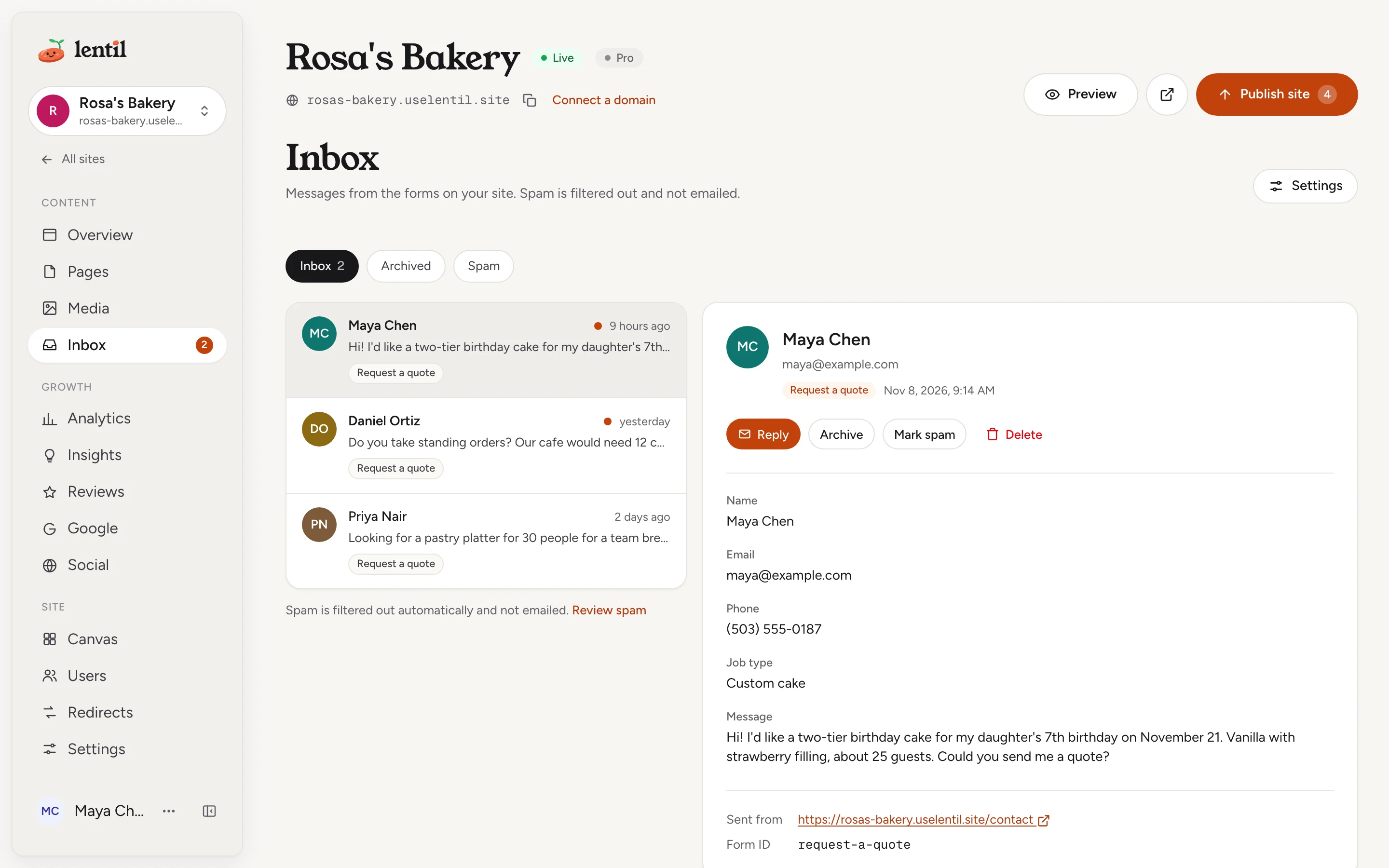
The chips above the list switch between three views.
| View | What is in it |
|---|---|
| Inbox | Every real message from your forms, new and read. The badge counts the new ones. |
| Archived | Messages you put away. They stay until you delete them. |
| Spam | Messages the spam filter caught. They are not emailed to anyone. The badge counts the messages in it. |
Press a message to open it. A new message is marked read when you open it. The list shows the sender, a short preview, which form it came from and when it arrived. Unread messages are in bold with a dot. Press Load more at the end of the list for older ones.
The open message shows every field the visitor filled in, the form it came from, and where it was sent from:
- Sent from: the page on your site that held the form. Press it to open that page.
- Came from: the page the visitor was on before yours, when the browser shared it.
- Form ID: the form's short internal name.
Reply, archive, mark as spam or delete
- Reply opens your email app with a new message to the visitor. It only shows when the visitor left a valid email address.
- Mark unread turns a read message back into a new one, so the count shows it again.
- Archive moves the message to Archived. In that view the button is Move to inbox.
- Mark spam moves it to Spam. In that view the button is Not spam.
- Delete asks you to confirm in Delete submission, then removes the message and its details for good.
Found something real in Spam?Open it and press Not spam. It moves to your Inbox, you get the email for it like any other message, and any automation it skipped runs now.
Spam protection
Lentil checks every message before it reaches you. A message goes straight to Spam when it looks like a bot:
- it fills in a hidden field that real visitors never see, or
- it was sent within three seconds of the page loading.
More than three links and stock spam phrases such as "buy now" or "click here" also count against a message. Together they can tip it into Spam, but one link-heavy message on its own still reaches your Inbox.
Open a spam message to see the reason under Flagged as spam. Spam is never emailed and never sent to your automations. Lentil can also ask a visitor to pass a quick human check before the form sends, and it limits how often one visitor can send a form, so a flood of messages cannot bury your Inbox.
Get an email for each message
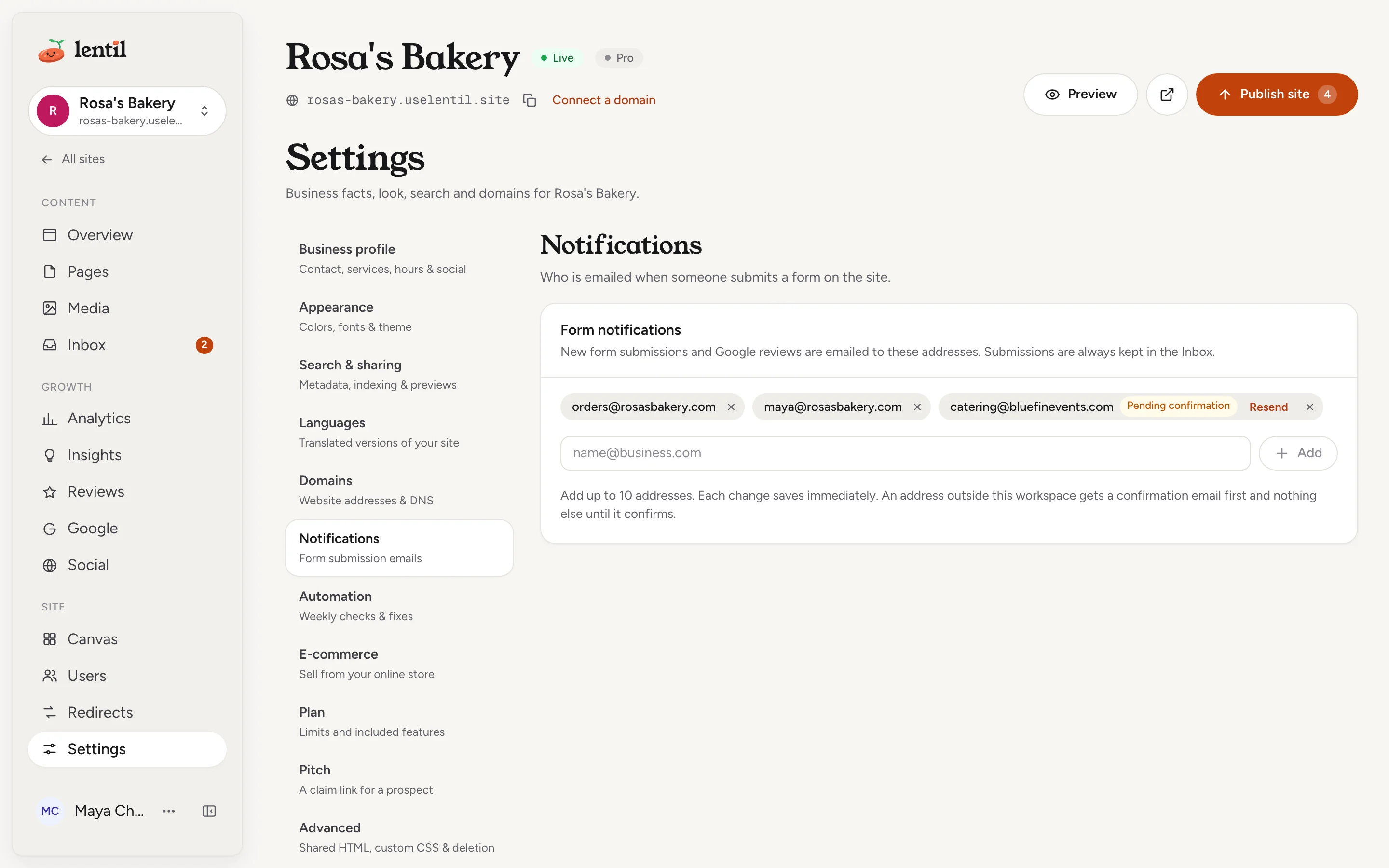
- Open Settings in the site's sidebar, then Notifications. You can also press Settings at the top right of the Inbox.
- Under Form notifications, type an address in the box and press Add. Add up to 10 addresses. Each change saves at once.
- To stop emailing an address, press the x next to it. Removed one by mistake? Press Undo in the notice that appears.
The email has the subject New Request a quote submission on Rosa's Bakery (with your form's name and your site's name), lists every field, and has a View in inbox button. When the visitor left an email address, replying to the notification answers them directly.
Send the form notification emails for Rosa's Bakery to orders@rosasbakery.com and maya@rosasbakery.com. Tell me which of the two still has to confirm.Uses get_site, update_form_notifications. Connect an assistant
Addresses outside your workspace
An address that belongs to someone who can open the site, such as a team member or the client assigned to it, is emailed right away. Any other address, for example your bookkeeper's, shows Pending confirmation and gets one email asking them to confirm. They press Confirm and from then on get the form emails. The confirmation link works for 7 days: press Resend next to the address to send a new one. One confirmation goes to an address a day, so for a day after a send the button shows when it works again, for example Resend tomorrow at 3:40 PM. Emails to a confirmed outside address end with a Stop these emails link they can use any time.
The same list also gets an email when a new Google review arrives. See Reviews.
No one on the list?Then nobody is emailed, but every message still lands in the Inbox. Check it now and then, or ask a teammate to add their address.
The address catering@bluefinevents.com on my bakery site never confirmed. Send the confirmation email again.Uses get_site, resend_notification_confirmation. Connect an assistant
Send messages to your CRM
To pass each message on to a CRM, booking system or any other tool, set up an automation. Open Inbox, press Settings and choose Automations. The full guide is Automations and connections. When a message has been sent on, the Inbox shows what ran under Automations in the open message.
Who can use it
- Reading and managing messages: every role that can open the site, so owners, admins, members and clients (a client sees the Inbox of the sites they are assigned to). See Team and roles.
- The notification list (Settings, Notifications): every role, clients included.
- Automations from the Inbox settings: owners, admins and members, not clients.
- Plan: the Inbox, spam filtering and email notifications work on every plan. Free sites have a limit on contact forms; Pro has none. See Plans, billing and credits.
Limits and edge cases
- Up to 10 notification addresses per site.
- A confirmation email goes to an address at most once a day, and a workspace can send at most 20 a day. An address you remove and add back within a day returns as it was, confirmed or still pending with its earlier link, and gets no new email. After a day it must confirm again. An address that used Stop these emails must always confirm again.
- A site gets at most 20 notification emails an hour. Messages past that still arrive in the Inbox but are not emailed. If an email fails to send, Lentil keeps trying for up to a day.
- One form field holds up to 5,000 characters. A form sends at most 50 fields, and a message with every field empty is refused.
- The Inbox lists 50 messages at a time. Press Load more for older ones.
- On a Free site, if a page would add a form past the plan's limit, the save or publish is refused with a message that explains it. Edit, move or remove the existing form, or upgrade to Pro.
- If a visitor's browser loses its connection and sends the same form twice, you still get one message.
- Replies and the Reply button use the visitor's email address from the form. A message without a valid address has no Reply button.
From an AI assistant
An assistant connected to Lentil works as you, with your role. See AI assistants to connect one.
get_site: shows the site's notification list with each address's status (member,confirmedorpending), and for a pending oneresendAvailableAt, when a confirmation can be sent again.update_form_notificationswithsiteIdandemails: replaces the whole list (up to 10). An empty list turns the emails off. It returns who was sent a confirmation. To undo a removal, send the list again with the address back in place within a day.resend_notification_confirmationwithsiteIdandemail: sends a new confirmation to one pending address. An assistant cannot confirm for someone.
Today an assistant cannot read, archive or delete Inbox messages: do that in the app. Pages an assistant edits stay drafts until you publish them, so a form it adds only starts working after you publish the page.
Updated 9 November 2026