
Media
The media library holds every photo, logo, document and video on your site. Upload files, sort them into folders, check where each one is used, and let the AI make new images for you.
Open the library
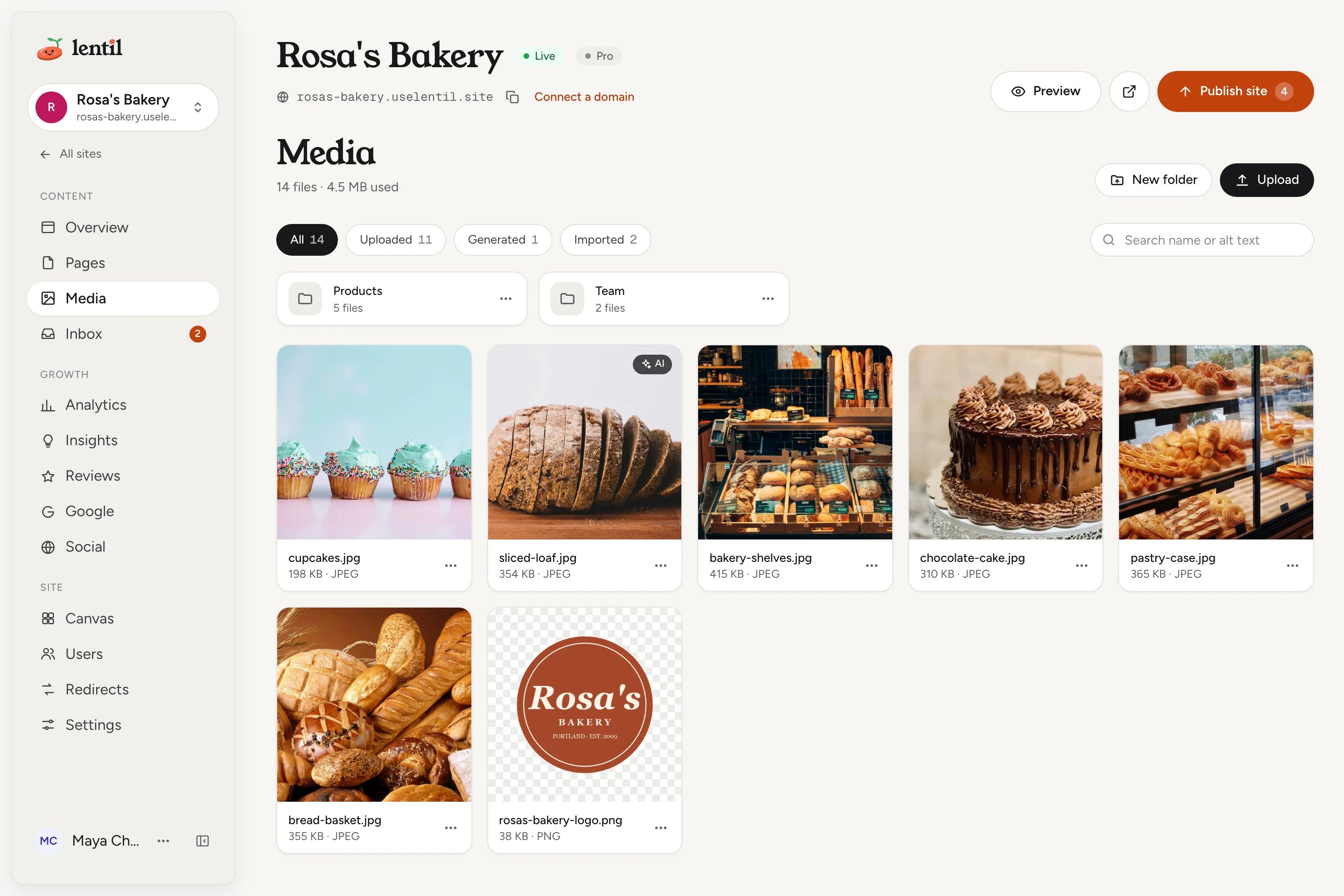
Choose Media in the site's sidebar, under Content. The header shows how many files the site has and how much of its storage is used, for example 24 files with the storage line beside it.
Files show as tiles with a name, size and type. Videos show their first frame with a play mark. A file the AI made carries an AI badge. Folders sit above the files.
Upload files
- Open Media. To put the files in a folder, open that folder first.
- Press Upload and choose one or more files. Or drag files onto the page, where it says Drop to upload. Or copy an image and paste it anywhere on the page.
- Each file appears as a tile when it has been stored. Files are sent one after another, in the order you chose them.
The library accepts images (PNG, JPG, WebP, GIF, AVIF and SVG), documents (PDF, Word, Excel, PowerPoint, CSV, TXT and VCF) and videos (MP4, WebM and MOV). Each file can be up to 10 MB.
If a file is already in the library, Lentil does not store a second copy. A note says where the existing copy is, for example logo.png is already in your media library as rosa-logo.png in Brand / Logos. Press Show to open it.
You can also upload while editing a page: open Media in the editor's side panel and press Upload. Select an image on the page, then click a file in the panel to replace it, or drag a file onto an image.
Need a photo you do not have? Search free stock photos and add one to the library: see Free photos for your site.
Organize with folders
Create a folder
- Press New folder. To make it inside another folder, open that folder first.
- Type a name and press Create folder.
Move files and folders
- Drag a file tile onto a folder.
- Or open the tile's more-actions menu and choose Move to folder, pick the destination and confirm.
- To move several files, tick their checkboxes. A bar shows 2 selected with Move to folder, Download and Delete.
- A folder has a menu with Rename, Move and Delete.
Folders are only for your own tidiness. Moving a file never changes its address, so pages that use it keep working. Deleting a folder deletes no files: its files and subfolders move up into the folder above it.
Find a file
Use the chips All, Uploaded, Generated and Imported (each shows how many files it holds) to filter by where a file came from. Type in Search name or alt text to search by file name or alt text. A filter or search looks through every folder at once.
File details, names and alt text
- Press a tile to open the file large, with its details beside it. Use the arrows to step through the files on screen.
- Change the File name or the Alt text, then press Save. Alt text describes an image for screen readers and search engines.
- Press Copy URL to copy the file's address, or Download to save it.
The details also list size, dimensions, type, source, when it was added, and Used on: the pages, the header, footer or site code, and the site settings that use the file. Look here before you delete or replace a file.
A new name keeps the file's extension. Old links keep working after a rename.
Delete files
- Open a tile's menu and choose Delete, or tick several files and press Delete in the bar.
- Press Delete file (or Delete files). The dialog says the file is removed for good and this cannot be undone.
- If a file is still used, the dialog lists where. Remove it from those places first, or press Delete anyway, which leaves a broken image or link there, on the live website too.
Deleting cannot be undoneLook at Used on first. Media you delete is gone from storage, and it disappears from your live site within a few minutes. Visitors who already opened it may keep a saved copy in their browser.
Make images with AI
Ask the AI in the page editor, or in a design canvas, for a photo or illustration, for example "a warm photo of sourdough loaves on a wooden counter". The image is saved in your media library with an AI badge, and you can use it straight away. Images made for a design canvas are saved in a folder called Canvas.
Images come in three shapes: landscape (1536 by 1024), square (1024 by 1024) and portrait (1024 by 1536). To change or vary an image you already have, name that image in your request. The AI can use up to four of your own JPEG, PNG or WebP images (10 MB together) as the starting point. You can also pin a spot on an image in a canvas comment to change just that part.
Images use AI creditsEach image spends your workspace's AI credits, and generation does not start when the workspace has too few. See Plans, billing and credits. The image model may also decline a prompt; rephrase and try again.
On Rosa's Bakery, make a landscape photo of sourdough loaves cooling on a wooden counter in morning light, with the alt text "Fresh sourdough loaves on a counter". Save it in the Products folder and tell me its address.Uses list_media_folders, generate_image. Connect an assistant
Storage
Each site has a media storage limit that depends on its plan. The header of Media shows what you have used. From 90 percent a note says storage is almost full, and at the limit uploads and new AI images are refused with a prompt to free space or upgrade. Plan limits are on Plans, billing and credits.
Who can use it
- Everyone with access to the site, including clients, can see the library, open details, copy addresses and download files.
- Owners, admins, members and clients can upload, rename, move, delete and generate images. See Team and roles.
- Works on Free and Pro. Only the storage limit differs.
Limits and edge cases
- A file can be up to 10 MB. An empty file, a type the library does not store, or a file over the size limit is refused with a message naming the file. The other files in the same upload still go through.
- The same bytes are stored once. Uploading a copy returns the existing file, which keeps its own name, alt text and folder.
- A file name is up to 120 characters, alt text up to 300 characters on one line, and a folder name up to 80 characters. A folder name must be unique inside its folder.
- Folders can be nested up to 6 levels deep. A folder cannot be moved into itself.
- You cannot give a file a different extension by renaming it.
- On a site with very many pages, the search for where a file is used may not cover every page. The dialog then says the file may also be used elsewhere.
- Pasting a file works anywhere on the page except inside a text box.
From an AI assistant
An assistant connected to Lentil can manage the library with your role. See AI assistants.
list_mediaandlist_media_folders: read files (newest first, withpublicUrl) and folders, plus the site's storage use.upload_media: add a file from an https address or base64 data, up to 10 MB, with optional name, kind, alt text and folder.update_media,move_media,create_media_folder,update_media_folder,delete_media_folder: rename, set alt text, move up to 100 files, and manage folders.get_media_usage: where a file is used, before deleting or replacing it.generate_image: make an image from a prompt and alt text, with optionalshape, reference images and folder. It spends AI credits.delete_media: delete up to 100 files.
Safety rules: delete_media changes nothing until confirmed: true; without it, it returns a preview with where each file is used and asks you. Files in use are not deleted unless the assistant passes force: true after you agree, and then the places that use them show a broken image or link.
Updated 9 November 2026