
Setup and your first design
Setup turns a few sentences about your business into a first website. You describe what you do, show Lentil the looks you like, pick a homepage design, check your facts, approve a plan, and watch the pages get built. Nothing is published until you say so.
The steps at a glance
Setup runs in a fixed order. You can leave at any point: your answers are saved, and the site card on Sites shows Continue setup until you finish.
| Step | What you do | Costs |
|---|---|---|
| 1. Describe | Say what you are making and, if you have one, paste your current website. | Free |
| 2. Your look | Like a few example sites, add sites of your own, or tap feel words. Optional. | Free |
| 3. Homepage designs | Compare full homepage designs and pick one. | The first round is included with a new site. New rounds and changes use credits. |
| 4. Your facts | Check and fill in what the site will say. Optional. | Free |
| 5. The plan | Review the pages and what each section is for. Approve the cost. | Planning is free. |
| 6. The build | Pages are written as drafts. You open the editor when it is done. | Shown on the plan's cost card |
Prices, credit packs and what Free and Pro include are on Plans, billing and credits.
Describe your site
This is the first screen, headed New site. You reach it from Describe my site on a brand new account, or from New site then Start from scratch. How to start is in Getting started.
- Under What are you making? Tell us like you would tell a friend., write what you do, where, and who for. Press Or say it out loud to speak instead of typing. Your words are kept in this browser until you continue, so a refresh does not lose them.
- Under Already have a website?, type its address, or press No, starting fresh. Lentil reads text, work and photos from it. No site? A Dribbble, Behance, GitHub or App Store page works too. If you pressed No, starting fresh by mistake, press I have one after all.
- Check the line that appears under your words, for example Sounds like a local business. If it is wrong, pick another kind in the choice next to it. If the words are too vague for a guess, the app asks Which is closest?
- If Lentil could not find a name, type it under What is it called? You can also leave it and add it later.
- Press Continue to go on to your look and designs. Press Skip designs, plan it now to go straight to facts and the plan.
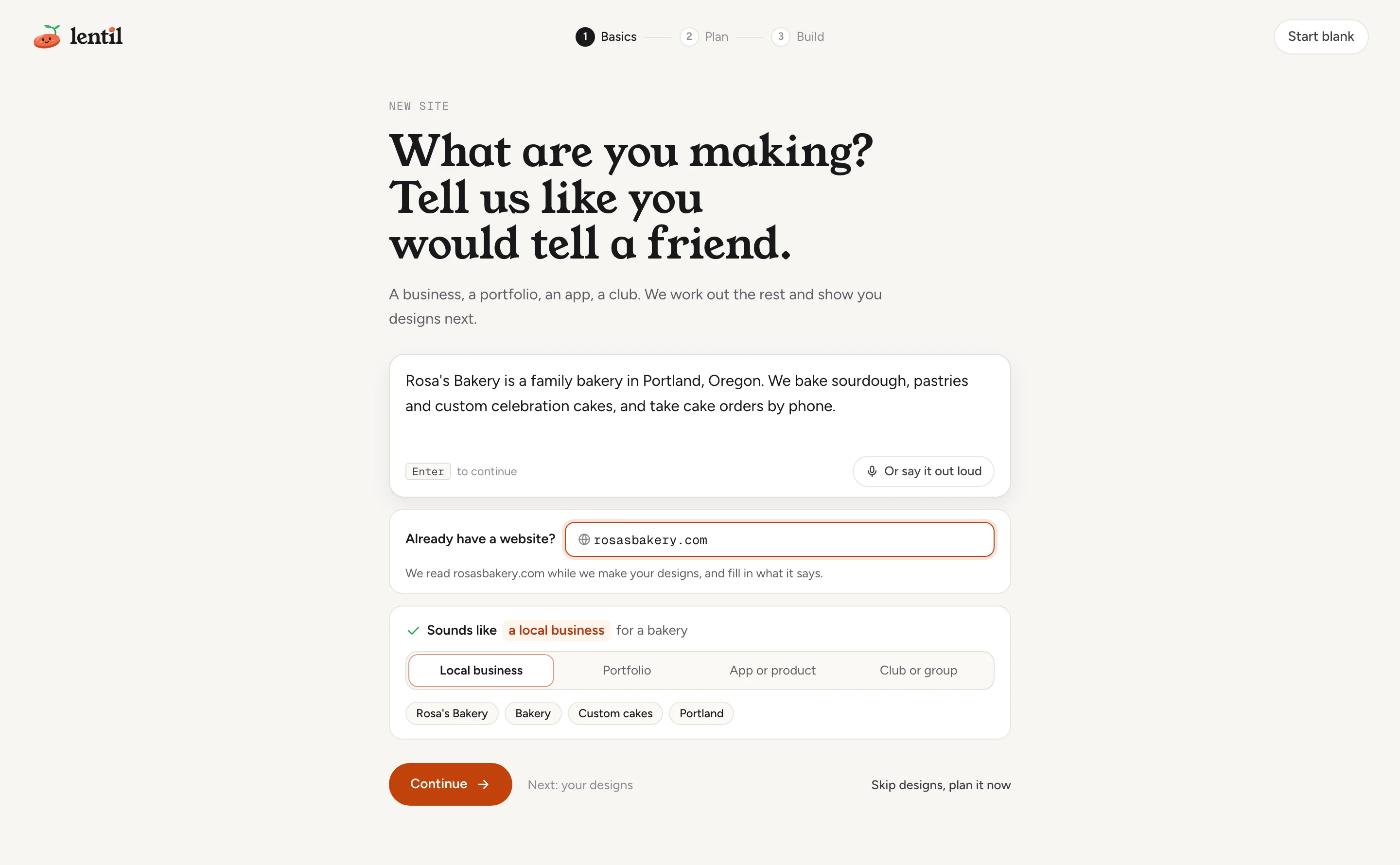
Press Start blank at the top right instead if you want an empty site and no questions.
Site kinds
The kind decides which later questions are asked and which details the site keeps: Local business, Portfolio, App or product, or Club or group. The kinds are explained in Getting started. Picking a kind yourself counts as your decision, and Lentil stops guessing it from your words. You can change it later in the site's Settings.
Let Lentil read your current website
When you give an address, Lentil reads it in the background while you carry on. It collects what the site already says: services, hours, phone, photos, logo and reviews. These land in your business profile, and anything you type yourself always wins over what was read. Nothing is copied into pages, and nothing on your current site changes.
- The read is free to you.
- It looks at up to 8 pages and 24 photos of a public website.
- Social profiles and map listings (Instagram, LinkedIn, Facebook, X, TikTok, Google Maps) cannot be read. Describe the business in the box instead.
- A site that asks not to be read by tools is refused, and the opener tells you so.
- You can carry on while it reads. Plan my site on the facts step waits for the read to end; press Plan without waiting to plan with what was found so far.
Read my current website rosasbakery.com for my Rosa's Bakery site in Lentil and tell me what you found: services, hours, phone and photos. Do not change anything yet.Uses read_existing_site, get_setup_state, stop_reading_existing_site. Connect an assistant
Choose your look
The next screen is A look that feels like you, marked Optional. Your designs start from what you tell it here. Press Back to return to the first question, or Save and finish later to leave.
- Go through the example sites. Each is a made-up business, only there for inspiration. Press I like this on the ones that fit, or Skip on the ones that do not. Use Previous site and Next site to move between them, and Show more examples to see another batch.
- On a site you liked, you can say what you like about it: layout, feel, imagery, colors or fonts. Under Anything else? you can add a short note, such as "The warm colors feel welcoming". On a phone, press What do you like? (optional) to open this in a sheet.
- Have a site of your own in mind? Press Have a site in mind?, paste a link and press Add. Lentil looks at its colors, type and layout for about 15 seconds, then shows it with the others.
- No links handy? Tap feel words: Clean, Bold, Warm, Classic, Playful or Minimal. You can mix them with sites.
- Press the main button at the bottom. Its label says what happens next: it asks for your homepage designs, or reads Continue or Skip when designs are not offered to you. Continue without designs skips the designs and lets the plan choose the look.
Your designs borrow the feel of the sites you like: colors, type and spacing. They never take the other site's words, photos or code. A site that asks not to be read, or that cannot be opened, is marked and does not shape your designs. Remove it or try another link.
Pick a homepage design
Lentil now writes and renders full homepage designs from your answers and your look. Each one is a real homepage, not a sketch. This takes a few minutes. You do not have to wait on the screen: press Check my facts meanwhile, or leave and come back from Continue setup.
- Watch the progress. As soon as the first designs are ready they appear with tabs to switch between them. Look through the ones that are ready while the rest finish.
- Scroll through each design and check its phone view. Each one says How it differs from the others.
- Press Use this look on the design you want. You can pick as soon as every design is ready, and you can change your pick until you approve your site plan.
- Want a tweak? Under Describe a change to this one, write the change and press Make this change. The screen shows what a change costs before you press.
- Not happy with any of them? Press the new looks button under the designs to get another round. The screen shows its cost beside the button.
- Prefer to skip designs? Press Build without designs. The plan then chooses the look itself.
After you pick, setup moves on to your facts, and the build follows the chosen homepage on every page.
When designs stopIf the workspace runs out of credits, or a run hits its spending limit, the screen says so. Add credits and resume, or press Allow more and resume to let it use a little more. If a run fails, the screen says what was charged and offers a retry (included with a new site) or Build without designs.
For my Rosa's Bakery site, add bakery-example.com as a site I like (I like its colors and layout), set the style words Warm and Classic, then start my homepage designs and show me what comes back. Do not pick one until I say so.Uses add_style_inspiration, update_style_inspiration, set_style_words, start_design_run, get_design_preview, select_design_candidate, continue_setup_look. Connect an assistant
Check your facts
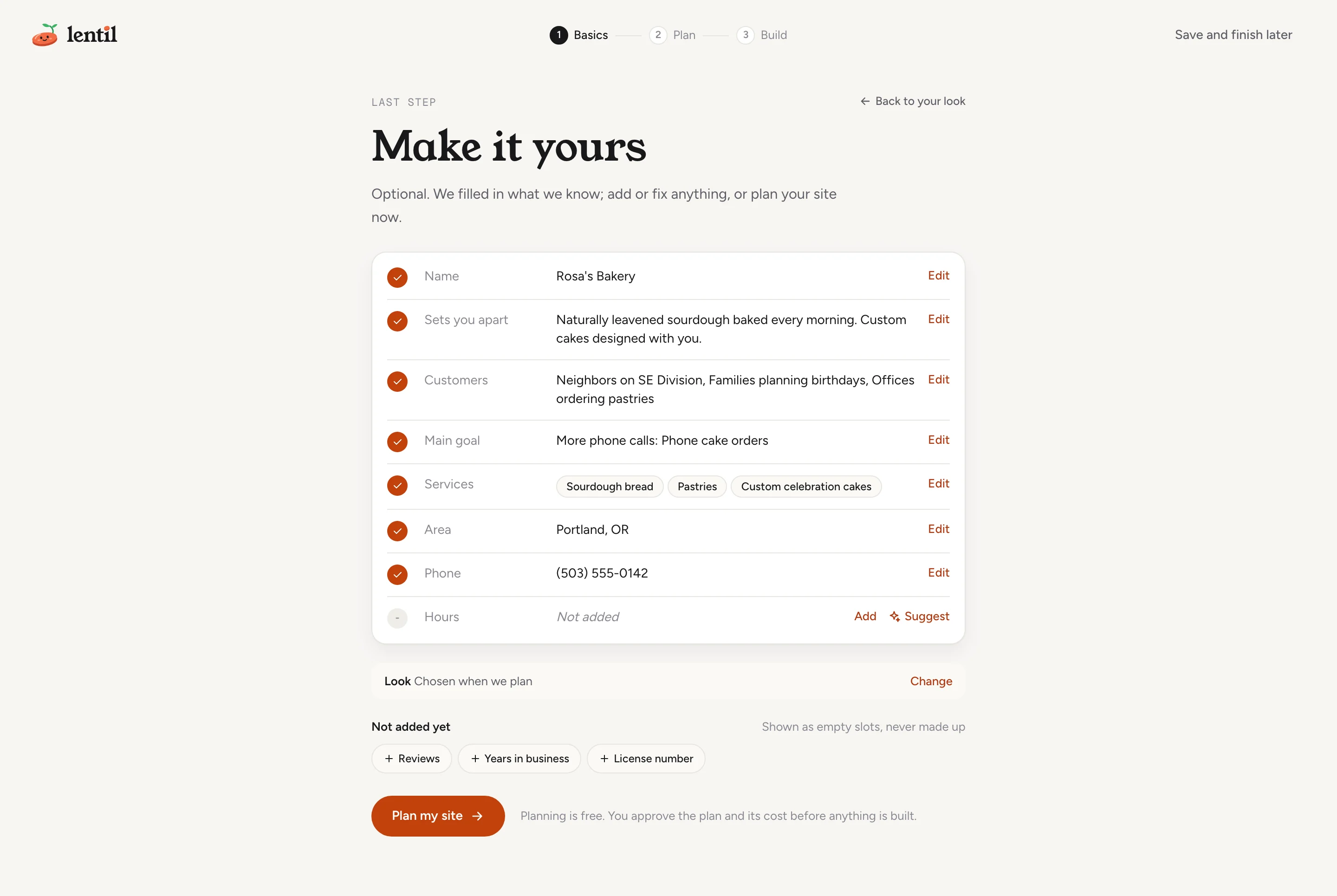
The next screen is Make it yours. It lists every fact the site will say, prefilled from your words and your current website. Everything is optional: Plan my site never waits for an answer.
- Read each row. A tick means the fact is filled in. Not added means it is empty. Empty facts become empty slots on the site, never made up text.
- Press Edit (or Add on an empty row) to change a fact. Lists take one value per line; the area takes places separated by commas. The main goal is a choice of goals that fit your kind, such as More phone calls or More bookings.
- Stuck on a row? Press Suggest to get 3 answers written for your kind of business. Pick one only if it is true for you.
- The Look line shows your chosen design. Press Change to go back to the designs, or Pick one if you have not chosen yet.
- Press Plan my site.
The rows depend on the site kind. For a local business they are Name, In your words, Services, Area, Customers, Sets you apart, Main goal, Phone and Hours. The same facts live in the business profile, where you can edit them any time.
Approve the plan and build
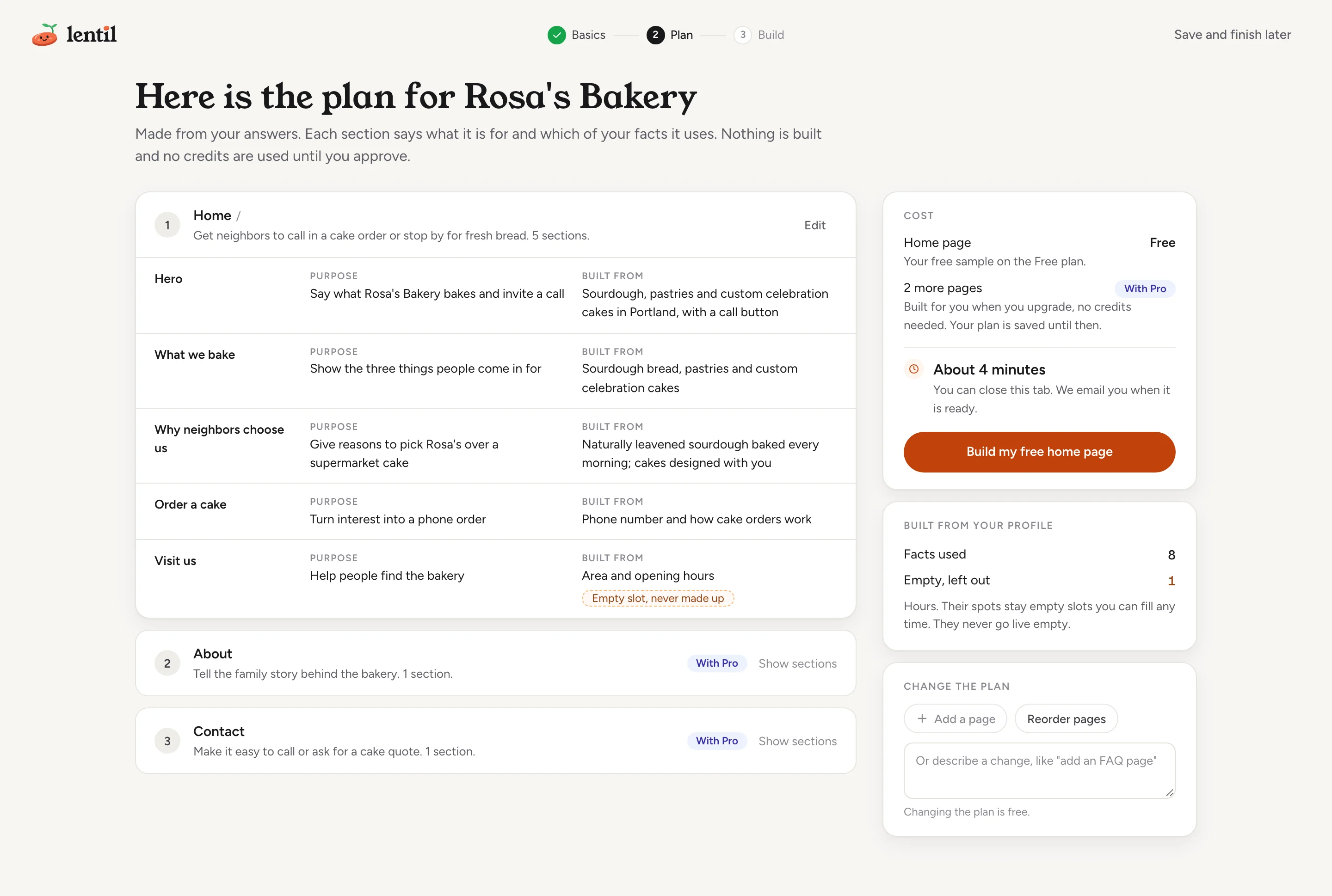
Planning is free and takes a minute or two; the screen shows about how long it will take. The result is the screen Here is the plan for your site. Nothing is built, and no credits are used, until you approve.
Review the plan
- Each page lists its sections. Show sections opens them: each section says its Purpose and what it is Built from, including which of your facts it uses.
- Press Edit on a page to rename it, change its sections, move them up or down, or remove them.
- Press Add page to add a page, or Reorder pages to change their order.
- Under Change the plan, describe a change in your own words ("add a page for wedding cakes") and press the button. Described changes are free, up to a limit for each plan. After that, edit the pages yourself.
- Cards beside the plan show the look it starts from and the facts it is built from, including which are still empty.
Read the cost, then approve
The cost card depends on how the build is done.
| The card shows | What it means |
|---|---|
| Free next to Home page, with Build my free home page | Your free sample on the Free plan: the homepage is built free. The other planned pages are marked With Pro. They are built for you when you upgrade, no credits needed, and your plan is saved until then. |
| Estimated cost in credits, with Approve and build | The build is paid with credits. The card shows your balance now and the most it can be after building. You pay only for what is built, never more than the estimate. |
| A red notice and Buy credits | Your balance is below the estimate. Add credits, then come back and approve. |
| No credits | Your own AI assistant builds the pages on its own model, through its connection to your account. No images are generated; add photos in the editor afterwards. |
Pages beyond your plan's page limit wait for Pro and are not in the estimate. How the limit and credits work is on Plans, billing and credits.
Watch the build
- Press the approve button. The screen shows Building your site with a progress bar and every page with its status.
- On a build Lentil runs for you, you can close the tab: press Close, email me when ready and Lentil emails you when it is done. When your own AI assistant does the work, keep its session open until every page is done.
- If a page fails, the screen says which one and the other pages keep going. Retry it, or Skip it and add the page later in the editor. A retry never costs more than your estimate, and uses no credits when your assistant builds.
- To stop, press Stop building and confirm. Pages already done stay on your site as drafts. On a credit build you pay only for what was built so far.
- When it ends, Your site is ready lists your pages and a build summary (time, cost, facts used, and facts left as empty slots), plus What is next for your site? Press Open the editor to review the pages.
Built pages are draftsThe build never publishes. Review the pages in the page editor and publish when you are happy (see Publishing). Facts you did not give stay empty slots, and empty slots never go live.
Plan the pages for my Rosa's Bakery site, show me the plan and what it will cost, and wait. I will tell you which pages to change. Only approve the build after I agree to the cost.Uses propose_build_plan, get_build_progress, update_build_plan, approve_build_plan. Connect an assistant
Leave and come back
- Press Save and finish later on any step. On Sites, the site card shows Continue setup and takes you to the step you left.
- On the facts step, Back to designs or Back to your look goes back one step. Designs you already made are kept, unless you cancelled them.
- Setup never forces a design or a fact: every step after the first can be skipped.
Who can use it
- Owners, admins and members can create a site and run its setup. Clients cannot create sites. See Team and roles.
- Reading a current website, the look step, the facts step and planning are free on every plan.
- A fresh set of designs, a described change and the build use credits, apart from the first set of designs for a new site and the free homepage sample on the Free plan. Pages past the Free page limit wait for Pro. See Plans, billing and credits.
Limits and edge cases
- You can add up to 3 sites of your own on the look step. A note on a liked site is up to 300 characters, on one line.
- A website is read for up to 8 pages and 24 photos, one read at a time per site, with at most 3 reads per site and 10 per workspace a day.
- Each site gets 10 requests for Suggest answers in total. After that the row says to add your own.
- A site can get up to 3 new build plans a day. A plan allows up to 10 described changes; editing the pages yourself has no limit.
- A page in the plan can have up to 14 sections.
- A site made from an existing website is planned with up to 10 pages.
- If your designs were cancelled, the facts step says your earlier designs were set aside, and the plan chooses the look.
- If a build cannot finish, the screen says nothing was published. Plan your site again, or stop and open what was built.
From an AI assistant
An assistant connected to Lentil works as you, with your role in each workspace. See AI assistants to connect one.
create_sitewithstartSetup: true, andget_setup_state: start setup and read its questions, answers, profile, reading and style board.answer_setup_question,skip_setup_question,suggest_setup_answers,reopen_setup_question,finish_setup_interview: answer the opener (whatYouDo) and the optional questions. An assistant should not ask for a question the profile already answers.read_existing_site,stop_reading_existing_site,update_site_kind.list_example_sites,get_style_board,add_style_inspiration,update_style_inspiration,remove_style_inspiration,set_style_words: the look step.start_design_run(sourcesetup),get_design_preview,select_design_candidate,refine_design_candidate,generate_design_candidates,continue_setup_look: designs.skip_setup_questionwithrest: trueskips the look step.propose_build_plan,get_build_progress,update_build_plan,approve_build_plan,retry_build_pages,skip_build_page,cancel_import: the plan and the build. By default the build costs 0 credits and the assistant writes the header, footer and pages itself throughnext_import_jobandsubmit_import_job; withaiMode"server" Lentil builds them with its own AI for credits.
Safety rules: a fresh set of designs or a described change spends credits, so an assistant should tell you the cost first. approve_build_plan must only be called after you agree to the cost. Pages are built as drafts and are not live until you ask to publish.
Updated 9 November 2026