
Publishing
Edits are saved as drafts. Publishing is the step that puts them in front of your visitors, one page at a time or all waiting changes at once, and you can take a page back offline or return to an earlier version.
How publishing works
Every page has a draft and, once published, a live version. You keep editing the draft while visitors keep seeing the live version. A page is always in one of four states:
| State | Meaning |
|---|---|
| Draft | Never published. Visitors cannot see it. |
| Published | Live, and the draft is the same as the live version. |
| Unpublished changes | Live, with newer edits in the draft that visitors do not see yet. |
| Unpublished | Taken offline by hand. The draft and history are kept. |
Changes reach visitors within about a minute of publishing.
Some changes skip the draftEdits to the shared header and footer, and to your colors and fonts, go live on every published page straight away. They are not listed under changes waiting to be published. Redirects also go live within about a minute of saving, without a publish.
Publish one page
- Open the page in the editor (see The page editor).
- Press the publish button at the top right. It says Publish for a new page and Publish changes for a live page with edits.
- Wait for it to say Published. The button is greyed out with Everything is published when there is nothing new to send.
Open More page actions and choose View live page to see what visitors see.

Publish everything that is waiting
- Look at the site header. Publish site with a number badge shows how many changes are waiting. It reads Up to date when there are none. The same count appears on the Pages screen status card, which has a Review changes button.
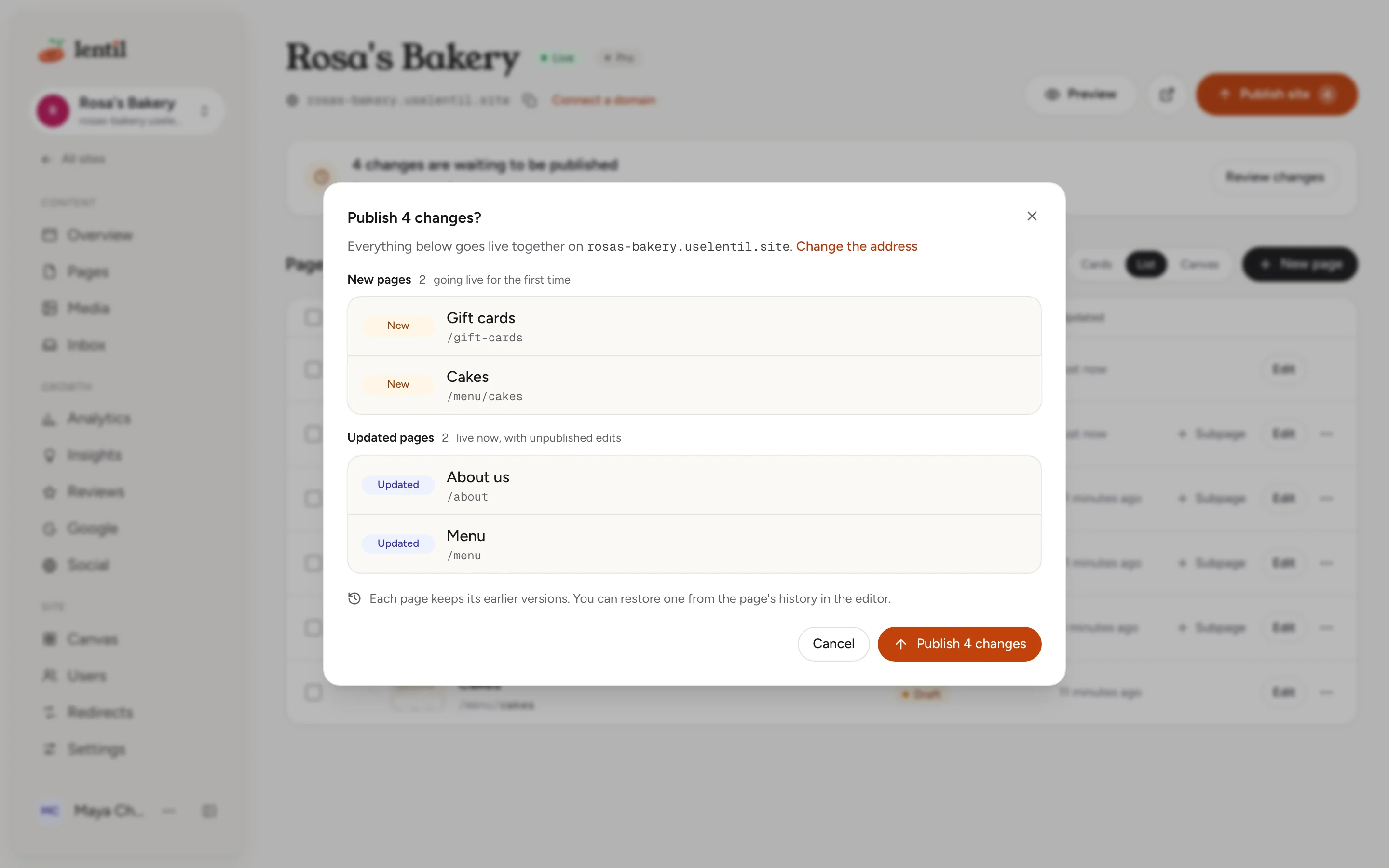
- Press Publish site. The box Publish N changes? lists them in groups: Home page (marked Moved when you changed the home page), New pages and Updated pages.
- Press Publish N changes. It shows Publishing 1 of N... while it works, and the home page goes first.
- If something fails, the box says what went wrong. Press Try again, or Close.
Pages you took offline by hand are not part of Publish site; publish those one at a time. A new site must have a name before it can publish, and the box asks you to give it one.
Take a page offline
- Open the page and choose More page actions then Unpublish page. Or tick pages on Pages and press Unpublish.
- Read Unpublish this page?: visitors will no longer see it, and your draft and history stay.
- Confirm. The page shows Unpublished. Publish it again whenever you like.
The home page can only be unpublished once no other page is live.
Go back to an earlier version
- In the editor, press Versions and find the version you want. Press Preview to look at it.
- Press Restore. It becomes your draft and nothing changes for visitors yet.
- Press Publish changes.
Every publish and every edit is kept, up to the last 100 versions shown in the list. Pressing Restore on the live version simply discards your draft changes.
Show me which pages on my Lentil site have unpublished changes. Send me a screenshot of each one. When I say go, publish the home page first, then the others, and tell me when they are live.Uses list_pages, get_page_thumbnail, publish_page. Connect an assistant
Who can use it
- Owners, admins, members and clients can publish and unpublish pages. See Team and roles.
- Free sites have a limit of one live form. A publish that would go over it is refused with a message that says so. See Plans, billing and credits.
Limits and edge cases
- Other pages go live only while the home page is live. Otherwise you see Publish the home page first. Publish site sends the home page first for this reason.
- A page with nothing saved yet has nothing to publish.
- You cannot publish from the editor while you have unsaved HTML in the Code tab, or while the AI is working on the page.
- The home page cannot be unpublished while other pages are live: unpublish them first.
From an AI assistant
An assistant connected to Lentil can publish with your rights, but only after you clearly say so. See AI assistants.
publish_pagepublishes one page, and needsconfirmed: true.unpublish_pagetakes a page offline.list_pagesshows which pages have unpublished changes.list_page_versions,get_page_versionandrestore_page_versionwork with history.
Updated 9 November 2026