
AI assistants
Connect the AI assistant you already use, such as Claude or ChatGPT, to your Lentil account. Then ask it in plain words to build, edit and look after your sites. It works as you, saves changes as drafts, and publishes only when you say so.
Before you start
- A Lentil account. You can connect before you have a site: the assistant can create one for you.
- An AI assistant that lets you add a custom connector (an MCP server). Claude allows this on every plan, Free included, with one custom connector on Free. ChatGPT offers it on Business and Enterprise plans, on the web. Other assistants that support remote MCP connectors work too.
Every assistant uses the same Lentil address:
https://app.uselentil.com/mcp
Also in your profileYou can copy the address any time from your profile: open Profile, then Security, and under Connected agents press the copy button next to Connector URL.
Add the connector
Menus were checked on 8 November 2026 and may move later.
In Claude
- Go to Customize, then Connectors.
- Press Add, then Add custom connector.
- Name it Lentil, paste
https://app.uselentil.com/mcpas the URL and press Continue. - Keep the sign-in settings Claude detects (if it asks how to register, choose Register automatically), then press Add.
- Press Connect. A Lentil page opens. Sign in to Lentil there.
On Claude Team or Enterprise, an Owner adds the connector once under Organization settings, Connectors. Each person then finds it under Customize, Connectors and presses Connect.
In ChatGPT
- On chatgpt.com, open Plugins.
- Press the plus button, then Add custom MCP server.
- Name it Lentil and paste
https://app.uselentil.com/mcpunder Connection. - Choose OAuth sign-in, tick I understand and want to continue, then press Create as a plugin.
- A Lentil page opens. Sign in to Lentil there.
On ChatGPT Business or Enterprise, only workspace admins and owners can add custom MCP servers, unless an Enterprise admin has given you permission.
In another assistant
Add a custom or remote MCP connector with the same address, and sign in to Lentil when asked.
Approve the connection
After you sign in, Lentil shows Connect followed by the assistant's name, and the account you are signed in as. It lists what the assistant will be able to do:
- See the sites you can access, in every workspace you belong to.
- Edit pages, the header and footer, theme, business details and media as you.
- Publish changes to your live sites when you ask it to.
Check that it is the right account (press Use a different account if not), then press Approve. You return to your assistant. Cancel connects nothing.
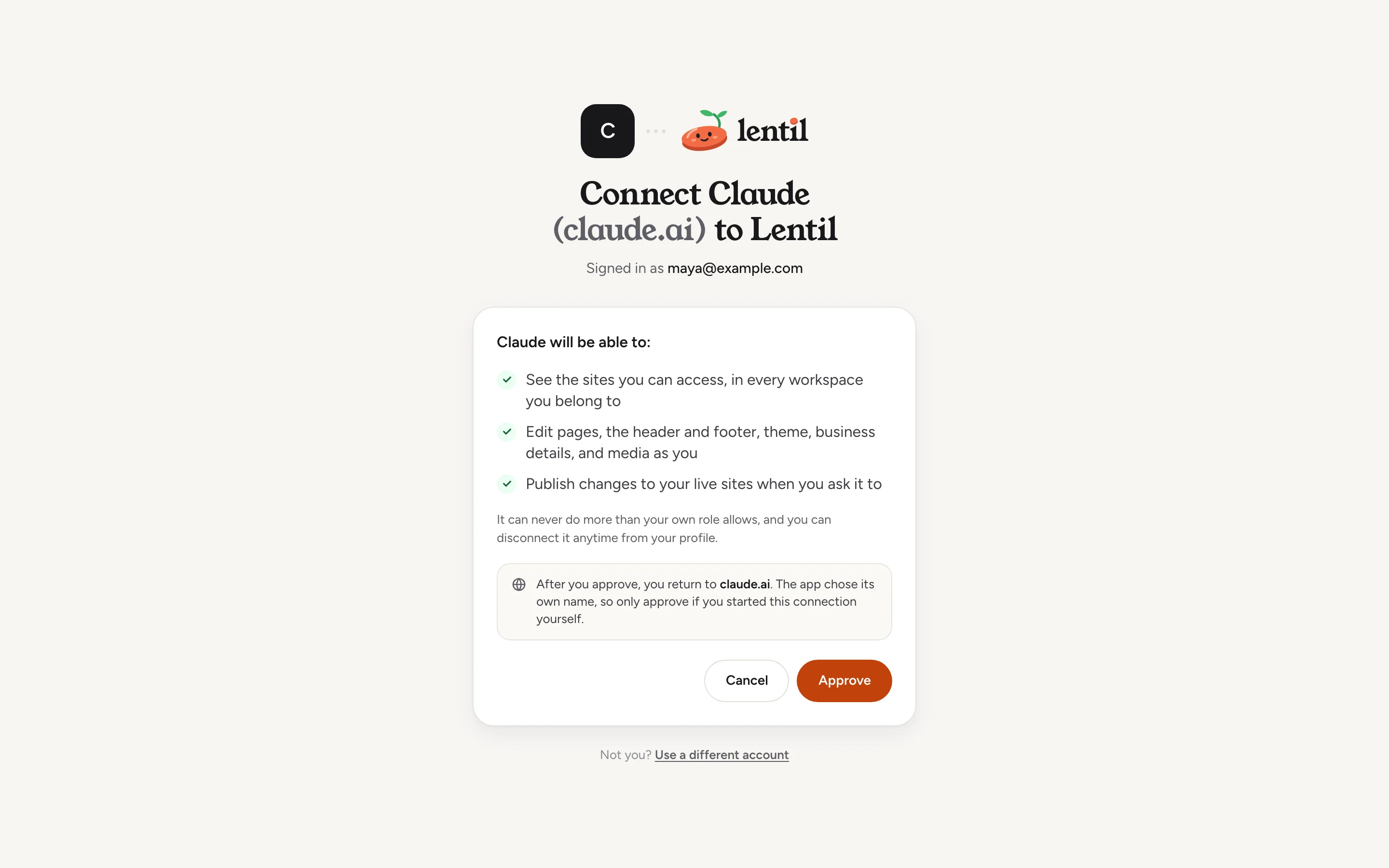
Only approve what you startedIf this page appears and you did not just add a connector, press Cancel. Nothing is connected until you approve. The page also shows the website you will return to, so check it looks right.
Try it
Start a new chat and ask for something small. In ChatGPT, type @ and pick Lentil first. Your assistant reads your site first, then makes the change.
What sites and pages do I have in Lentil?Uses list_workspaces, list_sites, list_pages. It lists them so you know it can see the right site.
Change our Saturday hours to 9 to 3 on the Contact page of Rosa's Bakery. Do not publish yet, just give me the link to check it.Uses get_page, edit_page. The change is saved as a draft and you get a link to review it in the editor.
Looks good. Publish it.Uses publish_page. Until you say so, nothing goes live.
What an assistant can do
An assistant can do what you can do in the app, in the areas below. The tool names are what you see if your assistant shows its steps. Each area has its own page with the details.
| Area | Examples |
|---|---|
| Sites and setup | create_site, get_setup_state, propose_build_plan, approve_build_plan. See Getting started and Setup. |
| Pages and content | get_page, edit_page, create_page, publish_page, list_page_versions, restore_page_version. See The page editor, Pages and Publishing. |
| Media | upload_media, list_media, generate_image. See Media. |
| Design and theme | get_theme, update_theme, and canvas tools. See Design and theme. |
| Domains | suggest_domains, buy_domain, add_domain. See Domains. |
| Search and AI visibility | update_site_seo, get_llms_txt, get_ai_visibility, run_site_check. See SEO and AI visibility. |
| Enquiries | create_automation, list_connections. See Automations and connections. |
| People and billing | invite_person, get_credits, upgrade_site, buy_credits. See Team and roles and Plans, billing and credits. |
| Account and support | list_sessions, list_connected_agents, create_support_ticket. See Account and security and Support. |
Every page of these docs has an Ask your assistant box with a prompt to copy and the tools it uses.
What it cannot do, and the safety rules
| Your assistant | Details |
|---|---|
| Works as you | It has exactly the permissions your role gives you, in every workspace you belong to. Never more. |
| Edits in drafts | Page changes are saved as drafts. Visitors see nothing until a page is published. You can roll back from version history like any other change. |
| Publishes when you ask | Publishing needs confirmed: true, which an assistant should only send after you explicitly said to publish. |
| Asks before deleting or spending | Deleting a page or media, removing a person, switching a plan and similar actions first return a preview. Only a second call with confirmed: true, after you agreed, does it. |
| Never takes a payment | For purchases it gives you a Stripe link to open. Charges to a plan you already pay for are quoted first and confirmed by you. |
| Does not spend credits to edit | Editing, publishing and hosting never use credits. Images it generates, and AI work that runs on Lentil's servers, do. When the assistant does the writing itself, it costs 0 credits. |
| Follows your plan | Free plan limits, such as 5 pages, apply. It gets a plain error when it hits one. |
| Writes pages like the built-in editor | It follows the same page-writing rules as the AI in the editor: your theme's colors and fonts, your shared header and footer, your business details, and the form markup that delivers enquiries to your inbox (one form on the Free plan). |
See and disconnect connected assistants
- Open Profile from the menu with your name, then the Security tab.
- Under Connected agents, each assistant is listed with when it was connected.
- Press Revoke next to the one you want to remove. It stops working at once.
Sign out everywhere else, in Where you are signed in on the same page, also disconnects assistants that were connected from your other devices and shows which ones in its confirmation. Assistants connected from this device stay connected. Connecting and disconnecting both appear in Recent security activity. To use an assistant again after revoking, connect it again.
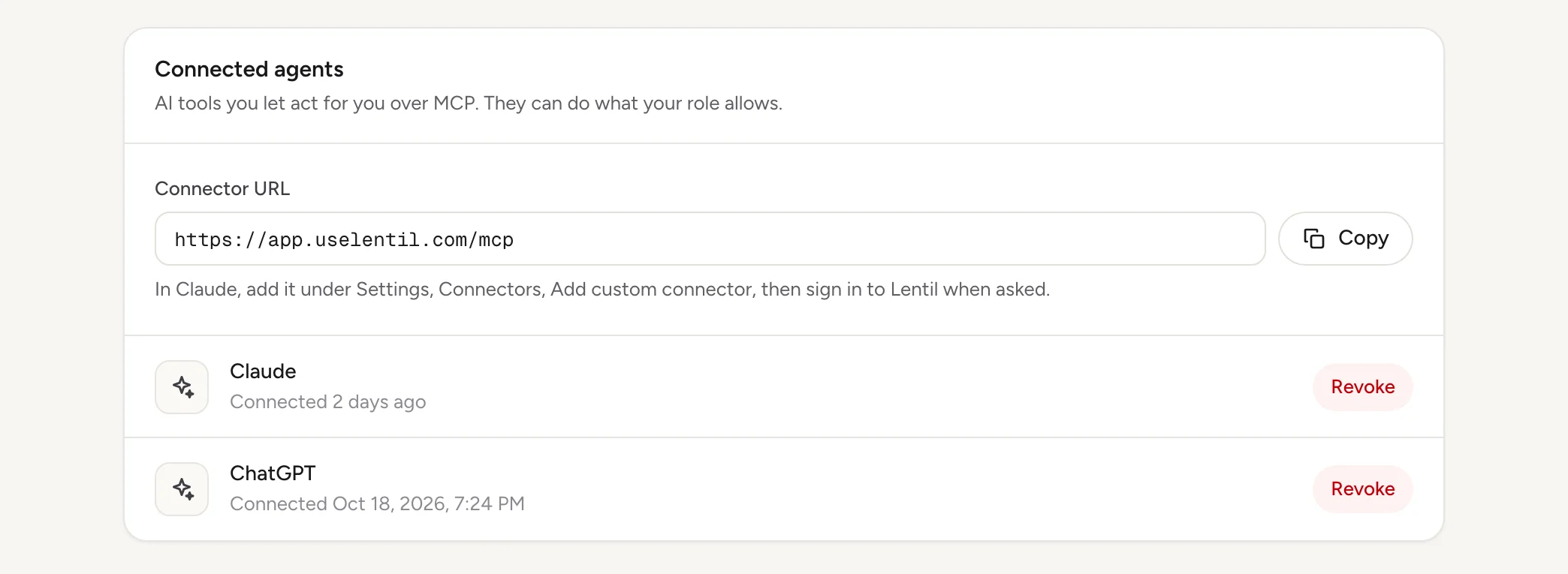
Which AI assistants are connected to my Lentil account? Disconnect the ChatGPT one after you show me what it would do.Uses list_connected_agents, disconnect_agent. Safety rules
Troubleshooting
The page says "This connection link does not work"
The link may have expired or already been used. Start connecting again from your assistant.
I signed in with the wrong account
On the approval page, press Use a different account under the buttons, then sign in again.
I cannot find where to add a connector
In Claude it is under Customize, Connectors; on a Team or Enterprise plan an Owner adds it first. In ChatGPT it is under Plugins, and custom MCP servers need a Business or Enterprise plan on the web. If your assistant has moved the menu, search its help for custom MCP connectors.
My assistant cannot see one of my sites
It sees the same sites you do. Ask the workspace owner to invite you to that workspace, then ask your assistant again.
It says I am out of credits or at a plan limit
See Plans, billing and credits. Editing through your assistant does not need credits, but images and Lentil's server AI do.
Who can use it
- Anyone with a Lentil account can connect an assistant, on the Free or the Pro plan.
- The assistant gets your role in each workspace. An owner's assistant can manage billing and people; a client's assistant sees only the sites shared with that client.
- Some tools are not available to everyone: they are hidden from an assistant, as the matching screens are hidden from you.
- Writing your own code instead of chatting? The same tools are an HTTP API with personal API keys: see Public API.
Limits and edge cases
- One approval connects one assistant. Connect again from each new assistant or device you use.
- Changes to a page you are editing in the editor at the same time can conflict. The assistant is told to read the page again and retry, so nothing you saved is overwritten.
- While an AI edit is running on a page in the editor, the assistant cannot edit that page. It tries again when the edit finishes.
- Header, footer, theme, SEO and business profile changes made through an assistant go live on published pages immediately, unlike page edits, which stay drafts.
- Free Claude accounts can add one custom connector.
From an AI assistant
The assistant side of these docs is on every page, in the Ask your assistant boxes and the From an AI assistant section at the end. Tools that publish, delete, spend credits or change a plan take confirmed: true only after you agree; without it they return a preview. Page edits take the page's baseVersionId so a stale edit is refused. A new site's pages are built as drafts, and your own assistant can do the building at no credit cost. To manage connections from the assistant itself, use list_connected_agents and disconnect_agent, and list_sessions and revoke_session for devices.
Before writing or changing a page, the header or the footer, call get_content_guidelines with the siteId. Its pageGuide holds the page-writing rules the built-in editor AI follows for that site: what to read first, how page HTML is rendered (a fragment scoped under .site-page, with no header, footer or scripts), the business profile rules, the design standards and the site's form contract with its plan's form limit. Its theme holds the site's theme tokens (cssVariables) and design language CSS to use instead of hard-coded colors and fonts.
Updated 9 November 2026