
Pages and redirects
See every page of your site, add new ones, organize them under sections, choose your home page, take pages down, and send visitors from old addresses to new ones so no link breaks.
Your pages
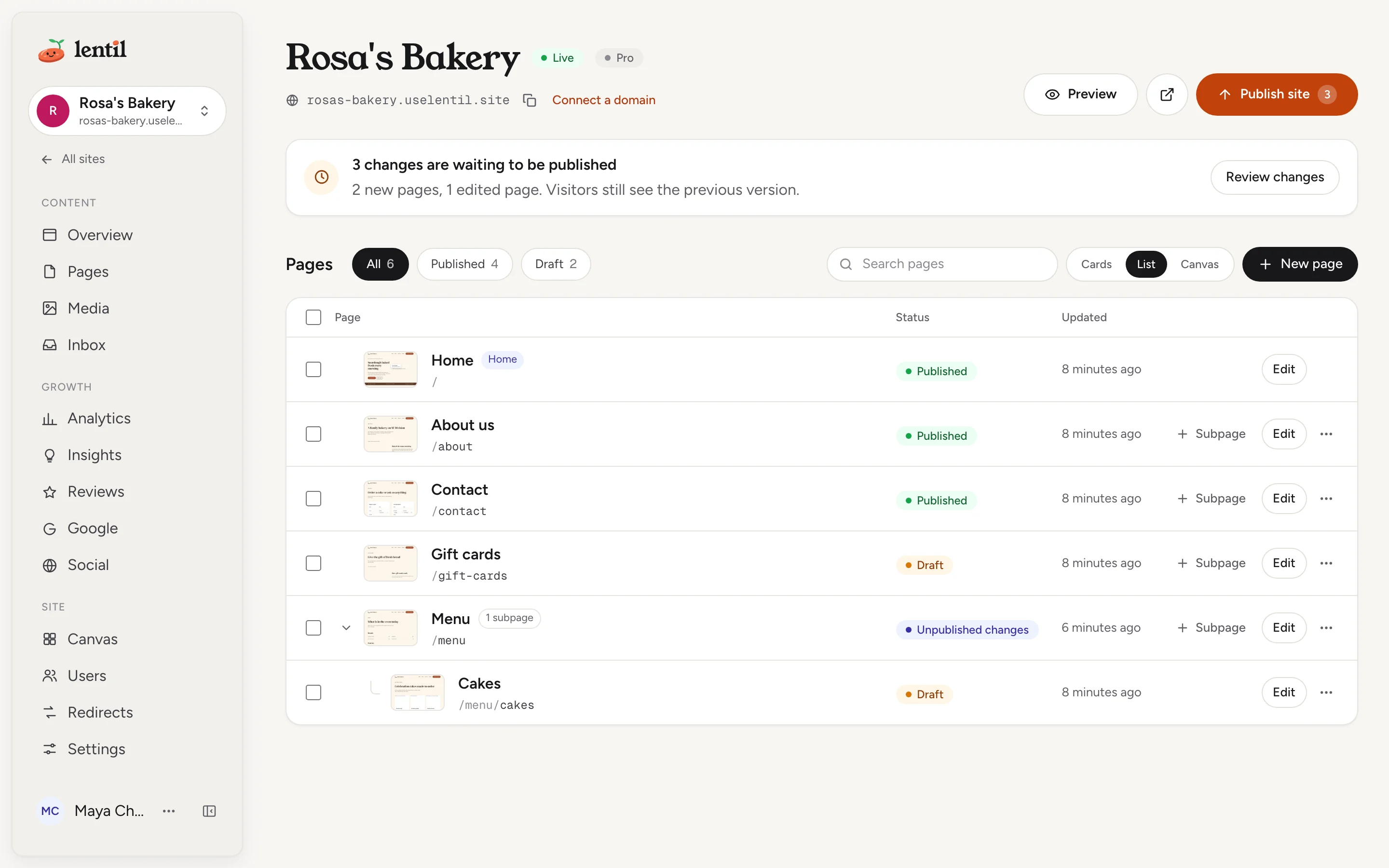
Open Pages in the sidebar of your site. Three buttons at the top switch the view: Cards (a thumbnail of each page), List (a table) and Canvas (a zoomable map of all pages, see Design canvases).
- Each page shows its title, its address (for example
/about) and a status: Draft (never published), Published, Unpublished changes (live, with edits waiting) or Unpublished (taken offline by hand). - Small chips mark the Home page, a page that becomes the home page when published (Home after publish) and the page used for missing addresses.
- Filter by All, Published or Draft, each with a count, or type in Search pages to find a title or address.
- Pages under another page are its subpages. In the list, press the arrow beside a page to show or hide its subpages. In the cards, press a page that has subpages to open its section.
Above the pages, a status card tells you where the site stands, for example Everything is live or 3 changes are waiting to be published, with a Review changes button. See Publishing.
Add a page
- On Pages, press New page. (On a page's row or card, Subpage adds a page under it.)
- Type a Title, for example About us.
- Under Parent page, keep Top level, or pick a page to create a subpage under it.
- Check the Path. It fills in from the title (About us becomes
/about-us); change it if you like. - Press Create page. The new page opens in the editor as a draft. Nothing is public until you publish.
The first page of a new site is the home page and has the path /.
Rules for addresses
- An address is lowercase letters, numbers and hyphens, with slashes between levels, like
/menu/cakes. Each part can be up to 60 characters and an address can go up to 5 levels deep. - Two pages cannot share an address. If the one you typed is taken, the box says Another page already uses this path. When the address is made from the title, Lentil adds
-2,-3and so on for you. - A few addresses belong to the platform, for example
/cart,/checkoutand/account, and cannot be used for pages. - A page title can be up to 120 characters.
Add a new page called "Gift cards" at /gift-cards on my Lentil site. Write it from our business profile: how gift cards work, how to buy one by phone, and a call button. Leave it as a draft and send me the editor link.Uses list_pages, create_page, get_business_profile. Connect an assistant
Move pages
Moving a page puts it under another page, or back at the top level. The page keeps the last part of its address and its subpages go with it, so /cakes moved under Menu becomes /menu/cakes.
- Tick the boxes next to one or more pages. A bar appears with Publish, Unpublish, Move and Delete.
- Press Move.
- Under Move to, choose Top level or a page. The box lists each old address with an arrow to its new one.
- Press Move pages.
A page that is already live moves right away, and its old address redirects to the new one so links and search results keep working. A draft just changes address. Older redirects that pointed to the moved page are updated to follow it.
Some things cannot move: the home page, and a page into itself or its own subpages. A move that would collide with an existing address, or go deeper than 5 levels, is refused and nothing is changed.
Change the home page
The home page is the page at /. To make a different page the home page:
- On Pages, open the menu on the page (More actions) and choose Set as home page. You can also press Set as home page in the editor's Page panel, or on a selected page in the Canvas view.
- Read Set as home page?. It lists the exact changes, for example
/about → /for the new home page and/ → /old-homefor the current one. - Press the button to confirm. The page now shows Home after publish.
- Publish the page (or press Publish site). Only then do the addresses change.
Until you publish, your live home page stays exactly as it is. When you publish, the old home page is kept, not deleted: it moves to /old-home (or /old-home-2 if that is taken). Old links to the new home page's former address open the home page, and subpages keep their addresses.
Changed your mind? Choose Cancel home page change from the same menu. Nothing changes. While a change is waiting, the two pages involved cannot be moved or deleted, and no other page can take the address the old home page is going to.
Page settings and the not found page
A page's title and its search and sharing settings are in the editor's Page panel (see The page editor and SEO and AI visibility).
To choose which page visitors see when they open an address that does not exist, open the page's More actions menu and choose Use as 404 page. The same menu says Stop using as 404 page to go back to the default. A page used this way is hidden from search engines and left out of the sitemap, and it stops being the 404 page if you make it the home page.
Take a page down or delete it
- Unpublish takes a page off the live site but keeps the page, its draft and its history. Use Unpublish page in the editor's More page actions menu, or tick pages and press Unpublish. The page then shows Unpublished, and Publish site will not put it back on its own; publish it again when you want it live.
- Delete removes the page for good, with all its versions. Open the page's menu and choose Delete, or tick pages and press Delete.
Delete one page
- Choose Delete. The box asks Delete "Page name"?. If the page is live it says the address will come off the live site.
- Read what links to the page. The box lists places, such as your header, footer, other pages and redirects, where a link will be left behind.
- Under Send visitors to, pick a page to redirect the old address to. Leave it on No redirect (visitors see the not found page) if you prefer.
- Press Delete page.
Subpages of the deleted page are not deleted, unpublished or moved: they stay at their own addresses. If the page was your 404 page, the default one comes back.
Delete several pages
Tick the pages and press Delete in the bar. The box lists the pages that will go; the home page, and pages you cannot take down, are left out. Under Send visitors to, pick one page to redirect every old address to, or leave it on No redirect (visitors see the not found page). If some of the pages already have a redirect from their address, the box names them: those redirects are kept when you pick no page, and replaced when you pick one. Press Delete pages. Pages are deleted one at a time; if one fails, the ones before it are already gone, with their redirects.
Deleting cannot be undoneNeither the page nor its history can be brought back. If you might want it again, unpublish it instead.
Redirects
A redirect sends anyone who opens an old address to a new one. Use them when a page moves or is deleted, or to keep addresses from a previous website working. Open Redirects in the sidebar of your site (under Site).
Add a redirect
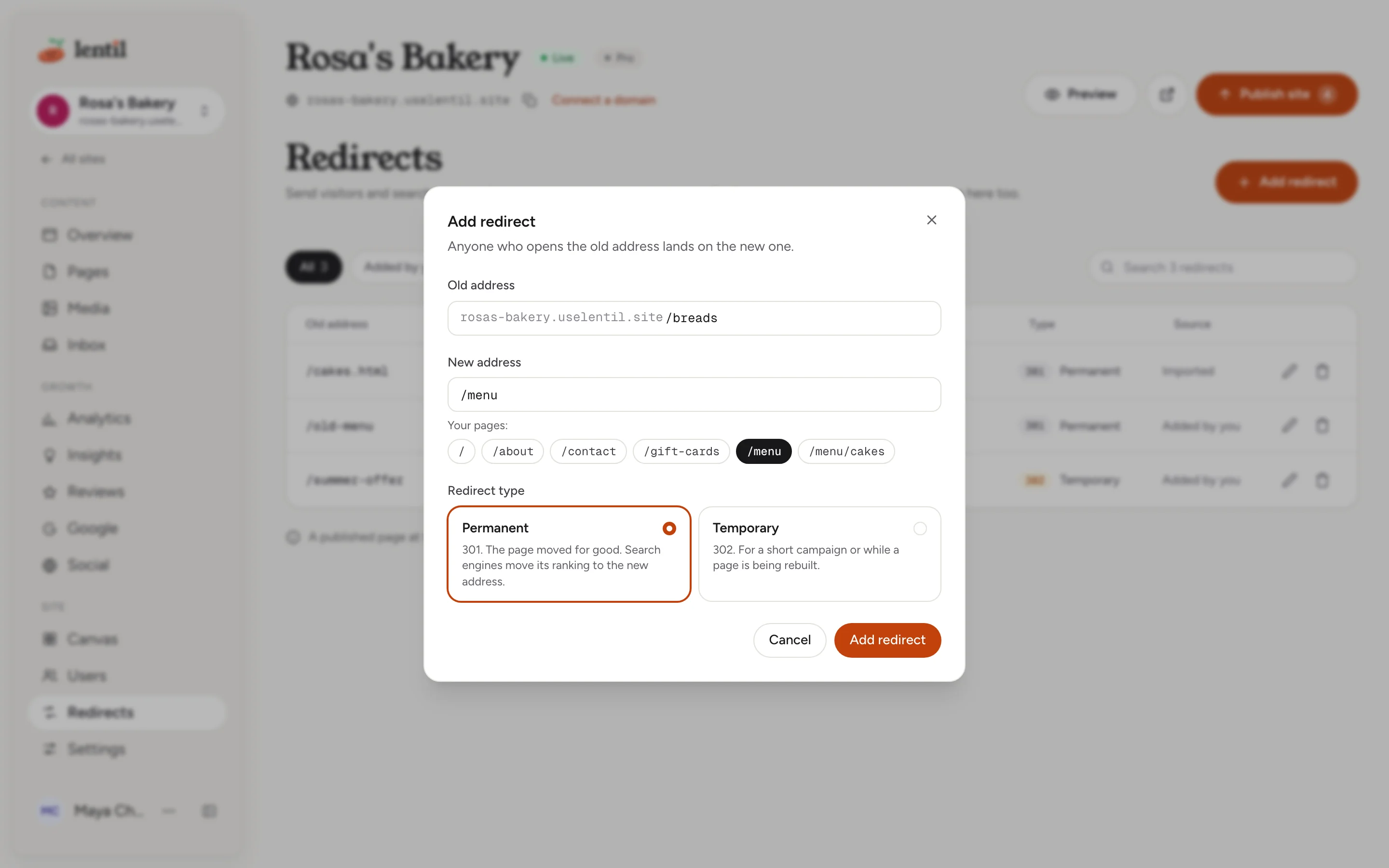
- Press Add redirect (or Add your first redirect on an empty list).
- In Old address, type the address people use now, starting with a slash, for example
/old-menu. - In New address, type a path on your site, like
/menu, or another website's address starting withhttps://. Under Your pages, press a page's path to fill it in. - Choose the Redirect type: Permanent (301) when the page moved for good, so search engines move its ranking to the new address, or Temporary (302) for a short campaign or while a page is rebuilt.
- Press Add redirect. A message says Redirect saved. Changes go live within about a minute.
The list shows Old address, New address, and Type. Use the filter chips and Search redirects to find one. The pencil on a row edits it, and the bin deletes it after you confirm Delete redirect?. Redirects need no publishing: they take effect on their own.
Changing a redirect's Old address moves it in one step. If another redirect already uses that old address, the save is refused and nothing changes.
Redirects that Lentil adds for you
- Moving a live page adds a redirect from its old address.
- Deleting one or several pages with Send visitors to chosen adds one from each deleted address.
- Changing the home page redirects the new home page's old address to
/.
Our old website used /cakes.html and /about-us.html. Show me my current Lentil redirects, then add permanent redirects from those two addresses to /menu/cakes and /about. Tell me if any of them would never run.Uses list_redirects, set_redirects. Connect an assistant
Who can use it
- Owners, admins, members and clients can add, move and edit pages and set the home page. See Team and roles.
- Publishing, unpublishing and deleting or moving a page that is live need the publish permission, which all four roles have. Deleting a draft only needs the edit permission.
- Choosing the 404 page, adding a redirect while deleting a page, and the whole Redirects screen need the permission to change site settings, which all four roles have.
- Everything here works on the Free and Pro plans. The Free plan limits how many pages a site can have, and a new page that would go over the limit is refused with a message that says so. See Plans, billing and credits.
Limits and edge cases
- You cannot delete or unpublish the home page while other pages are live: unpublish them first. The home page can never be deleted or moved; make another page the home page instead.
- Other pages can only go live while the home page is live. Publishing a page before the home page says Publish the home page first.
- A page's address can be at most 5 levels deep, and each level at most 60 characters.
- A redirect's old address must start with one slash and have no
#part (browsers never send it). - A redirect cannot point to its own old address, and one that would send visitors in a circle is refused. A redirect that points to another redirect shows where visitors end up. A loop shows Loops back - visitors can't reach a page.
- A redirect from an address where a published page lives never runs, and the row says Off while a page is published here. Unpublish or move the page to let it run.
- If your site has other languages, redirects apply to them too: with Spanish on,
/es/old-pagegoes to/es/new-pagewithout a separate redirect. - Redirects reach visitors within about a minute.
- While a website is being moved to Lentil, pages cannot be moved, deleted or have their home page changed until it finishes.
From an AI assistant
An assistant connected to Lentil can manage your pages with your rights. See AI assistants.
list_pagesshows every page with its address, publish state and the pending home page change.create_pageadds a draft page.update_page_settingschanges a title or SEO fields.move_pagesmoves pages under a parent (or to the top level) and adds the redirects for live pages.set_home_pagewithoutconfirmed: trueonly shows the exact address changes. The assistant must show them to you and, after you agree, call it again withconfirmed: trueand thoseexpectedPaths.cancel_home_page_changecancels it. The change takes effect when the page is published (publish_page).delete_pagewithoutconfirmed: trueonly previews what would go and what links to the page. It deletes only after you agree. It takes an optionalredirectTo.unpublish_pagetakes a page offline.list_redirectsshows redirects with where each ends up, loops and the ones that never fire.set_redirectsadds or updates up to 100 per call, anddelete_redirectsremoves them. Redirects go live without publishing, so a good assistant confirms with you first.- To change a redirect's old address,
set_redirectstakesreplaceswith its current old address on a single redirect. The move happens in one step and is refused when another redirect already has the new old address.replacesworks on one redirect per call.
Updated 9 November 2026