
SEO and AI visibility
Control how your site looks in Google and in shared links, what search engines and AI assistants may read, and what they get when they do. Lentil writes sensible defaults from your business details, so you only change what you want to.
Set your site-wide search settings
- Open your site, choose Settings, then Search & sharing.
- Under Search result and link preview, type a Website name. Leave it empty to use the business name.
- Write a Description. It is the line under your name in search results. Google cuts it off after about 155 characters, and the box takes up to 300.
- Press Change next to Social image to pick the picture shown when a link to your site is shared (1200 by 630 works best), and next to Site icon for the icon in browser tabs. Without a site icon, Lentil makes one from your logo. Press Use a link instead to paste an address.
- Press Save changes in the bar at the bottom.
These are the site-wide defaults. Each page can override them (see Set SEO for one page).
Preview how it looks
Beside the fields, two previews update as you type. The Google card shows your icon, name, address, title and description as a search result. Below it, the link card shows how a shared link looks, with your social image, or a picture Lentil makes from your website name when you have not set one.
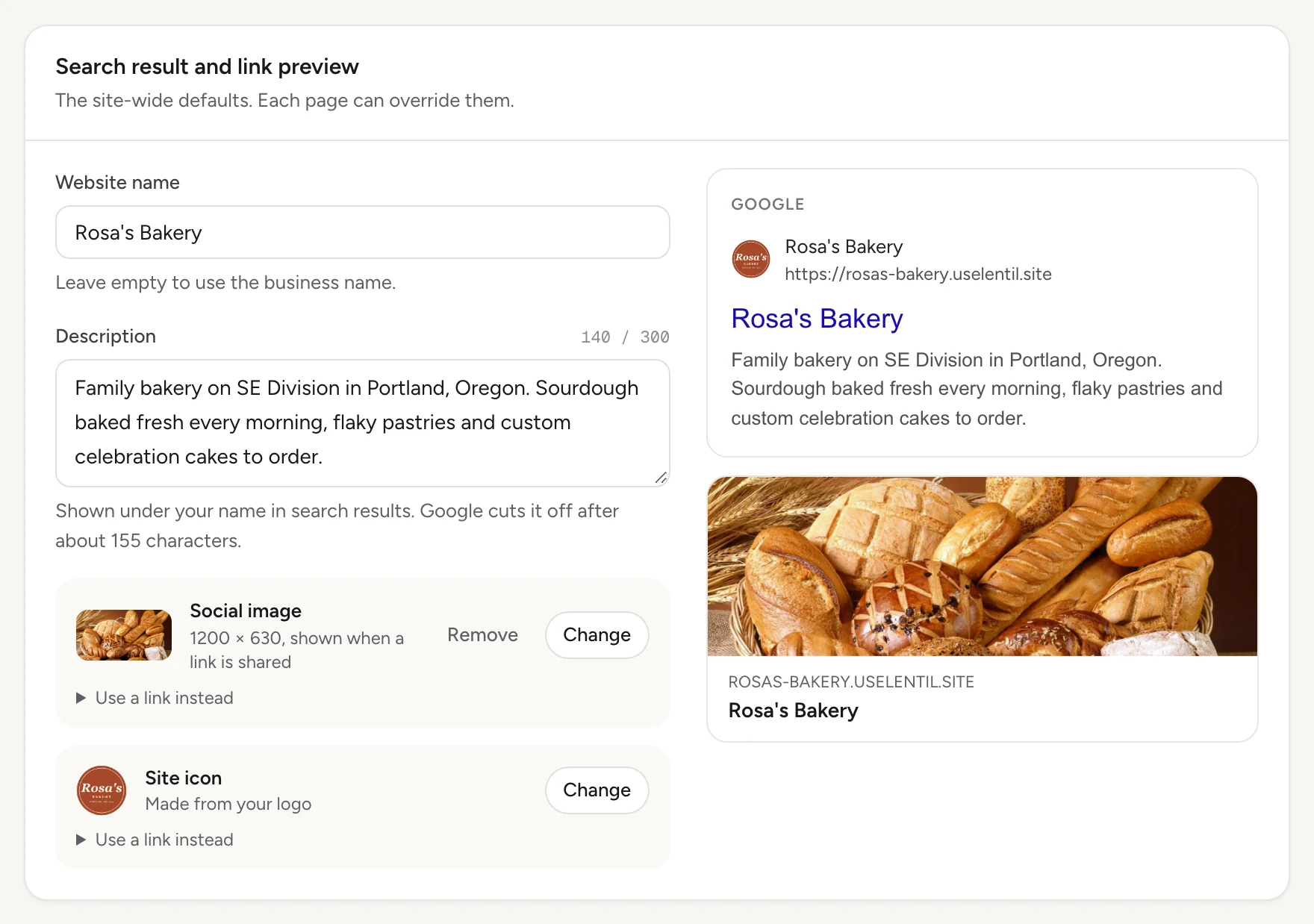
If the name or description looks like placeholder text, the card warns you to replace it before publishing.
Decide what search engines may read
The Search visibility card has switches:
- Show in search results: when off, pages ask search engines to remove them from results. Until your site has its own domain this is off by default, so unfinished sites stay out of search. Turn it on to show the free address in results. Visitors can open your pages either way.
- Publish a sitemap: helps search engines find every published page.
- Include images in the sitemap: adds each page's social image so it can appear in image search.
- Allow AI model training: lets AI companies train models on your pages. AI search and AI answers work either way.
The sitemap switches need Show in search results on. If you turn it off on a live site, a warning says your site will drop out of Google and AI answers within a few days.
Business details for Google
Under the switches, choose the structured data Google gets: Automatic (recommended), Local business (address, hours and service area), Organization (name, logo and contact only), Person (name, photo, contact and profiles) or None. Automatic picks a local business when you have a public address, and otherwise an organization. For other site kinds it picks a person, a software application or an organization to match. The business facts come from your business profile.
Set SEO for one page
- Open the page in the editor and press Page settings and SEO.
- Set the SEO title (up to 120 characters). Leave it empty to use the Page title, which is also used in navigation.
- Write the Meta description (recommended under about 160 characters, up to 320).
- Choose a Page type: General page, Contact page or Service. A service page tells search engines the business provides that service.
- Pick a Social image for this page, or leave it to use the site default.
- Press Save. The settings are saved with the page draft and go live when you publish the page.
Tick Hide this page from search engines to keep a page out of results and out of the sitemap. Include in the sitemap applies only to pages that are not hidden. A hidden page also gets no AI version.
See what crawlers and AI assistants get
The What crawlers get card, further down Search & sharing, shows what search engines and AI assistants receive from your published site, built from your settings and published pages. Switch between:
- robots.txt: the rules for crawlers.
- sitemap.xml: your published pages.
- llms.txt: a short guide for AI assistants (see llms.txt).
- Structured data: the JSON-LD facts about your business.
- AI version of a page: the Markdown assistants read for a page.
The card says whether indexing is allowed, how many published pages and sitemap entries there are, and warns about missing business facts or blocked crawlers. Press Refresh output after a change.
Advanced crawler rules
Press Advanced crawler rules to add a group for a crawler that should be treated differently. Give the Crawler (* for all, or a name such as Googlebot) and lists of Allowed paths and Disallowed paths, one per line starting with /. These rules control crawling, not access: private pages need a sign-in, and blocking a page can stop search engines from seeing its noindex instruction.
llms.txt and the AI version of a page
Every published site serves /llms.txt, a short guide for AI assistants: a summary, key business facts and links to your pages. Each page that search engines may index also has an AI version, a Markdown copy at the page's address with .md added. Both are generated for you and kept current.
- For
llms.txt, open What crawlers get, choose the llms.txt tab and press Edit. For one page, open Page settings and SEO in the editor and find AI version (Markdown). - Write your text and press Save custom version. The badge changes from Generated to Custom.
- To go back, press Reset to generated.
A custom version goes live immediatelyIt is not a draft. When your pages or business details change after you wrote it, an Outdated badge appears: review it or reset it. Prefer improving the page itself, and use a custom version only when AI readers should see something different. Keep business facts identical to your business profile.
If an AI version is not served, the editor says why: the page is unpublished, hidden from search engines, the 404 page, or the whole site has indexing off.
Show me what ChatGPT and Google would get from Rosa's Bakery: the robots rules, sitemap, llms.txt and the Markdown for the home page. Tell me about any missing business facts or blocked crawlers and suggest fixes. Do not change anything yet.Uses get_search_preview, get_llms_txt, get_page_markdown. Connect an assistant
Track AI visibility
Open Analytics and scroll to AI visibility. It appears once the site has had visits. It shows how assistants like ChatGPT, Claude and Perplexity read your site and send you visitors:
- Visitors from AI answers: visits people make after following a link from ChatGPT, Perplexity, Claude, Gemini or Copilot.
- Assistant reads for a user: pages an assistant opened because a person asked it a question.
- AI crawler requests: visits by AI crawlers, with What crawlers read (HTML, Markdown, llms.txt, robots.txt, sitemap) and any Missing pages crawlers asked for.
Counts cover the range chosen at the top of Analytics. By default only verified crawlers are counted, meaning ones confirmed by their company's published addresses. Tick Include unverified crawlers to count the rest, which may be impersonators. Google AI Overviews arrive as ordinary Google search visits and are not separated. If your settings keep some AI crawlers out, a warning links to Search & sharing. For sites hosted elsewhere, only visits from AI answers are measured. See Analytics.
How many visitors came to Rosa's Bakery from AI assistants in the last 30 days, which pages did they land on, and which AI crawlers read the site?Uses get_ai_visibility. Connect an assistant
Check which pages are on Google
Once Search Console is linked, the Google area shows which of your pages Google has added to search, with a reason and what to do for each page that is not, and a Check again button after you fix something. Pages are checked after linking and then every week. Hidden pages and the 404 page are not checked. Setup and the report are described in Search Console.
Choose your 404 page
In Search & sharing, the 404 page card lets you choose which of your pages visitors see at an address that does not exist. Pick it under Not found page; Default uses Lentil's own. The home page cannot be the 404 page, and a draft page is used once it is published.
Who can use it
- Owners, admins, members and clients can change site and page SEO, the crawler rules and custom llms.txt and Markdown. See Team and roles.
- Everything here works on Free and Pro.
- Site SEO changes go live on published pages right away. Page SEO goes live when you publish the page.
Limits and edge cases
- Website name: up to 120 characters. Site description: up to 300. Page SEO title: up to 120. Page meta description: up to 320.
- Image and icon links must start with
https://or/. - A custom
llms.txtis up to 100 KB, and a custom page Markdown body up to 200 KB. The page's title, address and date at the top of its AI version are always generated. - Turning off search for a live site removes it from Google and AI answers within a few days.
- Your free address is off search by default until you connect your own domain. See Domains.
- In a test environment, Search visibility says the environment always requests noindex; your saved choice applies in production.
- Re-checking one page on Google is limited to one check per page every 10 minutes and 50 per site per day.
From an AI assistant
An assistant connected to Lentil works with your role. See AI assistants.
update_site_seo: change the site name, description, social image, icon,indexingEnabled,sitemapEnabled,sitemapImages,aiTraining,schemaType,robotsRulesand the 404 page.update_page_settings: change a page's title and SEO fields (title, description, image, keywords, noindex, sitemap, page type).get_search_preview: robots.txt, sitemap, structured data, llms.txt and a page's Markdown, with warnings.get_llms_txtandset_llms_txt;get_page_markdownandset_page_markdown: read and customize the AI versions. Pass null to reset.get_ai_visibility: AI referrals, assistant reads and crawler requests over 7, 30 or 90 days.get_search_indexingandinspect_page_indexing: which pages Google has indexed, and a fresh check of one page.
Safety rules: update_site_seo, set_llms_txt and set_page_markdown go live immediately, so an assistant should confirm with you first. Page SEO from update_page_settings is a draft until the page is published.
Updated 9 November 2026