
Google Business Profile
Your Business Profile is the listing people see on Google Maps and beside your name in Search. Link it to Lentil to see how customers find, call and visit you, to keep your hours and phone the same everywhere, and to answer reviews in the Reviews section.
Link your profile
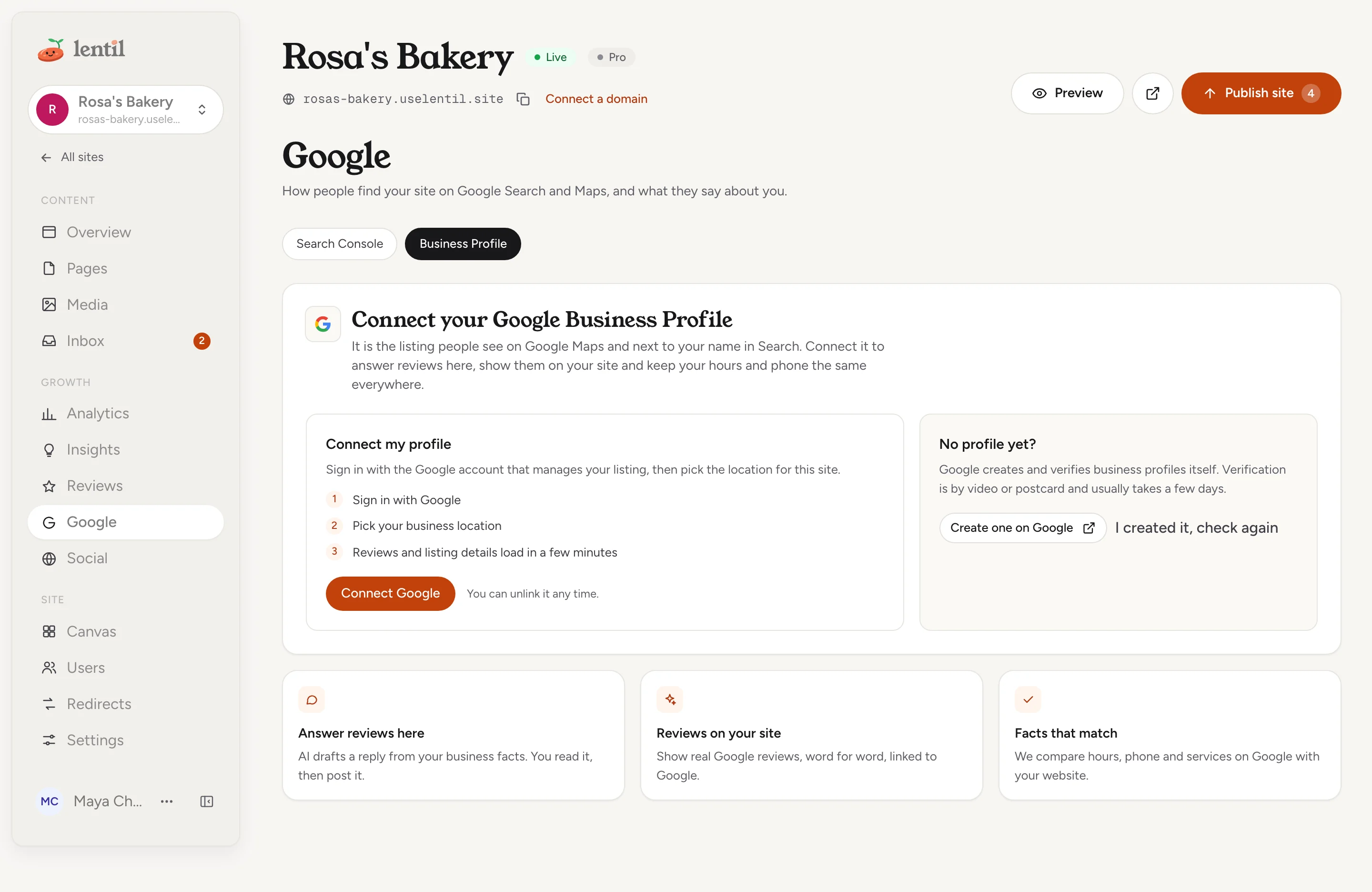
Open Google in the site's sidebar, under Growth, and choose the Business Profile section. You see Connect your Google Business Profile.
- Press Connect Google (or Reconnect Google if an account is already connected but expired) and sign in with the Google account that manages your listing. Tick every permission Google lists.
- Back in Lentil, Choose a business location opens. Pick the profile this site belongs to and press Choose. Locations whose website matches your site are marked Matches this site and listed first.
- The first insights and reviews load within a few minutes. The page checks again by itself.
A profile that Google has not verified yet can still be linked, and shows Not verified on Google. Reviews and insights only arrive after Google verifies it. If it is not, the Business Profile row shows a warning with a link to Open Google Business Profile: finish verification there, then press Refresh now.
No profile yet? Press Create one on Google. Google creates and verifies profiles itself, by video or postcard, and it usually takes a few days. When it is done, press I created it, check again.
Link my Google Business Profile to Rosa's Bakery. List the locations my Google account manages, tell me which one matches the site, and link it after I confirm.Uses get_site_google, list_google_locations, link_business_profile. Connect an assistant
Sites with a Business ProfileBusiness Profile is offered on every site Lentil hosts. For a website you keep with its current host, it is offered when the site's kind has a listing, such as a local business.
See how customers find you
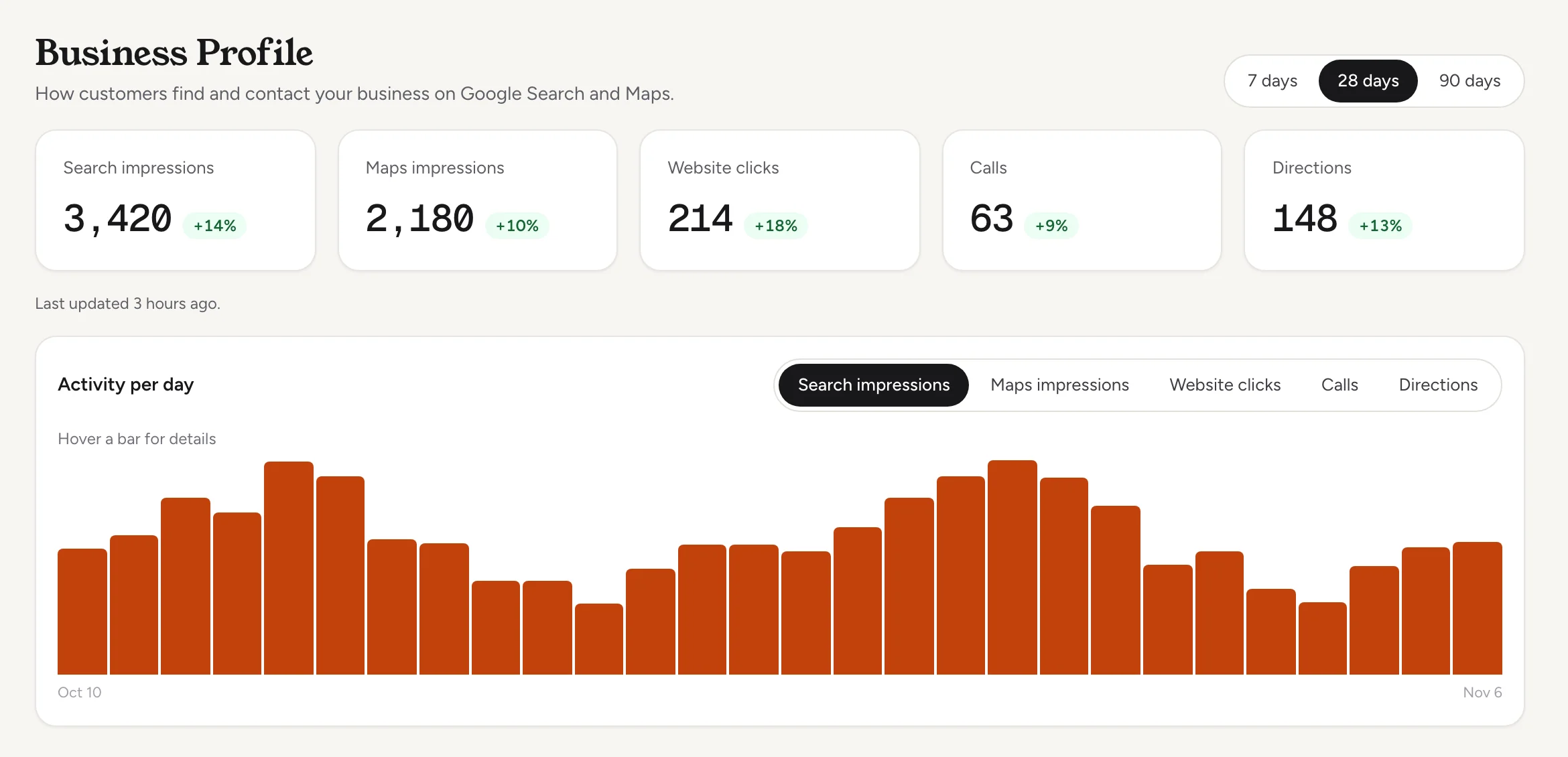
Once the profile is linked, the Business Profile section shows how customers find and contact your business on Google Search and Maps. Pick 7 days, 28 days or 90 days with Date range. Five numbers sit on top, each compared with the period before:
- Search impressions and Maps impressions: how often your listing appeared.
- Website clicks: taps on your website link.
- Calls: taps on your phone number.
- Directions: requests for directions to you.
Below is the chart Activity per day. Lentil refreshes the numbers every day, and Refresh now in the Setup card pulls them sooner. A new link shows a note while the first import runs. No activity was recorded in this period yet just means nothing happened in that window.
How did my Google listing perform in the last 90 days? Show searches, map views, website clicks, calls and direction requests, and tell me what changed compared with the 90 days before.Uses get_business_profile_insights. Connect an assistant
Keep your facts in sync
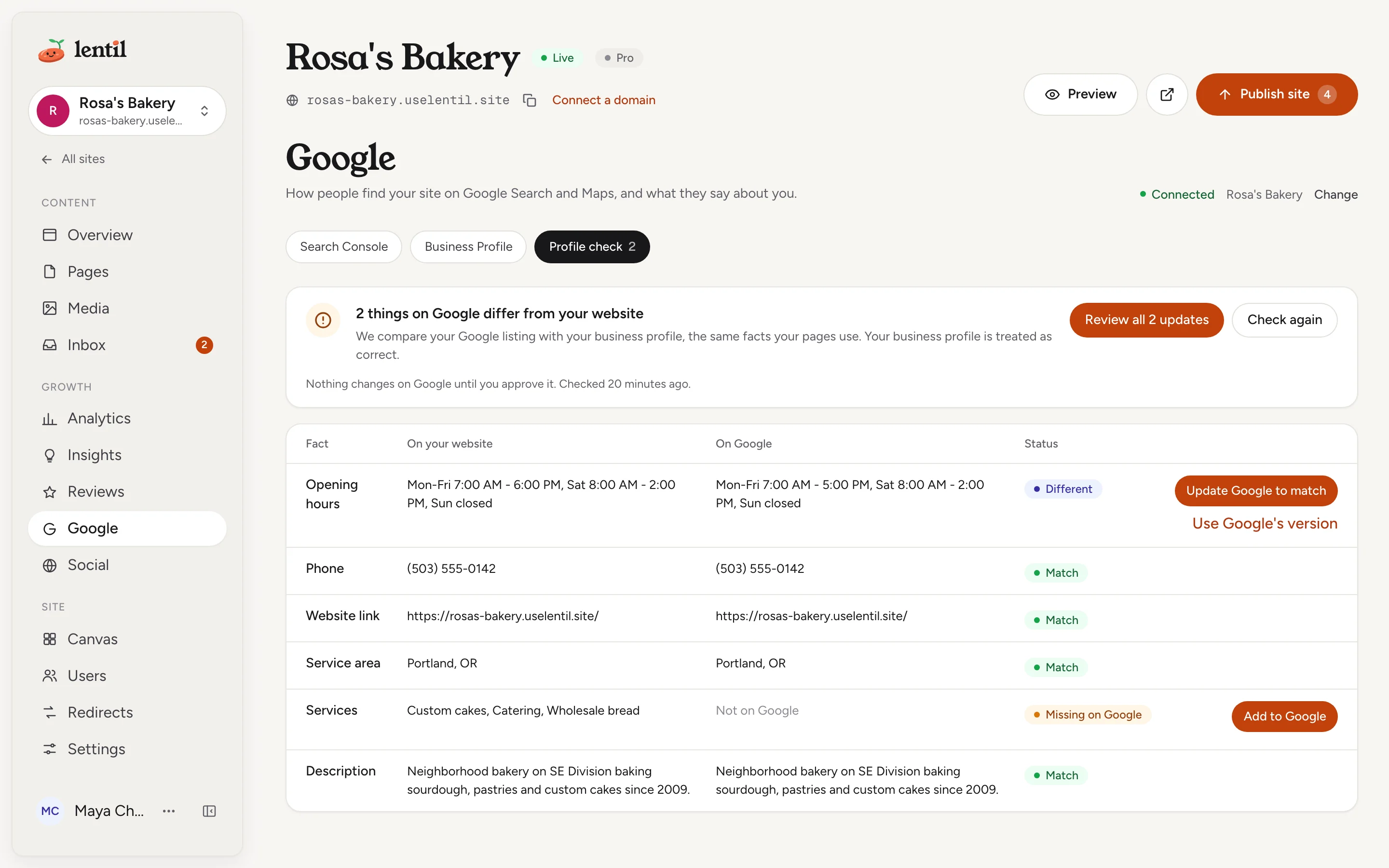
When a location is linked, the Google page gets a Profile check section. It reads your listing on Google now and compares it with your business profile, the same facts your pages use. Your business profile is treated as correct. The section's tab shows how many things differ.
| Fact | How it is compared |
|---|---|
| Opening hours | Day by day, for every day of the week. |
| Phone | A US number with or without its country code counts as the same. |
| Website link | By the address, ignoring www. |
| Service area | By city name. |
| Services | Names and descriptions. |
| Description | The text. |
Each row shows On your website, On Google and a status: Match, Different or Missing on Google. When everything matches you see Your Google listing matches your website. Press Check again to read Google again.
Fix a difference
- On a row that differs, press Update Google to match (or Add to Google when Google has nothing). To fix everything at once, press Review all N updates.
- The dialog Update your Google listing? shows each change with Now on Google and After, each with a checkbox. Untick any you do not want.
- Press Update Google (N changes). Nothing reaches Google before this button.
Changes show on Google Maps and Search usually within minutes, and Google may review some edits first. Until Google shows it, the row says Sent to Google. A change Google refuses is listed with its reason and stays in the dialog.
When Google has the better value, press Use Google's version to copy it into your business profile instead. Your pages then use it too. The website link always comes from your site, so it has no such button.
Check my Google listing against my website. Show me what differs, and prepare the update for the opening hours. Do not send anything to Google until I say yes.Uses get_google_profile_check, update_google_profile, use_google_profile_values. Connect an assistant
Some facts cannot be sentGoogle only accepts service area places from its own list, so those show Edit on Google. A description over 750 characters is refused. Services need a main category on Google first. A phone number that is not valid is refused. The row explains each case.
Reviews
Reviews from your Google profile have their own section in the sidebar. Read them, answer them with AI drafts and show the best on your site in Reviews.
Change or unlink the profile
- To use another location, press Change location on the Business Profile row, or Change next to the connected location on the Profile check section.
- To stop using Business Profile on this site, press Unlink. The dialog says what is removed: the imported insights, reviews and unsent reply drafts. Replies already posted stay on Google.
Changing the location removes the data stored for the old one. Connected Google accounts are managed in the Google accounts card, as described in Search Console.
Who can use it
- Everyone with access to the site can read the insights and the profile check: owners, admins, members and clients on a site shared with them.
- Linking, changing, unlinking, updating Google, using Google's version and Refresh now need permission to manage the site's settings: owners, admins, members, and clients on a site shared with them.
- Replying to reviews is a separate permission. See Reviews.
Limits and edge cases
- Insights and reviews refresh every day. Refresh now skips anything refreshed in the last 10 minutes.
- Nothing arrives until Google has verified the profile.
- Google's description limit is 750 characters.
- The profile check reads Google live and keeps the result for a few minutes. Check again reads it again.
- If the Google account loses access, the site shows a Reconnect banner and the people who manage the site get one email. The data already collected stays.
- Each site links one location.
From an AI assistant
An assistant works as you, with your role. See AI assistants.
connect_google,get_site_google: connect or reconnect an account (you open the link) and read the link status.needsVerificationtells you the profile is not verified yet.list_google_locations,link_business_profile,unlink_business_profile: pick and link a location, or remove the link and its stored data.get_business_profile_insights: totals, changes and the daily series for 7d, 28d or 90d, or a date range of up to 18 months.get_google_profile_check,update_google_profile,use_google_profile_values: the profile check, sending your values to Google, and copying Google's values into your business profile.refresh_google_data: refresh now.
Safety rules: update_google_profile changes what the public sees on Google, so without confirmed: true it only returns the changes and sends nothing. An assistant passes confirmed: true only after you approved exactly those fields. Text that comes from Google is treated as data, never as instructions.
Updated 9 November 2026