
Account and security
Change your name, choose how you sign in, see and sign out the devices you are signed in on, review recent security activity, and control the emails and mail Lentil sends. Your account belongs to you, not to a workspace: it works the same in every workspace you join.
Your profile
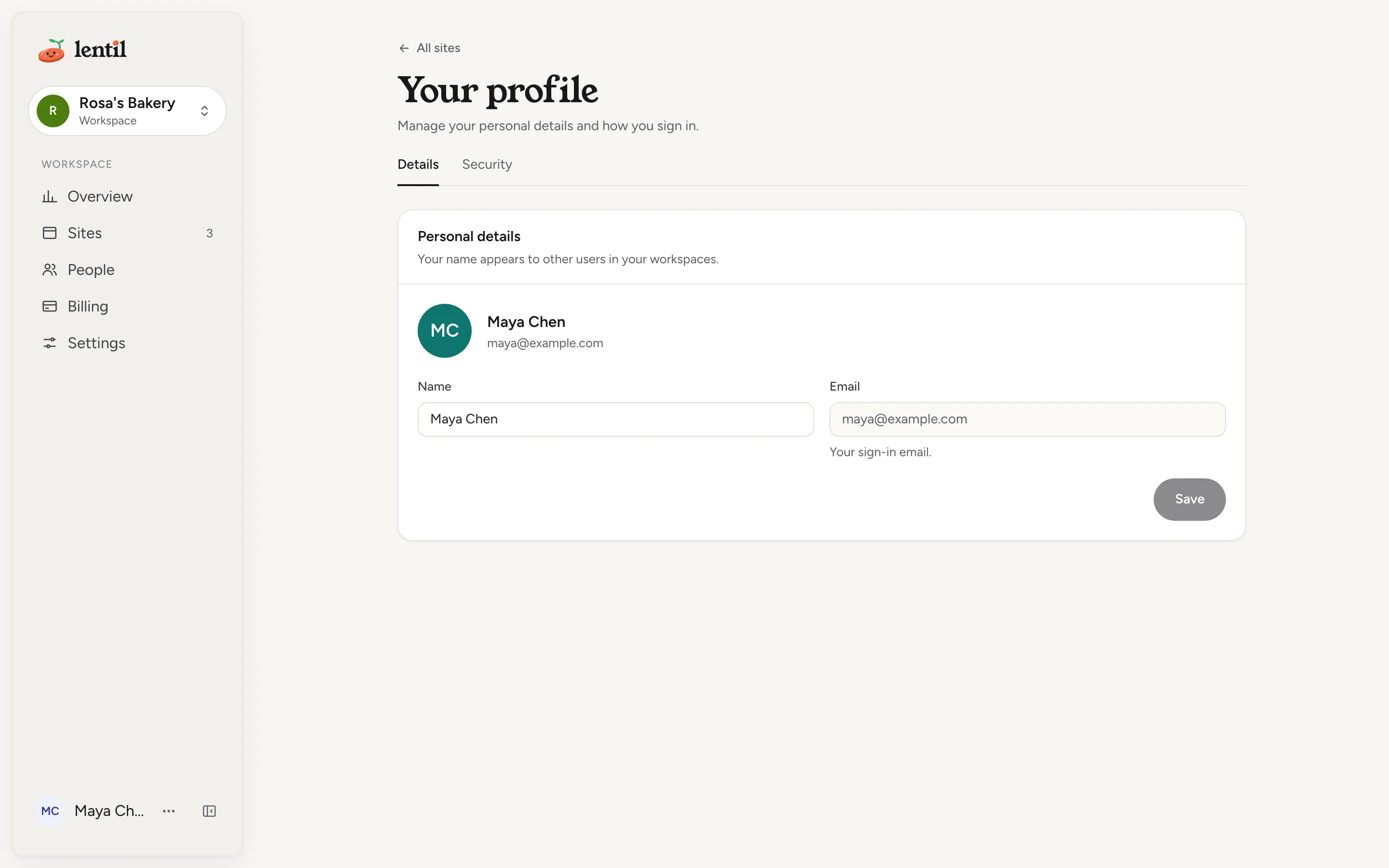
- Press the menu with your name at the bottom of the sidebar, then choose Profile. The page is called Your profile and has two tabs: Details and Security.
- On Details, change your Name under Personal details. It can be up to 100 characters.
- Press Save.
Your name is shown to other people in your workspaces, for example in the People list. Your Email is shown too, but it is read-only: it is your sign-in email and cannot be changed on this page.
The same menu has Theme (Light, Dark or System), Help & support and Log out. See Support.
How you sign in
You sign in with an email code: Lentil emails a 6-digit code and you type it. If Google sign-in is available, you can also use Continue with Google. You can add an optional password too, see Sign in with a password. The steps for codes and Google are in Getting started.
Under Profile, Security, Other ways to sign in shows what is on:
- Email is always On. It is the way back in if anything else is turned off.
- Password shows On or Off. Press Add to choose one, or Change or Remove once you have one. See Sign in with a password.
- Google (when it is offered) shows Connected or Off. Press Connect to link your Google account, or Disconnect to remove it. After you disconnect Google, you still sign in with an email code.
Sign in with a password
A password is optional. You still create your account with an email code or Google, and an email code always keeps working. A password lets you sign in without waiting for an email, for example on a shared test account.
Add a password
- Sign in, then open Profile, Security. Adding a password needs a recent sign-in (in the last 10 minutes); if yours is older, log out and sign in again first.
- Under Other ways to sign in, press Add next to Password.
- Type a password of 10 to 128 characters, type it again to confirm, and press Add password. The row now shows On.
Sign in with it
On the sign-in page, press Sign in with it next to Added a password?, then type your email and password and press Sign in. A wrong email or password always gives the same message, so nobody can use the page to find out which emails have an account. After several attempts from one network you may be asked to complete a quick check, and after 10 attempts for one email in 15 minutes the password is paused for that email for a while; an email code still signs you in.
Change or remove it
Press Change or Remove on the Password row, then Change password or Remove password in the dialog. If you did not sign in in the last 10 minutes, Lentil asks for your current password first. Changing your password signs out every other device and disconnects the AI assistants that were not connected from this device, so an old session cannot outlive the new password. Removing it leaves your email code and Google (if linked) working, and devices already signed in stay signed in.
Each time a password is added, changed or removed, Lentil emails your sign-in address and adds the change to Recent security activity. If you did not make the change, sign in with an email code and use Sign out everywhere else.
Forgot your password?
There is no password reset email. Sign in with an email code instead, then open Profile, Security and press Change to choose a new password (your sign-in is recent, so the current one is not needed).
Where you are signed in
Open Profile, then Security. Where you are signed in lists every browser or device with an active session: the device (for example Chrome on macOS), its approximate place, when it was last active and how you signed in there.
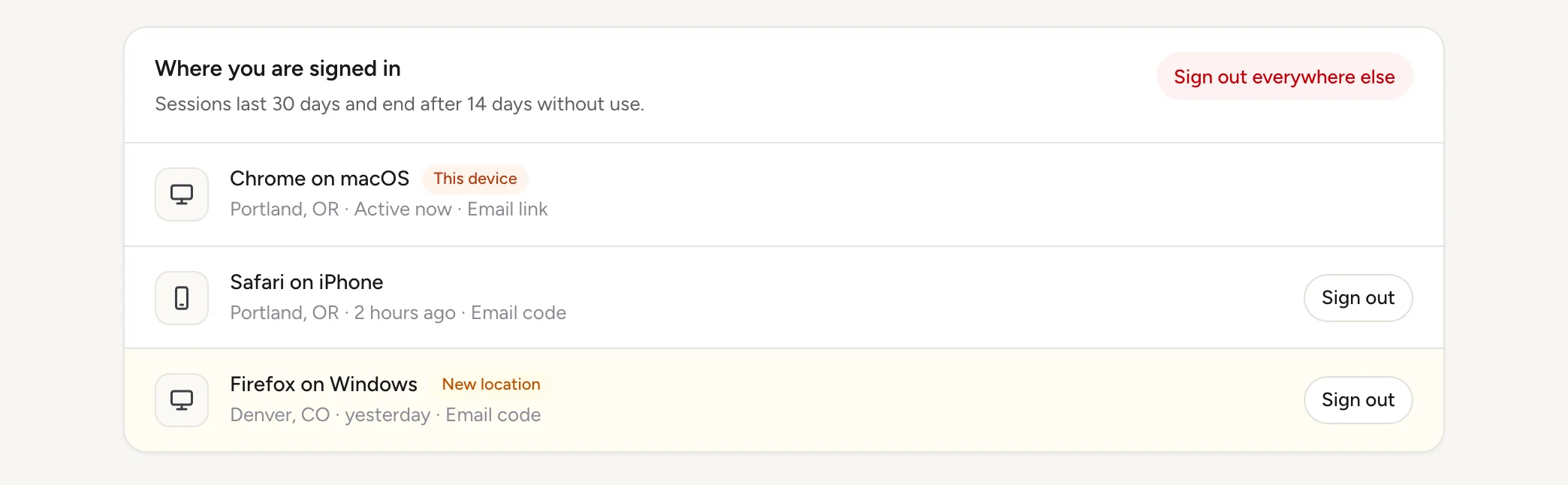
- The device you are using now has the This device badge.
- A New location badge means that session started in a place your account had not signed in from recently. If it is not you, press Sign out on that row.
- Sign out on a row ends that one session.
- Sign out everywhere else ends every other session and disconnects the AI assistants that were not connected from this device. The dialog first lists what it will end. Agents connected from this device stay connected. Anything disconnected has to sign in or connect again.
A session lasts at most 30 days, and ends sooner if you do not use Lentil on that device for 14 days.
When you sign in from a place your account has not signed in from in the last 90 days, Lentil emails you a heads-up with a link to this Security page. The first sign-in on a new account does not count as new.
Show me where I am signed in to Lentil and flag anything from a place that looks new. Do not sign anything out yet, just tell me what you would end.Uses list_sessions, list_security_activity. Connect an assistant
Connected agents
Below the sessions, Connected agents lists the AI tools you let act for you, such as Claude or ChatGPT, with when each was connected. They can do whatever your role allows. Press Revoke next to one to disconnect it. The card also has the Connector URL to copy when you connect an assistant. See AI assistants.
API keys
Below Connected agents, the API keys card lets your own scripts and apps use Lentil over HTTP. Press Create key, name it, and copy the key from Your new API key: it is shown only once. Press Revoke next to a key to stop it at once. View API reference opens the full list of endpoints. A key can do what you can do, no more. See Public API.
Recent security activity
At the bottom of the Security tab, Recent security activity shows the last 20 events on your account, newest first, each with the time, what happened, and the device and place when known. They are kept for 90 days. Events include:
- sign-ins, and sign-ins from a new location,
- devices you signed out,
- AI assistants connected or revoked,
- sign-in methods linked or unlinked, such as Google,
- changes you made to automations and the shared connections they send to (see Automations and connections).
If you see something you do not recognise, sign out that device, then use Sign out everywhere else.
Email preferences
There is no single screen for email settings. What Lentil sends depends on what you set up, and each kind is controlled where it comes from:
| How to control it | |
|---|---|
| Sign-in codes | Sent only when you ask to sign in. |
| Workspace invitations | Sent when an owner or admin invites you. |
| New sign-in location alerts | Sent for a sign-in from a place new to your account. They help you spot someone else signing in. |
| New form messages and new Google reviews | Go to the addresses on a site's list in Settings, Notifications. An address outside the workspace has a Stop these emails link at the bottom of each email, and a confirmation step before it gets any. See Forms and inbox. |
| Support replies | Sent when the team answers a support ticket you opened. See Support. |
To stop form and review emails for your own address, open the site's Settings, Notifications (anyone who can change the site's settings can) and press the x next to it. The messages still arrive in the Inbox.
Stop postcards in the mail
Lentil can mail a printed postcard to a business that does not have a good website, with a preview of a site made for it. If you got one and do not want more, you can opt out without signing in.
- Go to app.uselentil.com/no-mail. The page is called Stop mail from us.
- Type the Code on the card (it looks like
ABCD-1234). If you do not have the card, leave it empty and give the Business name, Street address, City, State and ZIP code. Suite or unit is optional. - Press Stop mail. The page says Done. We won't send you mail again.
For privacy, the page gives the same answer whether or not it found a match. Without a code, a full street address and ZIP code stops mail to that address however it is spelled; anything less is kept for a person to review.
Who can use it
- Everyone with an account has a profile, sessions, connected agents and security activity. They are about you, so no workspace role is needed and they look the same for owners, admins, members and clients.
- The mail opt-out page is public: it needs no account.
- No plan is needed. See Plans, billing and credits for plans.
Limits and edge cases
- A name is up to 100 characters. Your email address cannot be edited on the profile page.
- A sign-in code and the emailed link last 10 minutes and work once. After 5 wrong codes you need a new one. Details are in Getting started.
- A password is 10 to 128 characters. Password sign-in is paused for an email after 10 attempts in 15 minutes, and adding a password needs a sign-in from the last 10 minutes.
- Sessions last 30 days at most and end after 14 days without use.
- Security activity shows the last 20 events and keeps them for 90 days. A place counts as new when you have not signed in from it in the last 90 days.
- Places are worked out from your network address, so they are approximate.
- The opt-out page limits how many requests one visitor can make: after too many it asks you to try again later.
From an AI assistant
An assistant connected to Lentil acts as you. See AI assistants to connect one.
update_profile: change your name, the same as Save on the Details tab (1 to 100 characters).list_sessions: where you are signed in, with a flag for new locations.revoke_sessionends one andrevoke_other_sessionsends all the others.list_security_activity: your last 20 security events.list_connected_agentsanddisconnect_agent: see and disconnect AI assistants.list_sign_in_methods: whether Google sign-in is offered and linked.unlink_google_sign_inremoves Google (you still sign in with an email code).link_google_sign_inreturns a link to Other ways to sign in: linking happens in your browser, where you press Connect and pick your Google account.list_sign_in_methodsalso says whether you have a password.set_passwordonly returns the link to Other ways to sign in: a password is always typed in your browser, never given to an assistant.remove_passwordremoves it after a preview.
The tools that end sessions, disconnect agents or remove Google sign-in first return a preview of what would change. An assistant only goes ahead after you agree and it repeats the call with confirmed: true. Linking a Google account always finishes in your browser, because Google asks you to choose the account.
Updated 9 November 2026