
Design canvases
Two different canvases help you see and plan your site. The site canvas shows all your pages on one zoomable map and is on every plan. Design canvases are a Pro space for sketching layouts and directions, getting comments, and sharing a link for feedback.
Two kinds of canvas
| Site canvas | Design canvases | |
|---|---|---|
| What it is | A zoomable map of the pages your site really has. | Free-form boards of design frames that never change your pages until you decide. |
| Where | Pages, then the Canvas view. | Canvas in the site sidebar (the screen is titled Design canvases). |
| Plan | Free and Pro. | Pro to create and change. A site that moves back to Free can still open its canvases but not change them. |
See Plans, billing and credits for plans.
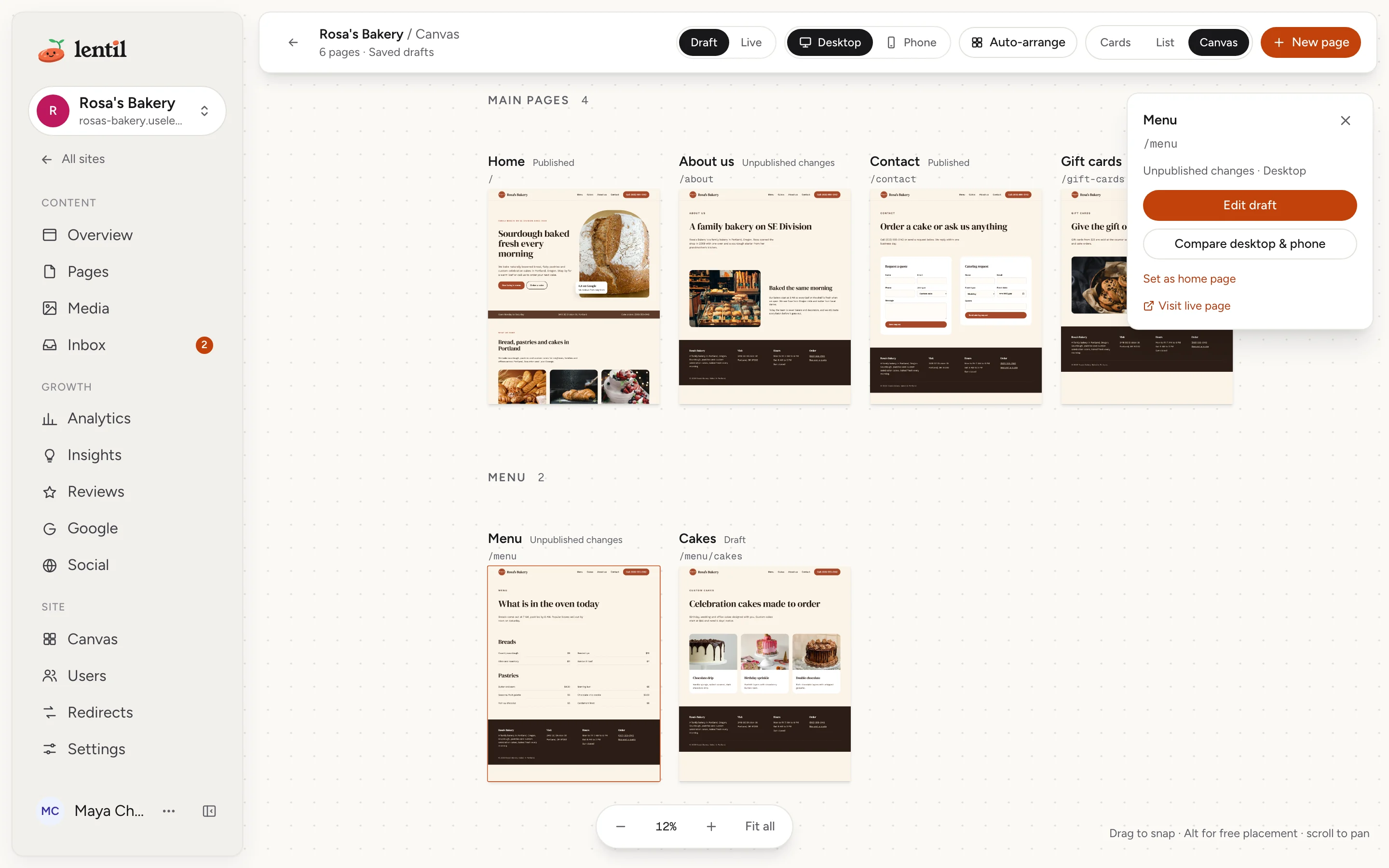
See all your pages on the site canvas
- Open Pages and press Canvas in the Cards / List / Canvas switch.
- Scroll to move around. Hold Cmd or Ctrl and scroll to zoom, or use the zoom buttons. Fit all (or the 0 key) shows everything.
- Every page shows as a desktop preview, as tall as the page itself (a very long page is cut off at the bottom). Use the Draft and Live buttons to switch between your saved drafts and what is published.
- Click a page to select it. A card shows its title, address and state, with Edit draft, Compare desktop & phone (to check the phone layout side by side), Set as home page and Visit live page. Double-click a page to open the editor.
Pages are grouped by section. You can drag tiles to rearrange them (they snap to a grid, hold Alt to place freely), or press Auto-arrange to tidy them into section grids. The layout is saved for the whole site. New page adds a draft page. The canvas is only a view: it never makes another copy of your pages.
Show me how my Lentil site's pages are laid out on the site canvas, and tidy the layout so the main pages are on one row and the blog pages in a group below.Uses get_site_canvas, update_site_canvas. Connect an assistant
Start a design canvas
- Open Canvas in the sidebar and press New canvas. (On Free, you see an offer to upgrade instead.) The New design canvas box opens.
- Give it a Title, for example Homepage directions.
- Under Who designs, choose Lentil AI, which designs frames from a prompt and acts on your comments and uses AI credits, or Your own agent, where an assistant you connect over MCP does the work and no credits are used.
- With Lentil AI, optionally describe what to design under What should it design? (optional), and pick how many frames or directions to start with.
- Press Create canvas (or Create and design when Lentil AI should start straight away). If the AI cannot start, for example because the workspace is out of credits, the canvas is still created and the box says why.
A canvas never changes your pages. It is a board of frames: each frame is a full page design. You can switch who designs at any time from the canvas menu under Who designs; frames and comments stay as they are. With your own agent, the dialog gives you a prompt and the connector address to copy into your assistant.
Work on a canvas
- Design with AI (or Your agent) at the top asks for more frames from a prompt.
- The Canvas actions menu has New row, Import page from URL as reference (adds a page from another site to a References row for you to compare; its scripts never run), Use the site's header and footer, and Who designs.
- A frame's menu offers Duplicate view to show it again and compare options (for example desktop and mobile, or light and dark), Move view to row, Remove this view, Open in a new tab, Version history and Share.
- Version history keeps the last 50 versions of a frame. Restoring one saves a new version, so nothing is lost.
Comments
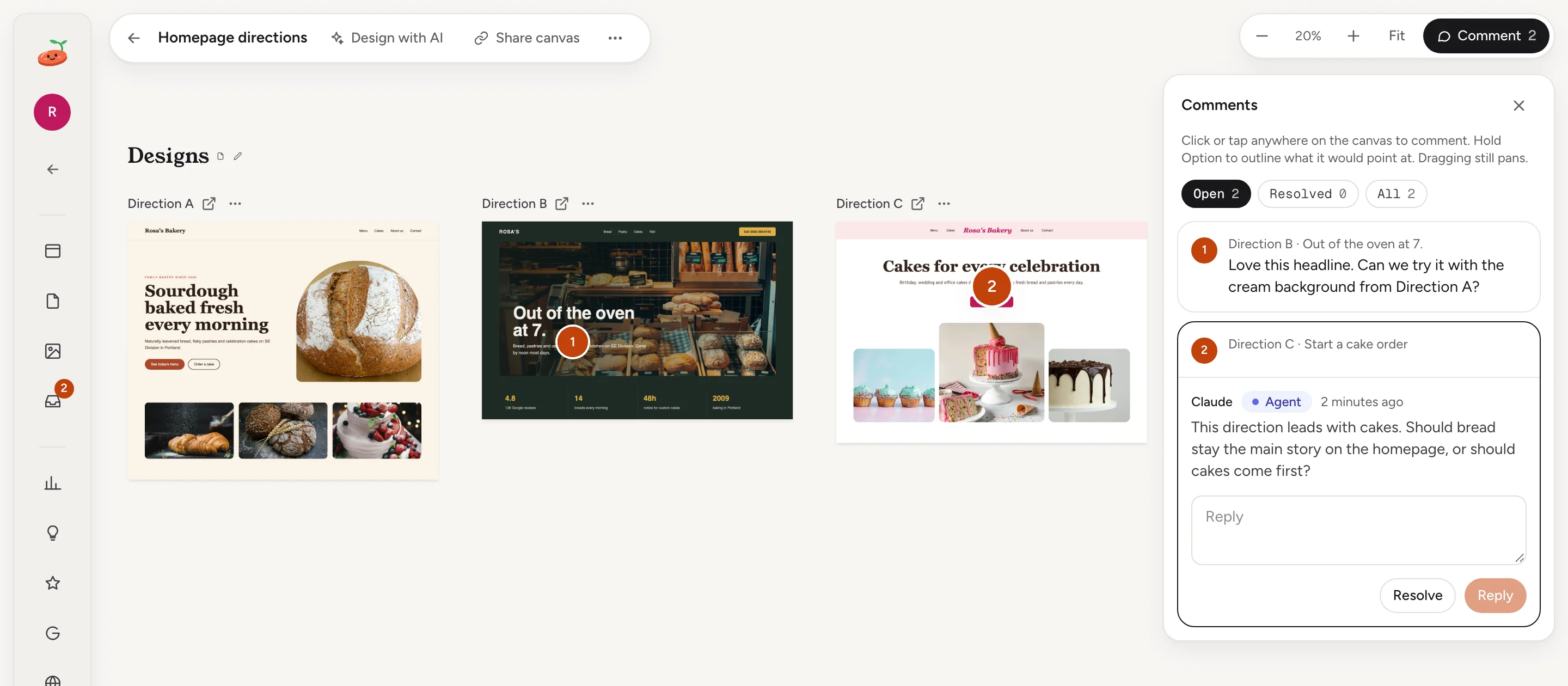
Press Comment and click anywhere on the canvas to leave a comment there. Hold Alt (Option) to outline the element a comment would point at. Type under Say what to change. Filter by Open, Resolved or All, reply, and mark a comment resolved or reopen it. Lentil AI or your agent acts on open comments, and its replies carry an Agent badge.
When your own agent designs
An assistant you connect follows the same design guide as Lentil AI: it designs complete pages with your site's theme and the facts in your business profile, shows desktop and mobile as views of one frame, and groups pages and directions in named rows.
Lentil cannot send your comments to an assistant on its own. So right after your agent shares the canvas link, it sets up a recurring check in its own app (for example a scheduled task or loop) that looks for new comments every 5 minutes. On each check it marks the comment as being worked on, makes the change, replies, and resolves it. A question or an unclear request gets a reply and stays open. Checks that find nothing stay silent.
Your agent tells you once that the check is running, how often, and how to stop it. Ask it to stop at any time, and it removes the check when the canvas is finished. If your assistant has no way to schedule tasks, it handles comments while your conversation is open and picks up any left later the next time it opens the canvas; or switch Who designs to Lentil AI to have every comment answered automatically with AI credits.
Turn a design into real pages
When a frame is what you want, make it a page:
- Open the frame's menu and choose Make a draft page from frame.
- In Make a draft page, set the Page title and Path. A path that is taken gets
-2,-3unless you type one. - The page uses the site's header and footer. If the canvas has its own header or footer that differs, a switch Use the canvas's header on the site (or footer) appears. It goes live on every published page right away, so leave it off unless you mean it.
- Press Create draft page. The new page is an unpublished draft; open it in the editor to review it.
To do many at once, choose Create draft pages in the canvas menu to review all placed designs; each frame becomes one draft page, up to 50 at a time, with a choice of view when a frame has options. Nothing goes public until you publish (see Publishing).
Share a canvas or a frame with a link
- Press Share canvas at the top, or choose Share in a frame's menu to share just that frame.
- Pick how long the link works under Link works for: 7, 14, 30 (the default), 60 or 90 days.
- Press Create canvas link (or Create panel link for a frame), then Copy link and send it.
Anyone with the link can look at the canvas without signing in. They cannot comment or edit, and they always see the latest version. Share links for this canvas lists your links with their expiry. To stop one, turn it off: Turn off this link? warns that anyone who has it will no longer be able to open it. A link also stops working if the person who made it loses access to the site, or if the shared panel is removed from the canvas.
On my Lentil site, make a design canvas called "Homepage directions" with a few different directions for the home page using my business profile. Then create a share link that works for 14 days and send it to me. Do not make any pages yet.Uses create_canvas, put_frames, get_frame_screenshot, create_canvas_share_link. Connect an assistant
Who can use it
- The site canvas can be opened by anyone who can see the site. Rearranging tiles and adding pages needs the permission to edit content. See Team and roles.
- Creating and changing design canvases, comments on them, and creating share links need the Pro plan and the permission to edit content, which owners, admins, members and clients have.
- Using a canvas's header and footer on the site needs the permission to change site settings.
- A site that goes back to Free keeps its canvases and their share links. You can still open them and turn links off, but not change them.
Limits and edge cases
- A canvas holds up to 100 frames and 100 views. A frame can be up to 1 MB. A frame name can be up to 80 characters, and a canvas title up to 120. A comment can be up to 5,000 characters.
- A canvas can have up to 20 active share links.
- When Lentil AI designs, it makes up to 3 frames per request.
- Using a canvas's header and footer on the site, or making a page with them, changes every published page immediately.
- On the site canvas you can zoom out to 2 percent. Page titles hide when the pages get too small to fit them, and section titles hide when they would overlap the row above. Layout changes are saved for the whole site, so other editors see them.
- Imported reference pages are shown as a snapshot: their scripts never run.
From an AI assistant
See AI assistants to connect one.
get_site_canvasandupdate_site_canvasread and arrange the site canvas.list_canvases,create_canvasandget_canvasmanage design canvases.put_framesadds frames,edit_framechanges one, andget_frameandget_frame_screenshotread and show them.update_canvas_layoutrearranges them.list_frame_versionsandrestore_frame_versionhandle frame history.import_reference_frameadds a page from a URL as a reference.promote_frame_to_pageandpromote_canvas_pagesmake draft pages.use_canvas_part_on_site(needsconfirmed: true) puts the canvas header or footer on the site and goes live immediately.list_canvas_comments,create_canvas_comment,set_comment_working,reply_canvas_commentandreopen_canvas_commenthandle comments.create_canvasandget_canvasalso return the design guide (guide) with the site'stheme,businessProfileandpages;get_content_guidelinesreturns the same guide ascanvasGuide.create_canvas_share_link,list_canvas_share_linksandrevoke_canvas_share_linkmanage links.
Updated 9 November 2026