
Getting started
Create your account with an email code, find your workspace, and start your first site, from a sentence about your business or from the website you already have. This page also shows where everything is in the app.
Create your account
- Go to app.uselentil.com/signup. The page says Create your account.
- Press Continue with Google to use your Google account, or type your email and press Email me a code.
- Open the email. Type the 6-digit code on the Check your email screen, or open the link in the email on the same device. There is no password to remember.
- You land on your sites. A brand new account has none yet, so you see How do you want to start? (see Create a site).
Creating an account means you agree to the Terms and Privacy Policy linked under the buttons. A new account is only made once the code or link proves the email is yours.
Sign in and out
- Go to app.uselentil.com/login, type your email and press Continue with email, or press Continue with Google.
- Type the 6-digit code from the email, then press Continue. The code is checked as soon as the last digit is in.
Opening the link in the email shows Confirm it is you: press Sign in to finish. Nothing happens until you press it, so a mail scanner that opens links cannot sign you in or use the link up.
If you type an email that has no account yet, the app takes you to Create your account with that email filled in.
To sign out, open the menu with your name at the bottom of the sidebar and choose Log out.
Did not ask for a code?The email says where the request came from. If it was not you, ignore it: nobody can sign in without the code or the link.
Your workspace
A workspace holds your sites, the people who work on them, your plan and your AI credits. The first time you sign in, Lentil makes one for you, named after you (for example Maya Chen's workspace), with you as its owner.
Someone who only joins through an invitation does not get an empty workspace of their own: they work in the workspace they were invited to.
Switch or add a workspace
- Press the workspace name at the top of the sidebar. The menu lists every workspace you belong to, with your role in each.
- Choose a workspace to switch to it. The app reloads in that workspace.
- To add one, choose New workspace, type a Workspace name and press Create workspace. You are its owner.
Use separate workspaces to keep sites and people apart, for example one per business you run. Rename a workspace and manage its people, billing and settings as described in Sites and workspaces.
Create a site
On your first visit, How do you want to start? asks about your site. You see your new homepage before you pay anything.
- Press Describe my site and tell Lentil about your business in a few sentences.
- Want to keep your site where it is hosted? Press Connect it for analytics and checks. See Already have a website.
Describe your site
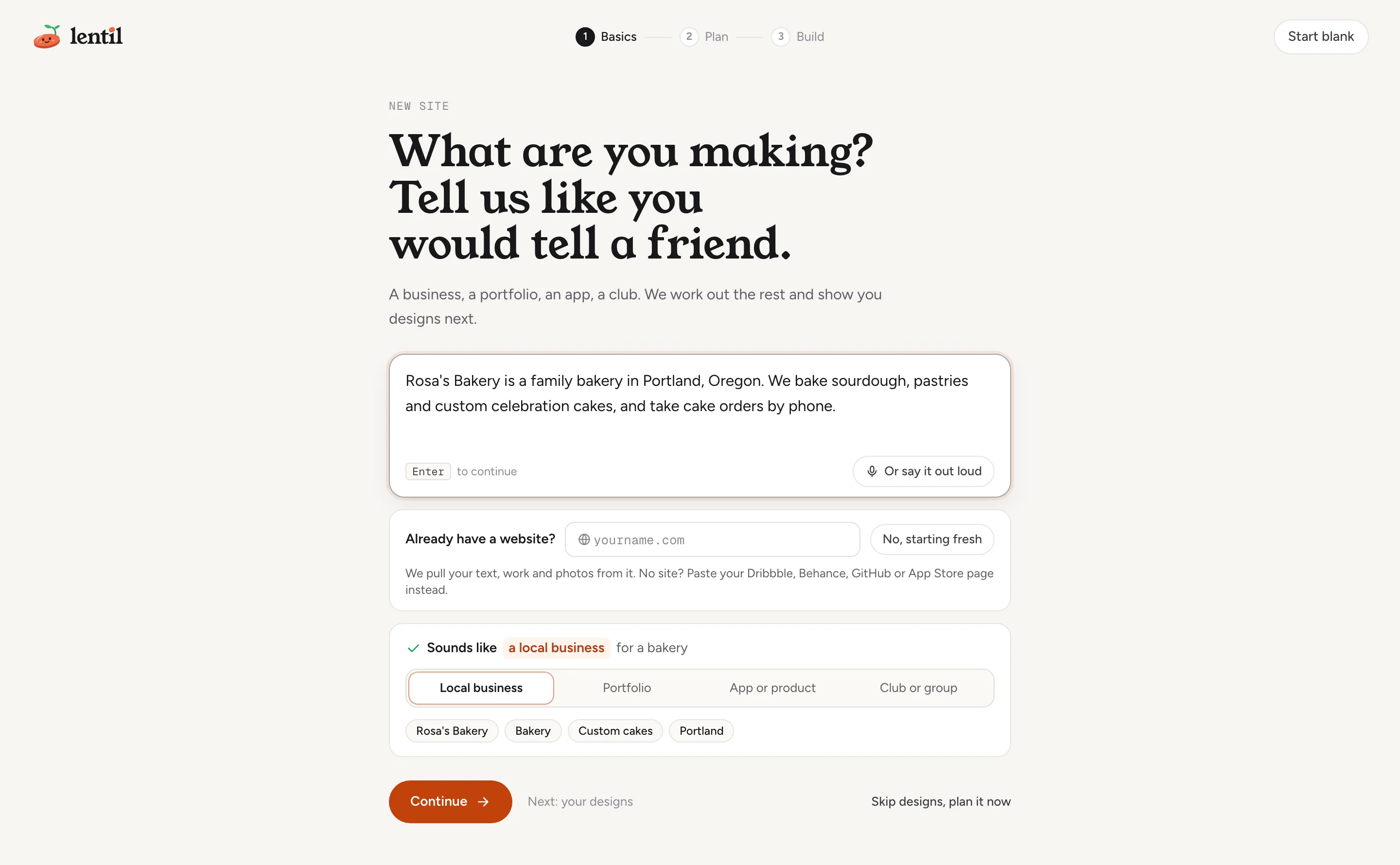
- Under What are you making? Tell us like you would tell a friend., write what you do, where, and who for. Press Or say it out loud to speak instead of typing.
- Under Already have a website?, type its address so Lentil reads your text and photos from it while it makes your designs, or press No, starting fresh. No website? A Dribbble, Behance, GitHub or App Store page works too.
- Check the line under your words, for example Sounds like a local business. Pick another kind of site there if it guessed wrong (see Site kinds). If Lentil could not find a name, type it under What is it called?
- Press Continue to go on to your homepage designs, or Skip designs, plan it now to go straight to planning the pages.
What happens next, from the look of your site to approving the build, is in Setup and your first design.
Create a new site in my Lentil workspace for Rosa's Bakery, a family bakery in Portland that bakes sourdough and custom cakes. Our current website is rosasbakery.com. Start the setup and tell me what you need from me next.Uses list_workspaces, create_site, get_setup_state. Connect an assistant
Add another site later
- Open Sites in the sidebar and press New site.
- In Create a site, choose Start from scratch and press Get started, or choose Keep my current hosting.
Start from a blank site
To skip the questions and designs, press Start blank at the top of the opener, or Start from a blank site instead in Create a site. Choose what the site is for, type its name, check the Subdomain (the app shows the address it will have) and press Create site. You get an empty site to build yourself.
Site kinds
Every site has a kind. It decides which questions setup asks, which details the site's profile has, what search engines are told about it, which checks run, and which Google tools are offered.
| Kind | For |
|---|---|
| Local business | A shop, online store, trade, studio, clinic, restaurant or practice serving customers in a place. This is the default. |
| Portfolio | One person's work, resume, CV or creator page. Called Personal or portfolio in some places. |
| App or product | An app, software or online service. |
| Club or group | A club, nonprofit, church, school, team or event. Called Club or organization in some places. |
Change it later in the site's Settings, under Site type in the first section (Business profile for a local business). Details the new kind does not use are kept, not deleted.
Find your way around
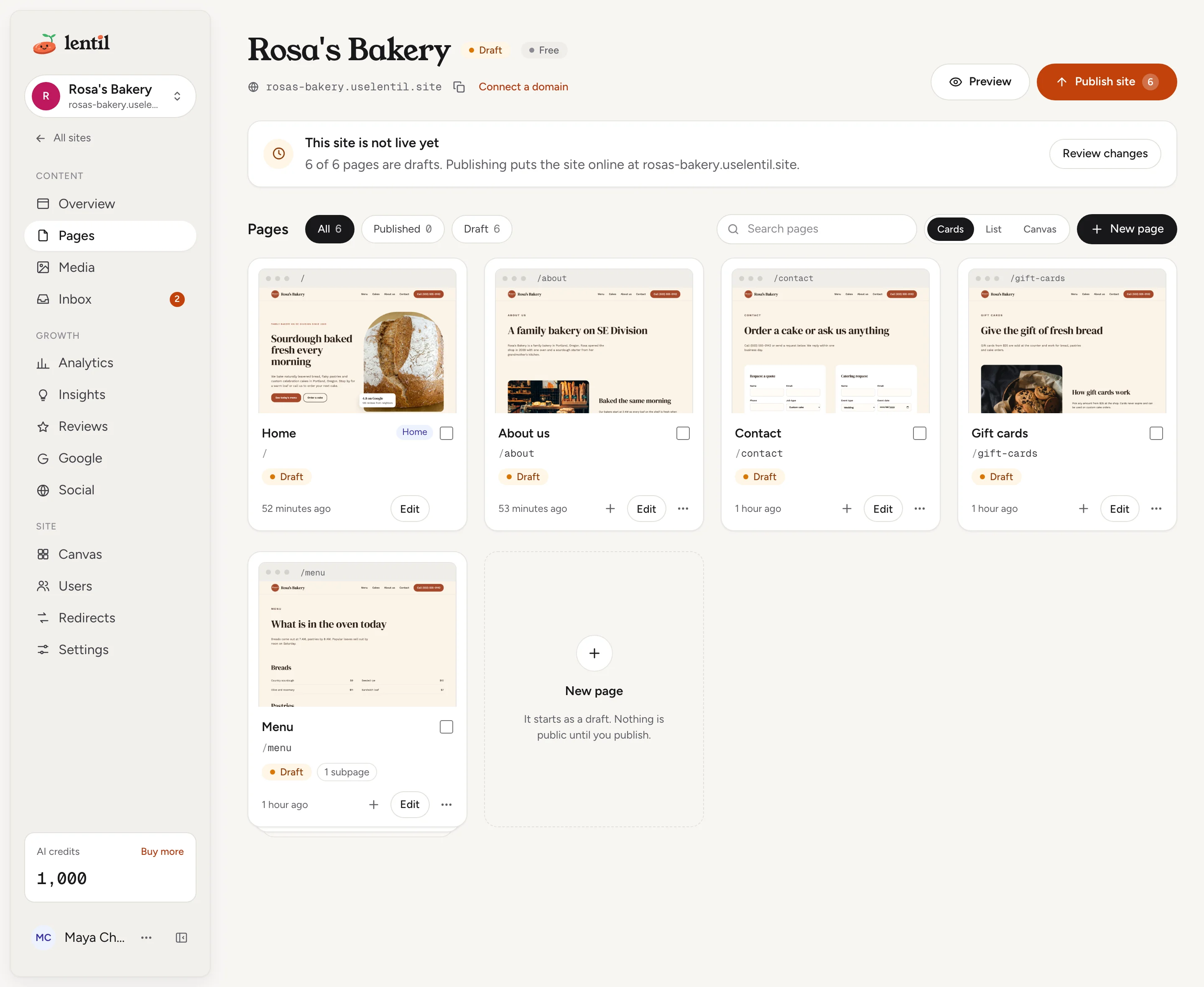
The app has one sidebar on the left. What it lists depends on where you are.
| Where | What you find |
|---|---|
| Top of the sidebar | The workspace switcher. Inside a site, All sites takes you back, and the site's name switches between your sites. |
| Workspace | Sites, and for owners and admins People, Billing and Settings. |
| A site: Content | Pages, Media and Inbox (the messages your forms receive). |
| A site: Growth | Analytics, Insights (checks and fixes), Google, and Reviews when the site has a review source (Google Business Profile today). |
| A site: Site | Canvas, Redirects and Settings, and for owners and admins Users. |
| Bottom of the sidebar | Your AI credits, and the menu with your name: Theme (Light, Dark or System), Profile, Help & support and Log out. |
Above every site screen is the site's header: its name, Live or Draft, its plan (Free or Pro), its address with a copy button, Connect a domain, Preview (the site with unpublished changes) and Publish site.
On a phone, press Open menu at the top to open the sidebar. On a computer, collapse it to icons with the button at its bottom.
Who can use it
- Anyone can create an account, and anyone signed in can create a new workspace, which they own.
- Owners, admins and members can create sites in a workspace. Clients cannot: they see only the sites shared with them. See Team and roles.
- Only owners and admins see the workspace's People, Billing and Settings. Only owners buy AI credits, start a Pro plan, change the payment method and buy domains. Owners, admins and members see the AI credits balance; clients do not.
- Every site you create starts on the Free plan. See Plans, billing and credits for what Pro adds.
Limits and edge cases
- A sign-in code has 6 digits. The code and the emailed link expire after 10 minutes and work once.
- After 5 wrong codes the code stops working: press Send a new code. A new code can be sent 60 seconds after the last one.
- One email can ask for 5 codes in 15 minutes. Past that, the app says how many minutes to wait. After a few requests from the same network you may be asked to pass a quick human check.
- You stay signed in on a device until you log out, or until you have not used Lentil there for 14 days. Every session ends 30 days after it started, however often you use it.
- A workspace name is up to 80 characters. A site name is up to 80 characters.
- A subdomain is 3 to 40 lowercase letters, numbers and hyphens, and must be free: no two sites share one. Some words are reserved, such as
www,helpanddocs. - A workspace can connect up to 3 external sites (sites that stay hosted elsewhere).
From an AI assistant
An assistant connected to Lentil works as you, with your role in each workspace. See AI assistants to connect one.
list_workspaces: your workspaces with their ids, your role, and whether you can create sites or move sites there.create_sitewithorganizationId,nameand optionallykind(local,personal,productororg),businessProfile,existingSiteUrl(read in the background) andstartSetup: trueto start setup as the app does.get_setup_stateandanswer_setup_question: read and answer setup's questions. See Setup and your first design.
Safety rules: pages an assistant builds stay drafts until you publish.
Updated 9 November 2026