
Already have a website
Keep a website you already have where it is hosted, and connect it to Lentil for analytics and checks. If you would rather have a new Lentil site, setup can read your current website for its words and photos.
Choose a path
| You want | Choose | What happens |
|---|---|---|
| To leave the site where it is, and still see traffic and checks | Connect it for analytics and checks or Keep my current hosting | Lentil never edits or hosts it. You add a small snippet, prove you own the site, and get analytics and checks. |
| Just a new design that borrows from your current site | Start from scratch and give your address | See Setup and your first design. |
Keep your site where it is
A connected external site stays on its own host. Lentil does not edit, publish, host or point domains at it. You add a snippet to its pages, prove you own it, and Lentil observes it.
Connect it
- On a new account, press Connect it for analytics and checks under the start options. Otherwise open Sites and press Connect external website, or press New site and choose Keep my current hosting.
- Type the site's Public website origin, an HTTPS origin like
https://example.com. Paths, query strings and fragments are not supported. Type a name and, if you want, change the site key (a unique id for the site; your website address stays the same). - Press Create site. You land on Settings, headed External website installation.
Install the snippet and verify
- Under Installation snippet, press Copy installation snippet.
- Paste it inside the
<head>of every page on that exact origin, as an async script. Publish the change with your own host. - Press Verify snippet. The status becomes Verified - awaiting events, then Receiving events once your site sends data. Visit your site after installing to speed this up.
If your provider changes the HTML, use Alternative ownership proof: file or DNS instead. Serve the file Lentil shows at the path it gives, or add the DNS TXT record it shows. DNS proof proves ownership only; keep the snippet installed to send events. If the challenge expires or fails, press Get fresh challenge, update your installation, and try again.
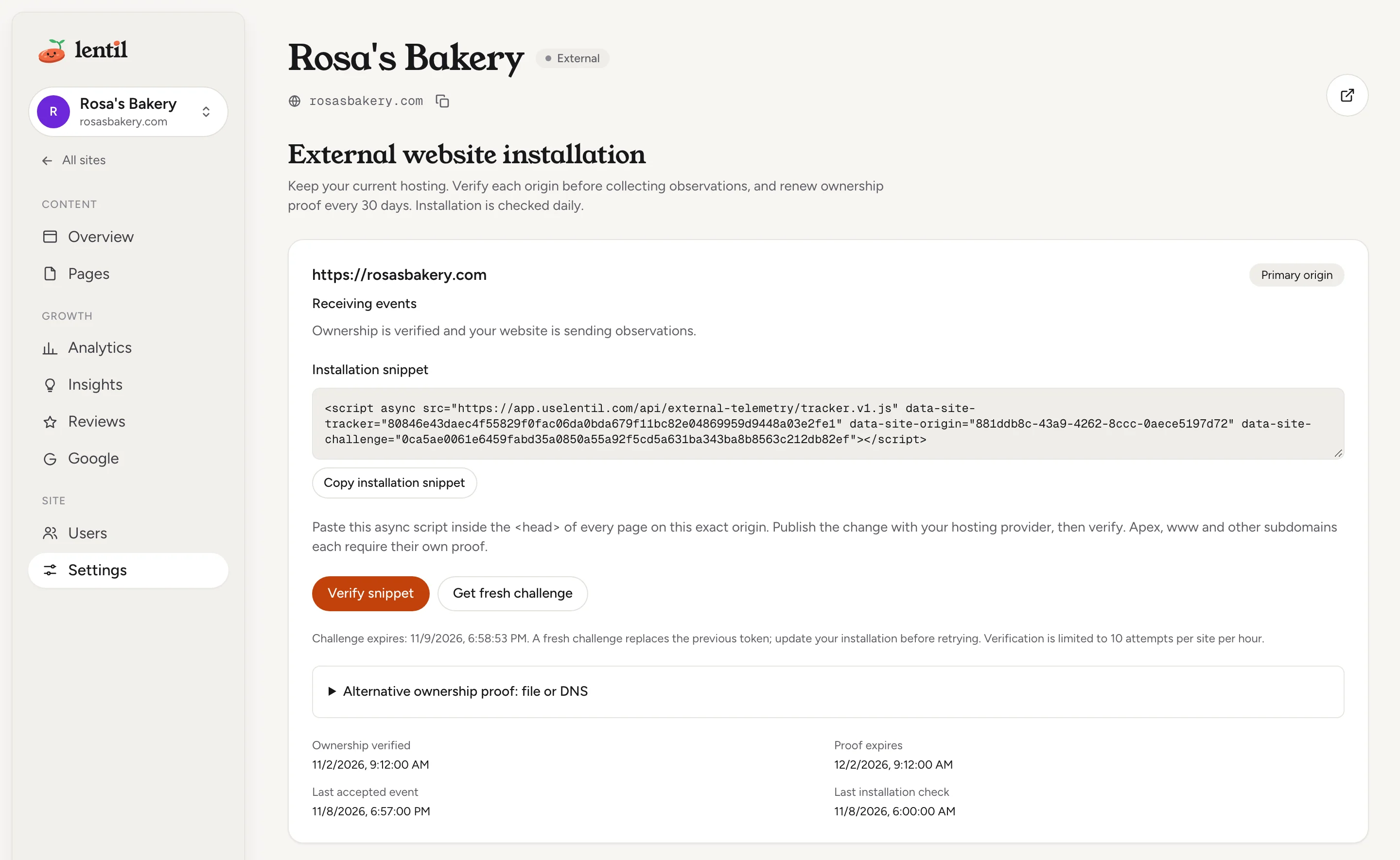
Proof expiresOwnership proof lasts 30 days. Lentil checks the installation daily. When proof expires, collection pauses (the status reads Proof expired) until you request a fresh challenge, install it and verify again.
What you get
- Analytics: page views and performance from your tracker, with a Website observations health panel that says if events are arriving.
- Pages: the public pages Lentil observes, not editable pages. Press Refresh pages (optionally with a sitemap address) to discover pages, or Add URL to add one. Each page shows its title, how it was discovered, last fetched time, response, and saved findings.
- Insights: website checks on observed pages, as in Checks and fixes.
- Google and Reviews where they apply.
The sidebar of an external site has no Media, Inbox, Canvas, Redirects or publishing. Editing, publishing and forms stay in your own application.
Manage the connection
- Add an explicit origin adds a second origin, such as the www version. Apex, www and other subdomains each need their own proof. Redirects never authorize another origin.
- Change origin replaces the primary address. It revokes all current origins at once and needs fresh proof. Reporting history is kept.
- Rotate tracker ID invalidates the installed script at once. Install the new snippet and verify again.
- Disconnect tracking stops collection immediately. Reporting history stays, and reconnecting needs fresh proof.
- Tracking privacy and limits lets you exclude paths, redact dynamic path prefixes (for example
/usersturns/users/123into/users/:id), and track hash routes such as#/pricing. Press Save privacy rules. - If your site uses a Content Security Policy, add the sources shown under Content Security Policy to your existing directives.
Queries and fragments are removed from tracked addresses. Account, admin, authentication, login, logout, password-reset and checkout routes are always excluded. No cookies, user IDs, form contents or raw IPs are stored.
Connect rosasbakery.com to Lentil as an external site that stays where it is hosted. Give me the snippet to install, tell me when it is installed, and then verify it.Uses create_site, get_external_installation, verify_external_installation, refresh_external_pages. Connect an assistant
Who can use it
- Connecting an external site needs permission to create sites (owners, admins, members). Installing, verifying and changing tracking settings needs site settings access; anyone who can see the site can view the installation details.
Limits and edge cases
- A workspace can connect up to 3 external sites. Each site can have up to 3 origins, including the primary.
- Verification is limited to 10 attempts per site per hour. A challenge lasts 24 hours; ownership proof lasts 30 days.
- Tracking allows 60 events per minute for a tracker and network pair. Reports show up to 90 days. When an event limit is reached, collection pauses until it resets.
- Refreshing external pages runs one at a time, with up to two per UTC day. Lentil keeps up to 500 URLs and fetches up to 100 pages in a run; pages missing from a sitemap keep their history.
- Moving or deleting an external site never changes your website. Telemetry stays suspended after a move until the site is verified again in the new workspace.
From an AI assistant
An assistant connected to Lentil works as you, with your role in each workspace. See AI assistants to connect one.
- External sites:
create_sitewithhostingMode: "external"andexternalUrl,get_external_installation,verify_external_installation,add_external_origin,refresh_external_challenge,replace_external_origin,rotate_external_tracker,disconnect_external_tracking,update_external_tracking_settings,get_external_page,add_external_page_url,refresh_external_pages.
Safety rules: Lentil never edits, publishes or hosts a connected external site. Changing the origin, rotating the tracker or disconnecting tracking takes effect at once, so an assistant should confirm with you first.
Find and review an import
An assistant can pick up an import you started in the app, or one whose id it lost, and tell you how it went.
list_importslists a site's imports, newest first, with each one's status, mode and source address.get_import_statusshows where an import is: its pages with their status and errors, a newer run of the same import if there is one, the pages left to continue and the failed pages a retry would rebuild.get_import_reportshows what an ended import moved and what needs attention: each page's result, redirects, scripts, forms, files and notes.get_import_page_screenshotreturns a screenshot of one page of an import that moved a site as-is, from the original site or the rebuild, on desktop or mobile, to compare them.
These need permission to run imports on the site. Each one is also an endpoint of the Public API.
Updated 9 November 2026