
Languages
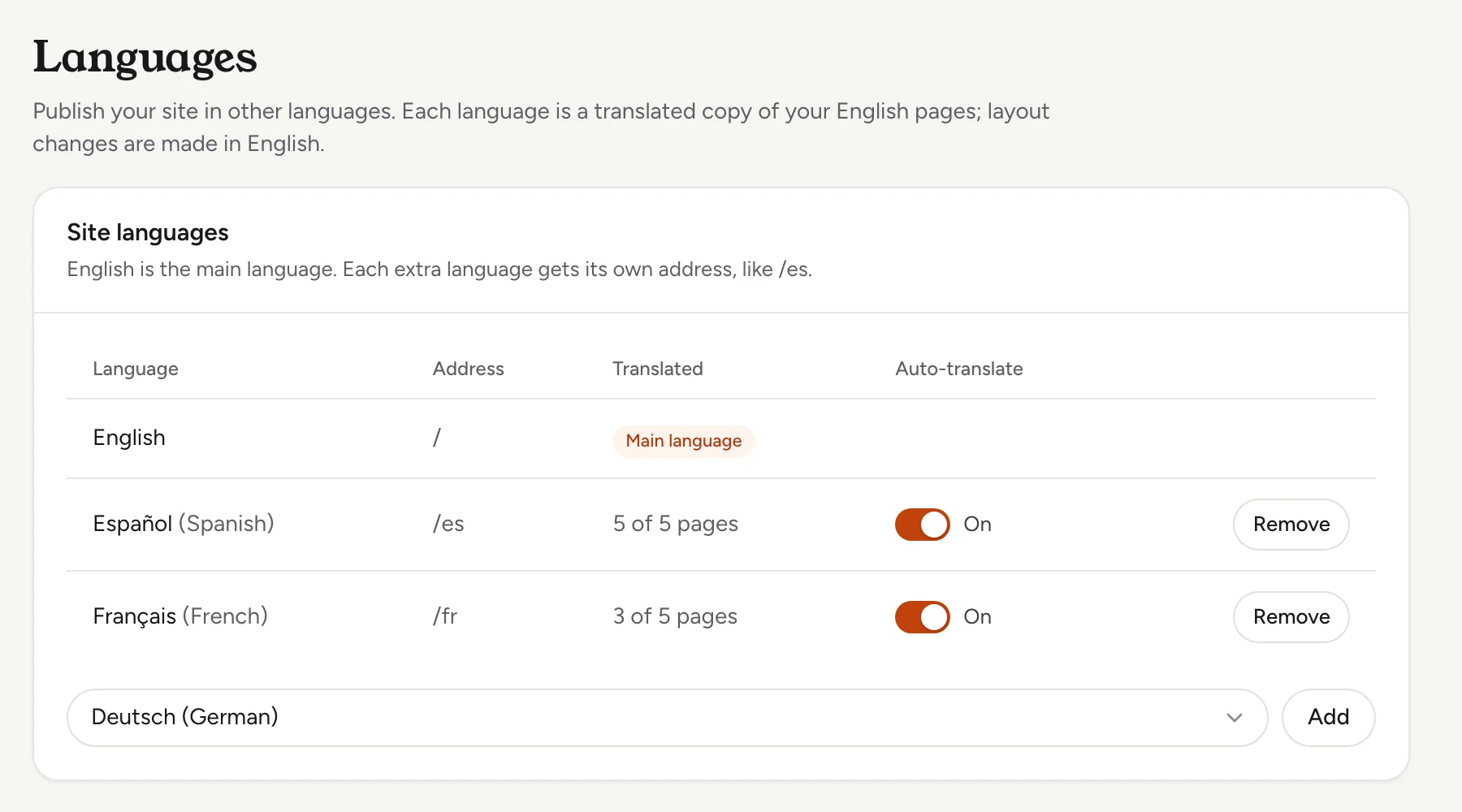
Publish your site in more languages. You write your pages in English, and Lentil translates the published pages with AI and serves each language at its own address, such as /es.
How it works
English is the main language of every site and stays at the root of your address. Each extra language is a translated copy of your English pages, served under its own path. For Spanish, the home page is at /es and the contact page at /es/contact.
- Layout always follows the English page. You change layout and content in English, and the translations follow when you publish.
- Lentil translates the text of your published pages, their titles, search titles and descriptions, text such as image descriptions and form placeholders, the header and footer, and the site's search description. Page structure, links and scripts stay as they are.
- Search engines are told about every language version with
hreflanglinks, and each version appears in the sitemap. - Translation uses AI credits. Only text that is new or changed is translated, and earlier translations are reused.
Pick from these languages: Spanish, French, German, Italian, Portuguese (Brazil), Dutch, Polish, Vietnamese, Chinese (Simplified), Korean, Japanese, Tagalog and Russian.
Add a language
- Open your site, choose Settings, then Languages. The card is called Site languages.
- Under the table, pick a language in Language to add and press Add.
- A dialog titled Add Spanish? says how many words will be translated and about how many credits it costs, for example About 1,200 words to translate, about 3 credits. If the words are already translated, it says Nothing new to translate.
- Press Add language. Your published pages are translated and published under the new address.
The table lists each language with its Address and a Translated count, for example 3 of 5 pages. The English row is marked Main language.
If your workspace does not have enough credits, the dialog says so and Add language stays off. Buy credits, then add the language. If the credits are only held by AI work running now, wait for it to finish and try again.
Add Spanish to Rosa's Bakery. First tell me how many words will be translated and what it will cost in credits, then wait for me to say yes.Uses get_site_languages, update_site_languages. Connect an assistant
Keep translations up to date
Each language has an Auto-translate switch. While it is On, publishing a page, or a live change to the header, footer or site search description, translates what changed in that language. Only changed text is sent, so small edits cost little.
- In Site languages, find the language.
- Switch Auto-translate to On or Off. The change saves by itself.
Turning it on translates the published pages right away, and costs credits the same way adding a language does. With it off, the language keeps the translations it has, and new or changed text stays in English until you turn it back on.
A Needs credits badge next to a language means the last translation was skipped because the workspace ran out of credits. English still published as usual. Credits arriving later do not restart the translation by themselves: after you add credits, switch Auto-translate off and on again for that language to translate what was skipped. See Plans, billing and credits.
See a translation in the editor
In the page editor, once the site has an extra language, the language picker shows Page language. Choose a language to view that translation. It is view only: the editor says Edit in English; translations update when you publish. Choose English to edit again.
Remove a language
- In Site languages, press Remove on the language.
- The dialog Remove Spanish? says its pages come off the site and
/esstops working. Press Remove.
Translations are kept, so adding the language back later costs nothing for text that has not changed.
Check the result in a real languageThe AI translates well, but names and prices matter. Lentil starts a glossary from your business name and street addresses so they stay as written.
Who can use it
- Anyone with access to the site can see its languages. Owners, admins, members and clients can add, remove and switch auto-translate. See Team and roles.
- Every plan includes extra languages for each site: 2 on Free, 5 on Plus and unlimited on Pro. See Plans, billing and credits.
Limits and edge cases
- At the limit, the card says how many extra languages the site's plan includes. Remove one to add another, or move the site to a bigger plan.
- A language cannot be added while a page or a redirect already uses its path. The message names them, for example the pages at
/es. Move or delete those pages, and delete those redirects or move them to another old address, first. - Only published pages are translated. A draft page has no translation until you publish it. The Translated count compares against your published pages.
- A translation can change words but never layout, links or scripts. Text that has not been translated yet shows in English.
- Right-to-left languages are not offered.
From an AI assistant
An assistant connected to Lentil works with your role. See AI assistants.
get_site_languages: the site's extra languages (path, auto-translate, how many published pages are translated, whether credits are needed), the languages that can be added, and the plan's limit.update_site_languages: add or remove languages by code (for examplees,fr,pt-BR) and switch auto-translate per language.get_pagewithlocale: read a page as it reads in a language, with its translated title and search fields. Translations are read-only; edit the English page.
Safety rules: adding a language spends AI credits. Without confirmed: true, update_site_languages changes nothing and returns the estimate of words and credits, which the assistant must show you. It is refused with insufficient_credits when the workspace cannot pay.
Updated 9 November 2026